
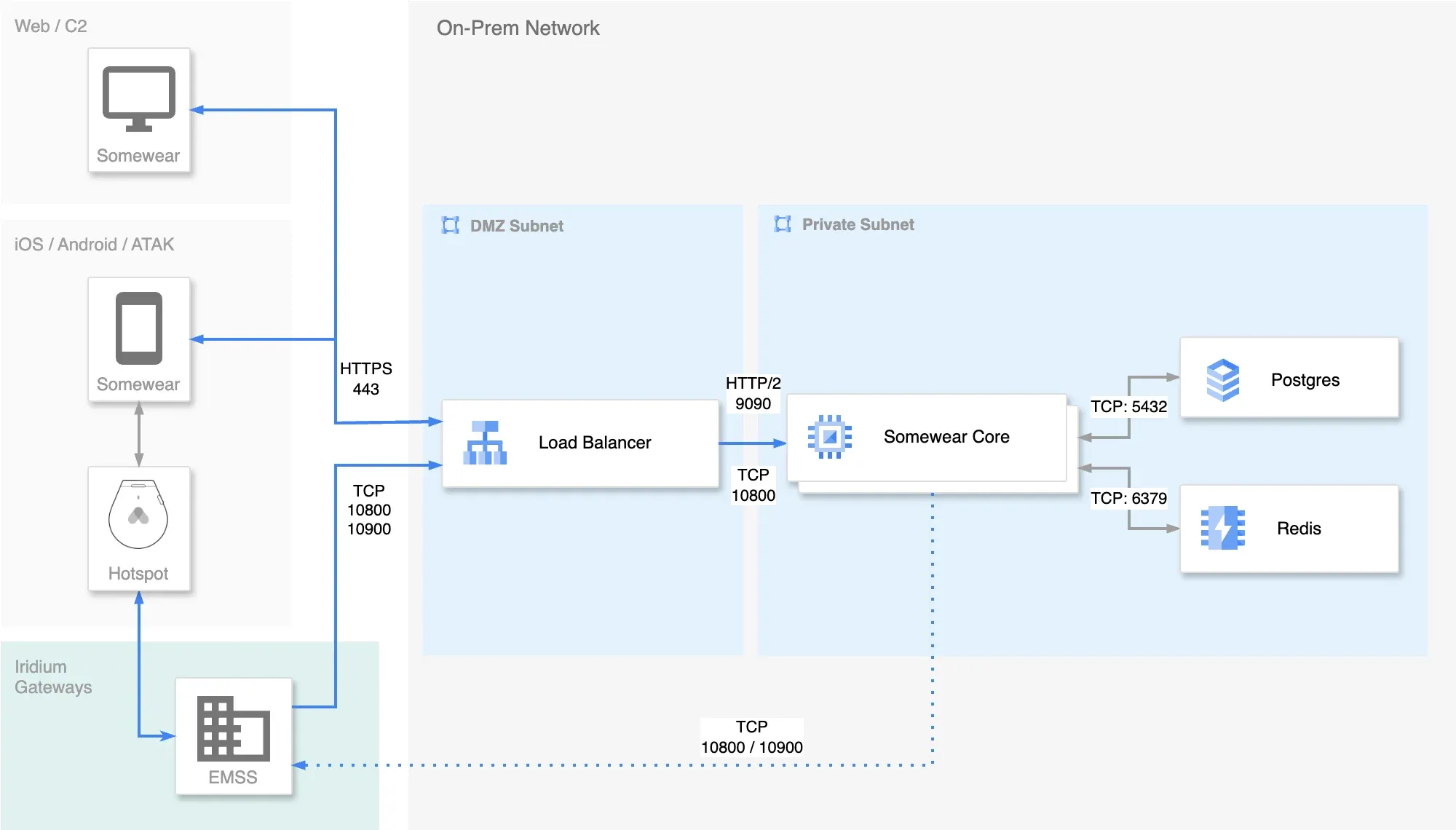
Install Somewear Core as a highly available, multi-host deployment: each host runs the Core service, and all hosts share a single external Postgres (with PostGIS) instance and a single external Redis instance. Run the steps below on every host in the deployment.
What you’ll need
- An already-deployed, externally-managed Postgres instance with the PostGIS extension installed, reachable from every host that will run Somewear Core. This install method does not provision Postgres for you — that’s the key difference from Single Instance, which runs Postgres and Redis as containers on the same box.
- An already-deployed, externally-managed Redis instance, reachable from every host.
- One or more servers running Ubuntu or Debian Linux, each with:
- 2 CPU cores
- 8 GB RAM
- 40 GB disk storage
- An API token provided by Somewear Labs.
- A load balancer in front of the hosts — see Caddy Load Balancer if you need one.
Each host runs the Somewear Core service and connects out to the same Postgres and Redis instances; the load balancer sits in front of the hosts and distributes traffic across them.
Architecture
Install the Pilot CLI and Docker
Run the installation script on the host. It installs Docker, creates the pilot user, sets up the Pilot CLI tool, and initializes the configuration directories.
curl -sSL https://get.somewear.app/core/install.sh | bashConfigure the host against your external datastores
-
Switch to the
pilotuser:sudo su - pilot -
Initialize the configuration with the
--external-datastoresflag, which prompts for your Postgres and Redis connection settings instead of provisioning local containers:pilot init --external-datastores -
Answer each prompt. You’ll need the API key Somewear Labs gave you, the DNS address for this installation, credentials for a system admin account, and your Postgres and Redis connection details. Example output:
$ pilot init --external-datastoresCreating new Pilot configuration file at ~/.config/somewear/pilot.properties...Enter a value for each propertyapi-key (Pilot API key provided by Somewear Labs): <REDACTED_API_TOKEN>api-address (Web address for the api server. i.e. api.somewear.co): somewear.example.orgConfiguration file created.Creating new Somewear core configuration file at ~/.somewear/pilot/core/somewear.conf...Enter a value for each propertyWEB_APP_URL (Web address URL for the server. i.e. https://api.somewear.co): https://somewear.example.orgSOMEWEAR_IDENTITIES_TO_CREATE (Somewear system admin account (formatted as username:password)): somewear:P@ssw0rdPOSTGRES_DB_HOST (Formatted as host:port): postgres.company.local:5432POSTGRES_USER (Postgres username): postgresPOSTGRES_PASSWORD (Password for Postgres user): myS3cr3tREDIS_HOST (Redis hostname): redis.company.localREDIS_PORT (Redis port): 6379Configuration file created.
Start the Somewear Core service
-
Generate the Docker Compose file for the Somewear Core service:
pilot node docker-prepare --external-datastores -
Start the service:
docker compose up -d -
Optionally, follow the container logs to watch the application come up:
docker logs -f somewear-core -
Repeat every step on this page on each additional host in the deployment. Every host points at the same Postgres and Redis instances.
Verify the install
Each host’s somewear-core container logs should show the service starting cleanly and connecting to your Postgres and Redis instances, with no connection errors. Once every host is up and passing this check, put them behind your load balancer.