
Prerequisites
- Windows 10 or Windows 11
- Minimum 4 GB system memory
- Minimum 500 MB free storage
- Internet access during setup and for periodic updates
- A Somewear Organization account and login credentials (refer to your Organization Admin for account provisioning)
Installation Procedure
Install Beam using the provided Windows installer, or download the latest version from: https://somewear.app/app/settings/downloads
API Key Configuration
The API key authorizes Beam and Horizon UI to exchange data with your Somewear Organization. Generating an API key is an Admin function — general (non-Admin) users do not perform this step. If the user has Admin credentials on their Somewear Organization account or Workspace, Beam will automatically generate an API key on first sign-in. If the user does not have Admin privileges, an Organization Admin must generate an API key and provide it to the user for manual entry at initial login. To generate a key manually (Admin):
- Log in to the Beam web portal at somewear.app (or your on-premises hosted environment).
- Navigate to Account → Integrations (bottom-left menu).
- Select Create API Key.
- Name the API key and check the Horizon integration checkbox.
- Copy the generated key and store it in a secure location.
- In Horizon UI, open Diagnostics on the navigation rail.
- Select the Config tab.
- Edit the api-key row (pencil icon) and paste the key.
- Save the row (checkmark).
Using the API key: A non-Admin user enters the provided API key at initial login. The key can also be viewed or changed later from Diagnostics → Config in Horizon UI.
Starting Beam
- Open the Beam application from the Start menu or program folder.
- Beam does not open a full window — it appears as a system tray icon (Somewear logo, light gray).
- Click the system tray icon and verify the Beam server is running, indicated by a selectable Stop Server option.
- If Beam server is not running, select Start Server. After a few seconds the icon should turn solid gray, indicating the server is running.
- To confirm, click the icon again — the menu should now show Stop Server and an Open Horizon Manager option.
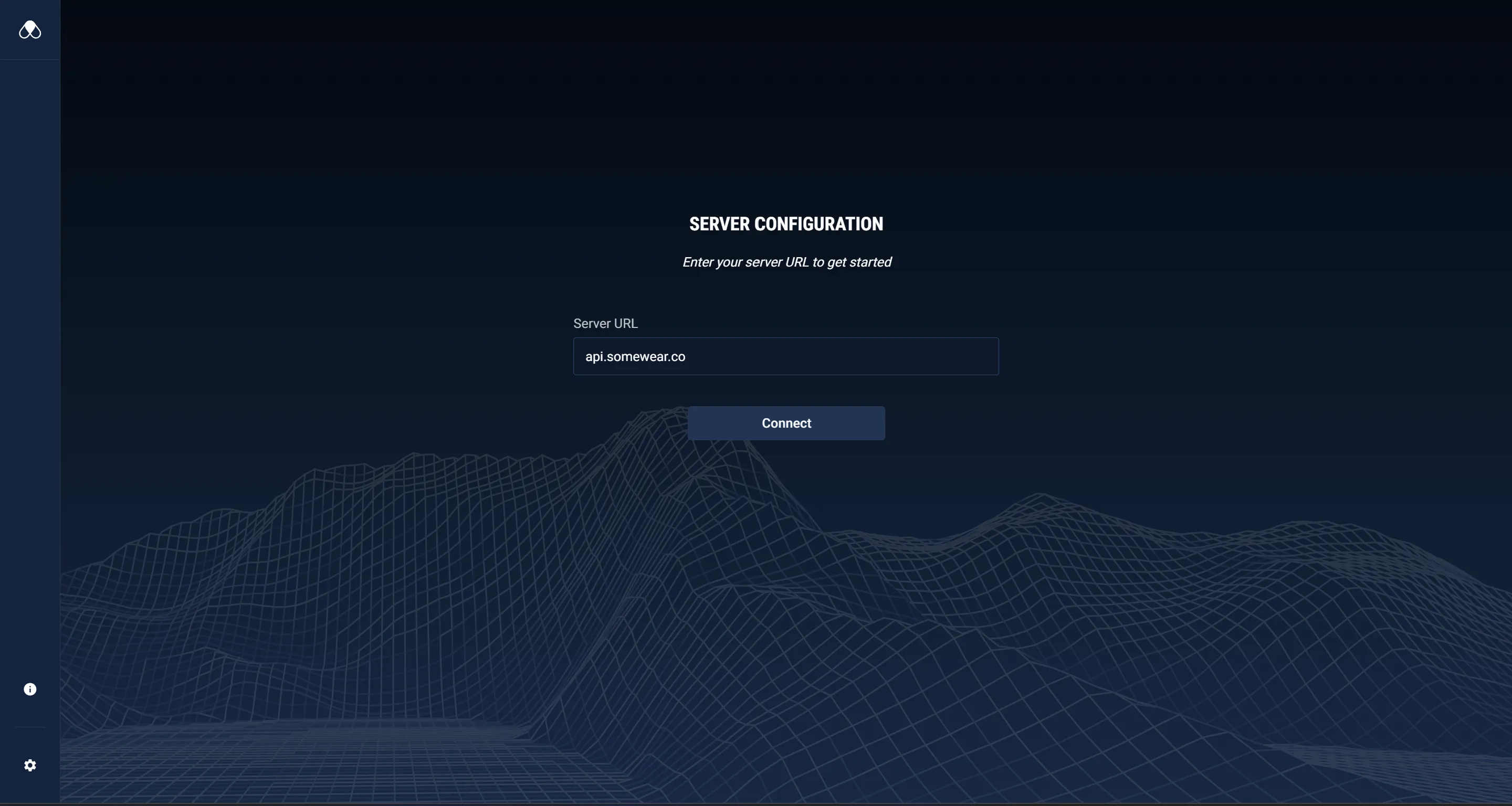
First-time setup: On initial launch, Horizon UI shows the Server Configuration screen — enter your organization’s API server URL (for example, api.somewear.co) and select Connect. Horizon UI will typically open a second tab where you enter your organization credentials. API key handling (automatic generation for admins, manual entry for non-admins) is described above under API Key Configuration.
If Horizon UI displays “Missing API Key,” refer to Troubleshooting.