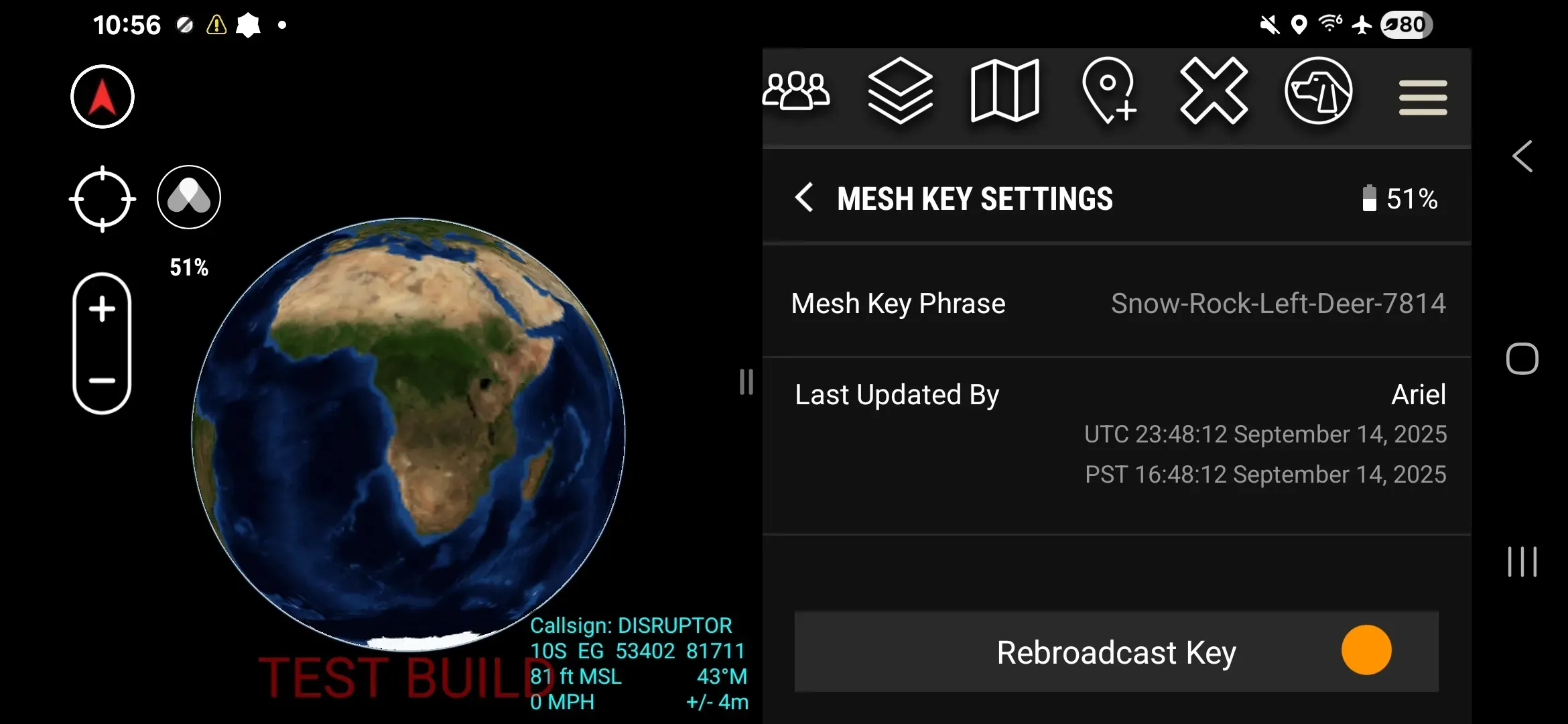
Rotate the mesh encryption key across your Workspace — on a fixed schedule or immediately on demand. Devices that miss a rotation can re-sync once they reconnect via the Rebroadcast Key function.
Prerequisites
- Somewear ATAK Plugin version 1.1.19 or later. Operators without a compliant version cannot communicate with team members over mesh in a Workspace with key rotation enabled.
- Node firmware version 3.27.18 or later
- Admin role in the Workspace
Enable Key Rotation
Key rotation is enabled from the Somewear web portal. Enabling key rotation for a Workspace is permanent — once activated, it cannot be turned off.
- Open the Somewear web portal and navigate to Workspace Settings → Advanced Network Settings.
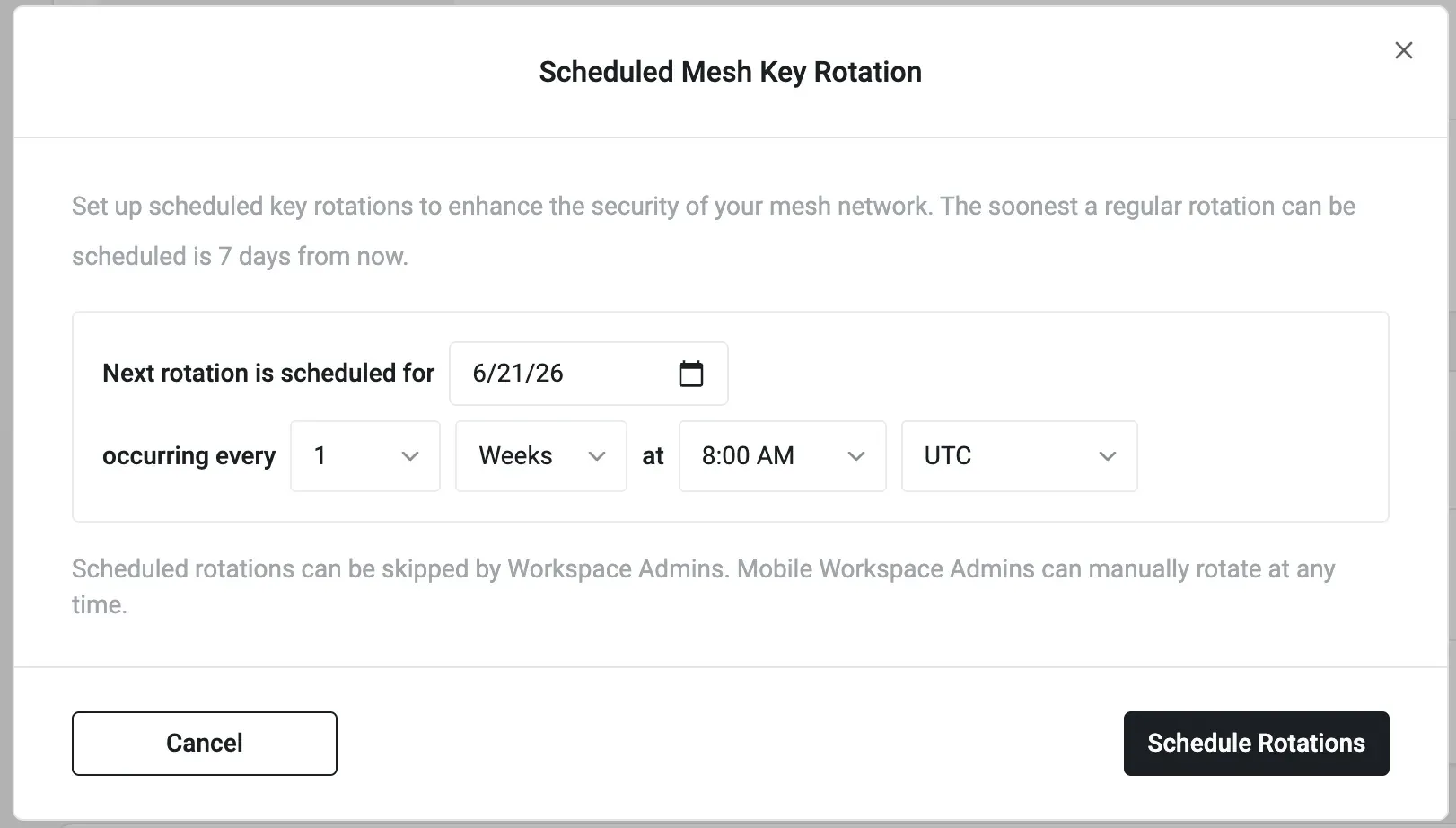
- Enable key rotation. The Scheduled Mesh Key Rotation dialog opens.
- Set the date of the first rotation. The soonest a rotation can be scheduled is 7 days out.
- Set how often the key rotates — every N weeks or months, at a fixed time and timezone. The rotation period cannot exceed one year.
- Click Schedule Rotations.
Scheduled Rotations
Scheduled rotations run automatically at the configured interval. You do not need to take any action.
- The new key distributes over all available network paths: mesh, satellite, LTE, and WiFi.
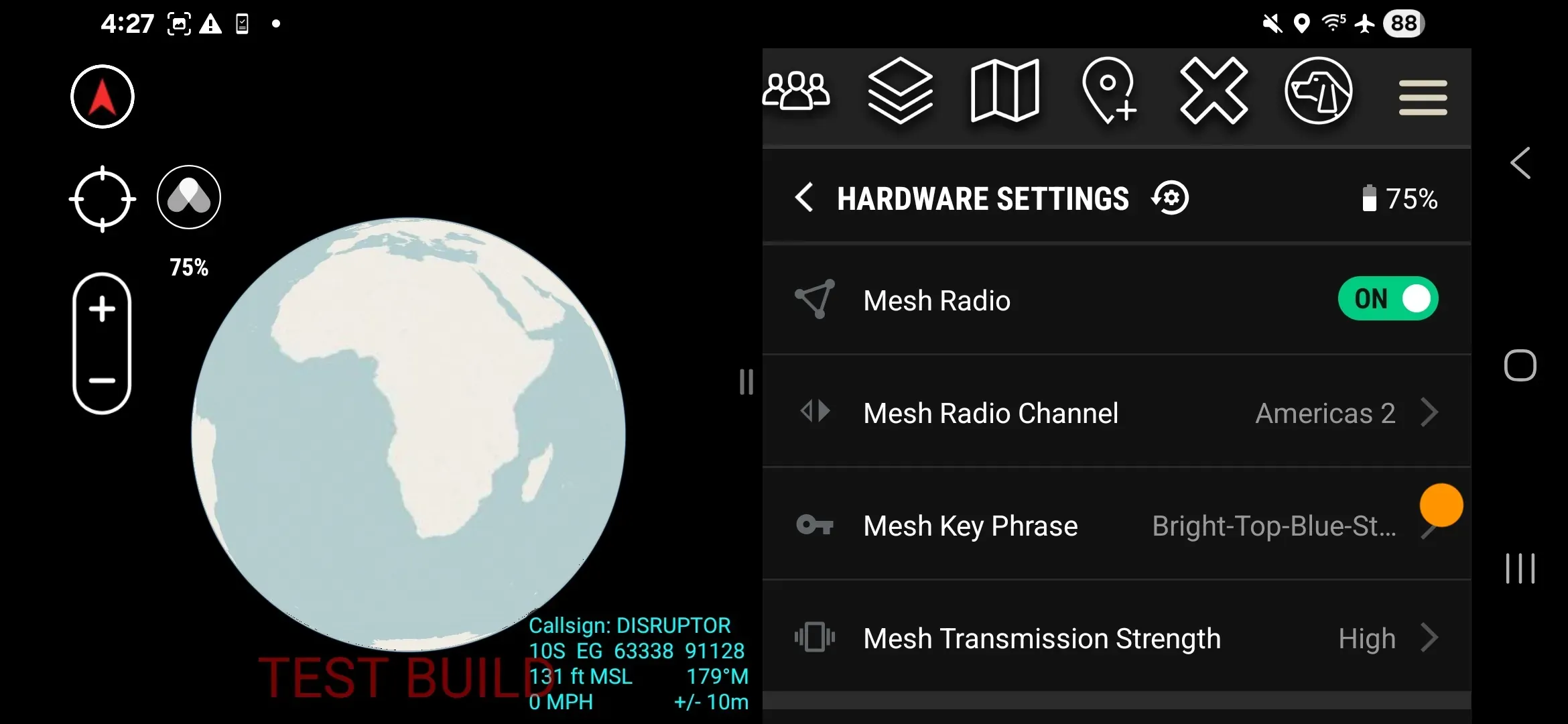
- To check the next scheduled rotation date, open the plugin and go to Hardware Settings → Mesh Key Phrase.
Skip a Scheduled Rotation (Admin)
Workspace Admins can skip an upcoming scheduled rotation from the Somewear web portal, under Settings → Advanced Network Settings. Skipping applies only to that occurrence — the schedule will continue at the next configured interval.
ATAK: On-Demand Key Rotation (Admin)
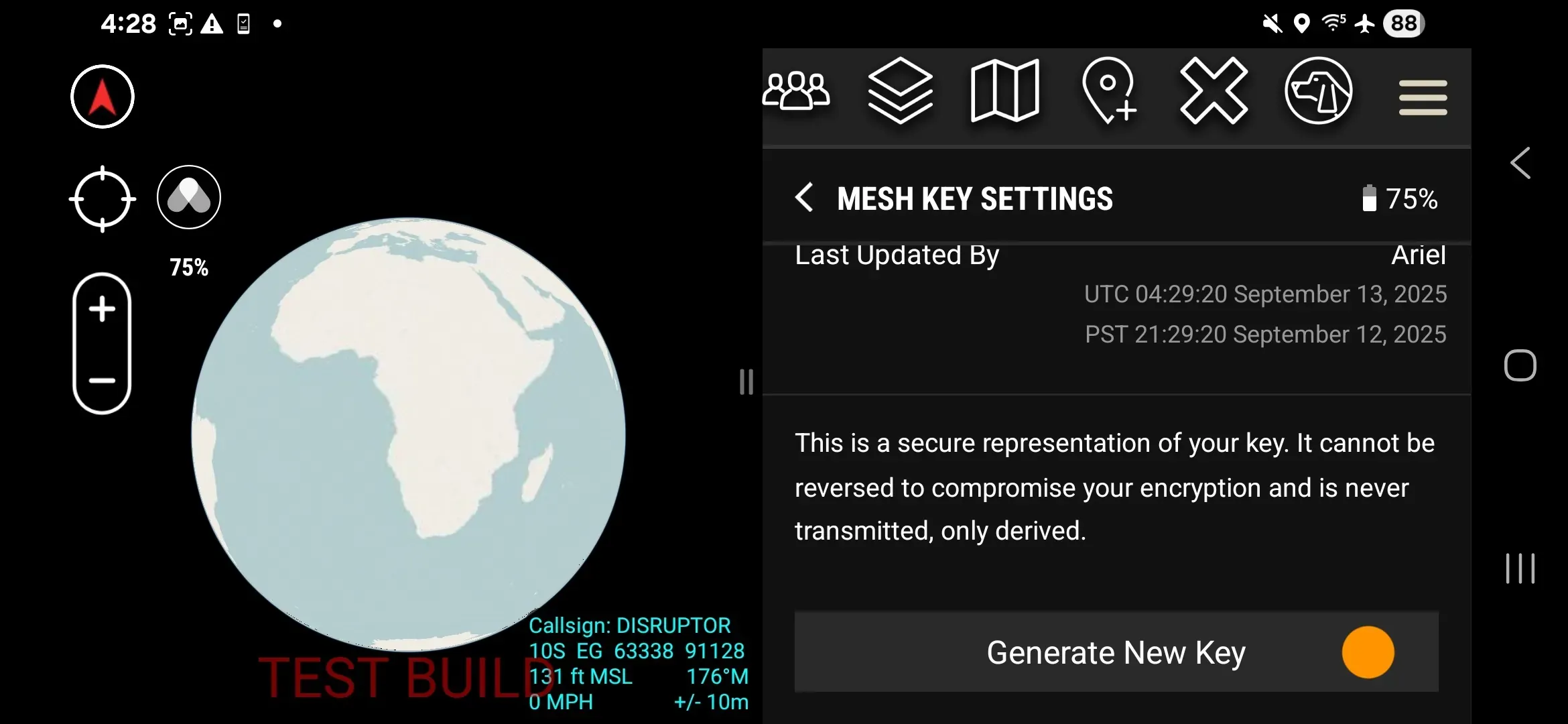
- In the ATAK plugin, open Hardware Settings → Mesh Key Phrase.
- Tap Generate New Key.
- Review the new key phrase displayed on screen.
- Tap Execute Key Rotation.
- Tap Confirm.
The new key distributes over all available network paths.
Check Key Distribution Status (Admin)
After rotating the key, tap the Mesh Key Phrase row to open Mesh Key Details. This screen shows how many devices have received the updated key and how many are still pending.
To resend the key to pending devices, tap Rebroadcast Key.
Member View
Members see the current Mesh Key Phrase for reference. Members cannot initiate a rotation.
The Mesh Key Phrase is displayed read-only, so Members can confirm the current key phrase without changing it. The Rebroadcast Key control lets a Member re-share the current key to another Member or device that was isolated during a rotation.