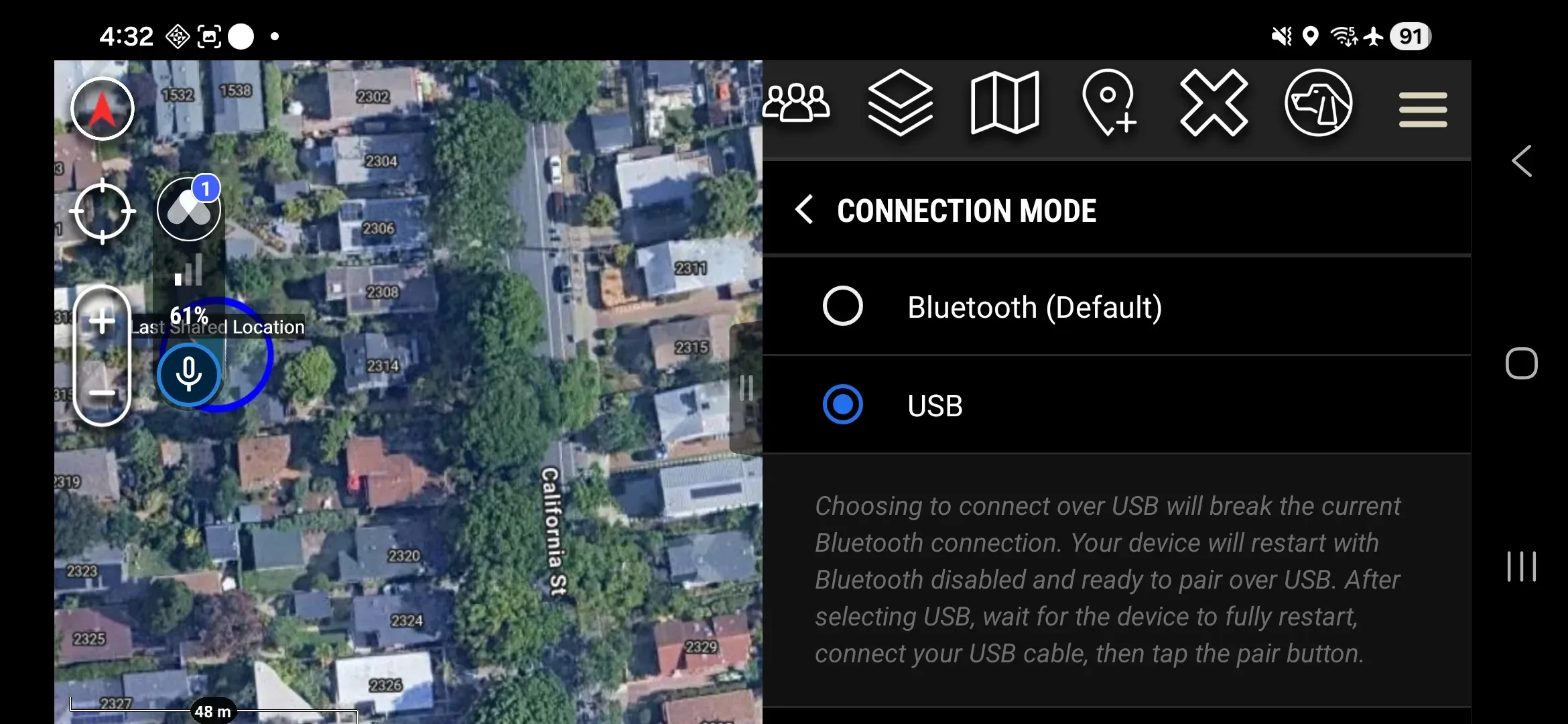
Most pairing failures trace back to one of three causes: the Node is not in pairing mode, the Android device’s Bluetooth is off or has stale pairing records, or multiple Nodes in range are blocking an automatic prompt. Work through the symptom that matches your situation below.
No pairing prompt appeared
 Check 1 — Is the Node in pairing mode?
The Node must show a fast white LED blink. Any other LED pattern means the Node is not in pairing mode.
If the LED is off or showing a different pattern:
- Hold the Power Button until the LED goes completely dark.
- Wait 5 seconds.
- Hold the Power Button from off, through the green LED phase, until the LED turns white.
- Release when the LED turns white.
- Confirm the fast white blink before returning to the plugin.
Check 2 — Is Bluetooth enabled on the Android device?
- Open Android Settings.
- Tap Bluetooth.
- Confirm Bluetooth is ON.
The Somewear plugin requires Bluetooth to discover and pair with the Node. The plugin does not enable Bluetooth automatically.
Pairing failed or timed out
Cause: Stale Bluetooth pairing records on the Android device or Node.
Clear Somewear devices from Bluetooth
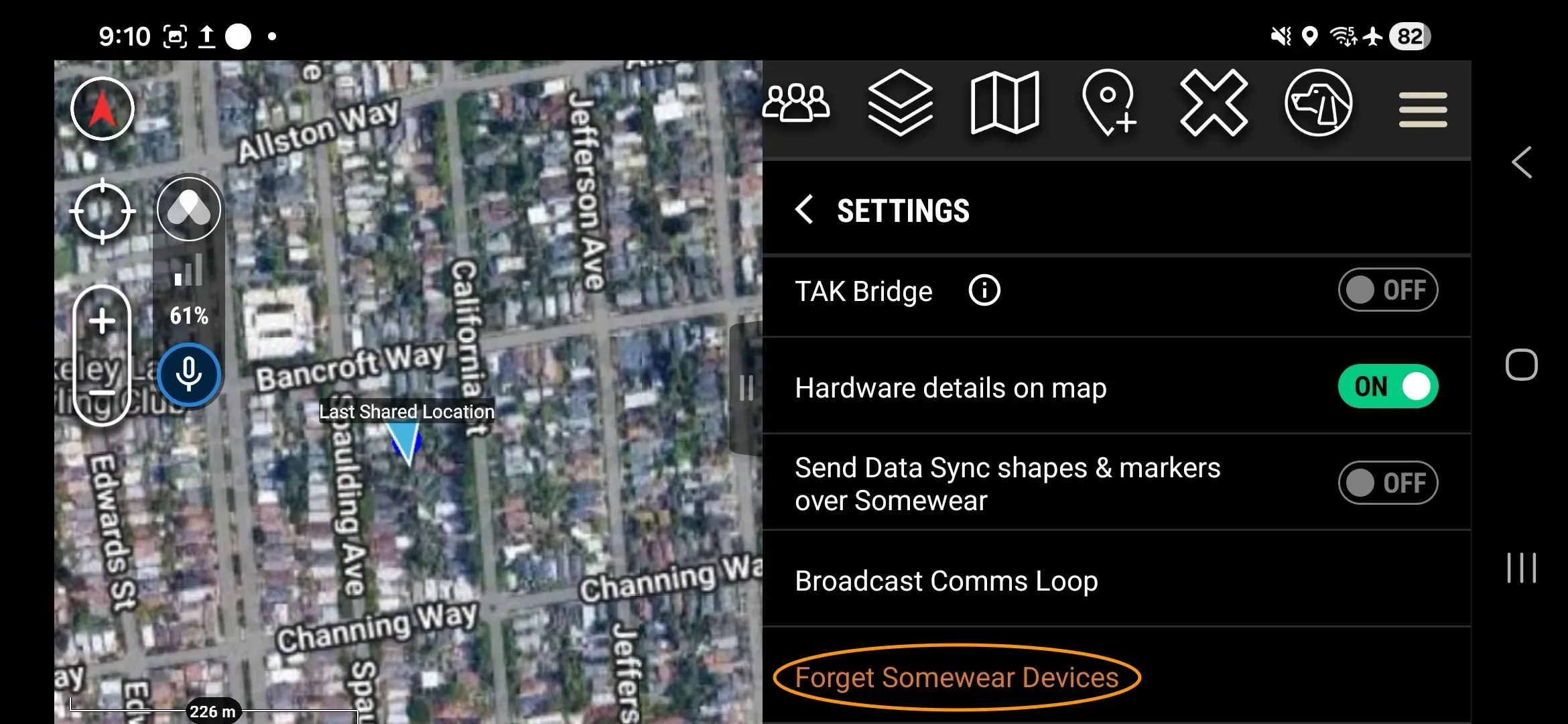
- In the plugin, go to Settings → Forget Somewear Devices to clear Bluetooth pairing records on this device.
- Confirm all entries are cleared — open Android Settings → Bluetooth. If any entry named “Somewear” or “Node” is found, tap it, then tap Forget.
Perform a factory reset of Node
- Power the Node off
- Hold the programmable button while powering Node on. The LED should do 3 quick white flashes. When the LED changes from Green to White, you may release the button.
- Wait for Node to complete factory reset, indicated by green LED blinking.
- Power the node off.
Re-attempt pairing
- Wait 5 seconds.
- Turn node on in pairing mode (hold Power Button while starting, until the LED turns white).
- Follow the full pairing procedure from the beginning.
USB connection stopped working after entering pairing mode
Entering pairing mode resets the Node’s connection mode to Bluetooth and it does not resume automatically.
To return to USB:
- Complete Bluetooth pairing first — see Pair Node via Bluetooth.
- In the plugin, go to Settings → Hardware Settings → Connection Mode.
- Select USB.
- Follow the USB connection procedure to reconnect the wired link.