A local Workspace lets operators who never linked up beforehand work together over the Node mesh in the field. Create one on your device, share the QR code with the operators around you, and they join over the mesh — no account setup or connectivity to Somewear required.
- Tap the Somewear icon to open the plugin.
- Tap the Workspace row to open your Workspace list.
- Tap + Add Workspace.
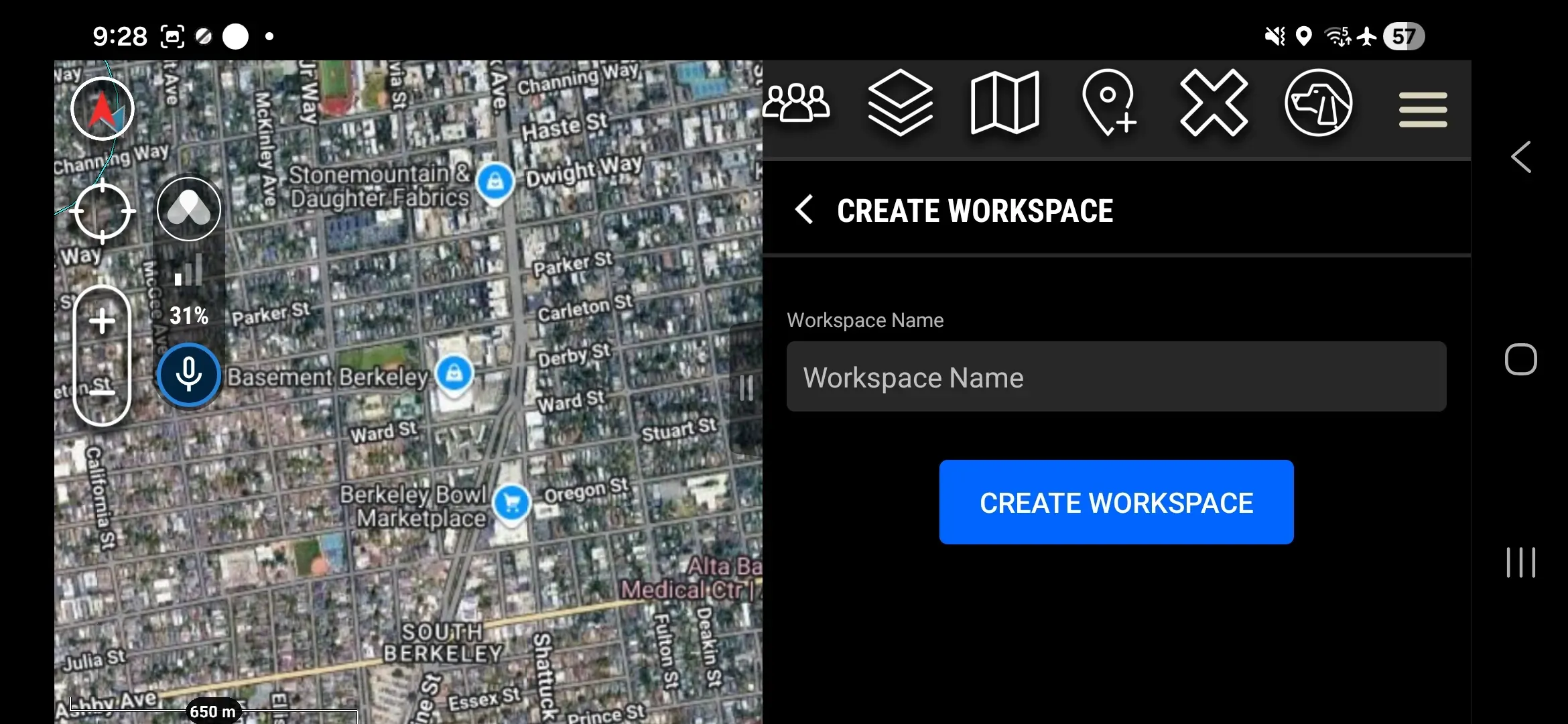
- Tap Create a Local Workspace. The Create Workspace screen opens.
- Enter a Workspace Name, then tap Create Workspace.
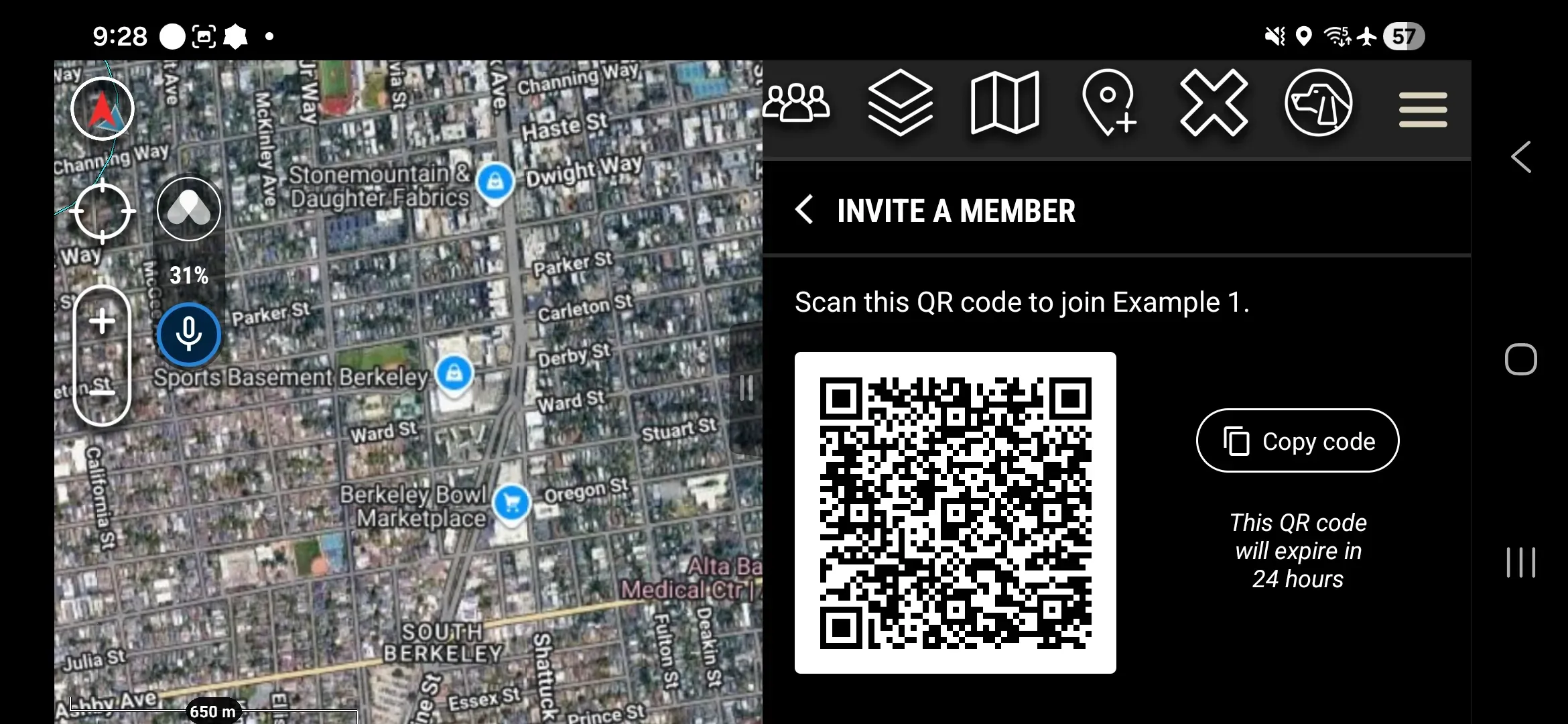
- The Invite a Member screen shows a QR code. Have the operators in the field with you scan it to join.
Join a Local Workspace
Joining a local Workspace is the same as joining any other Workspace — scan the QR code from the operator who created it. See Join a Workspace.
Mesh-Only Behavior
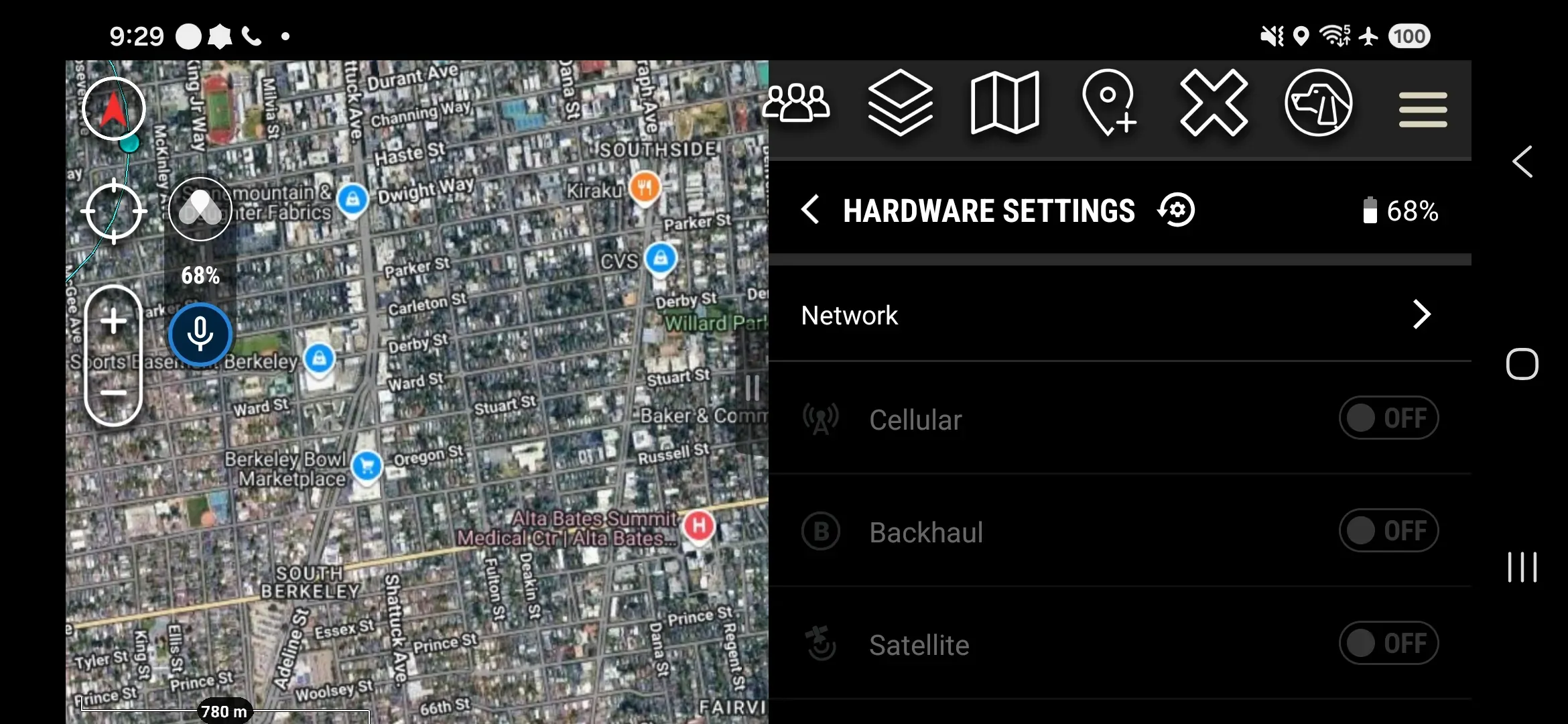
A local Workspace carries traffic over the Node mesh only. The Cellular, Backhaul, and Satellite paths are disabled, so those controls in Hardware Settings are switched off and greyed out while a local Workspace is active.