
Tap send — SmartBackhaul routes your message over the best available path automatically. No transport selection required. The delivery icon on the sent message confirms which path delivered it.
Send a Workspace Message
- Open the plugin and tap Messages.
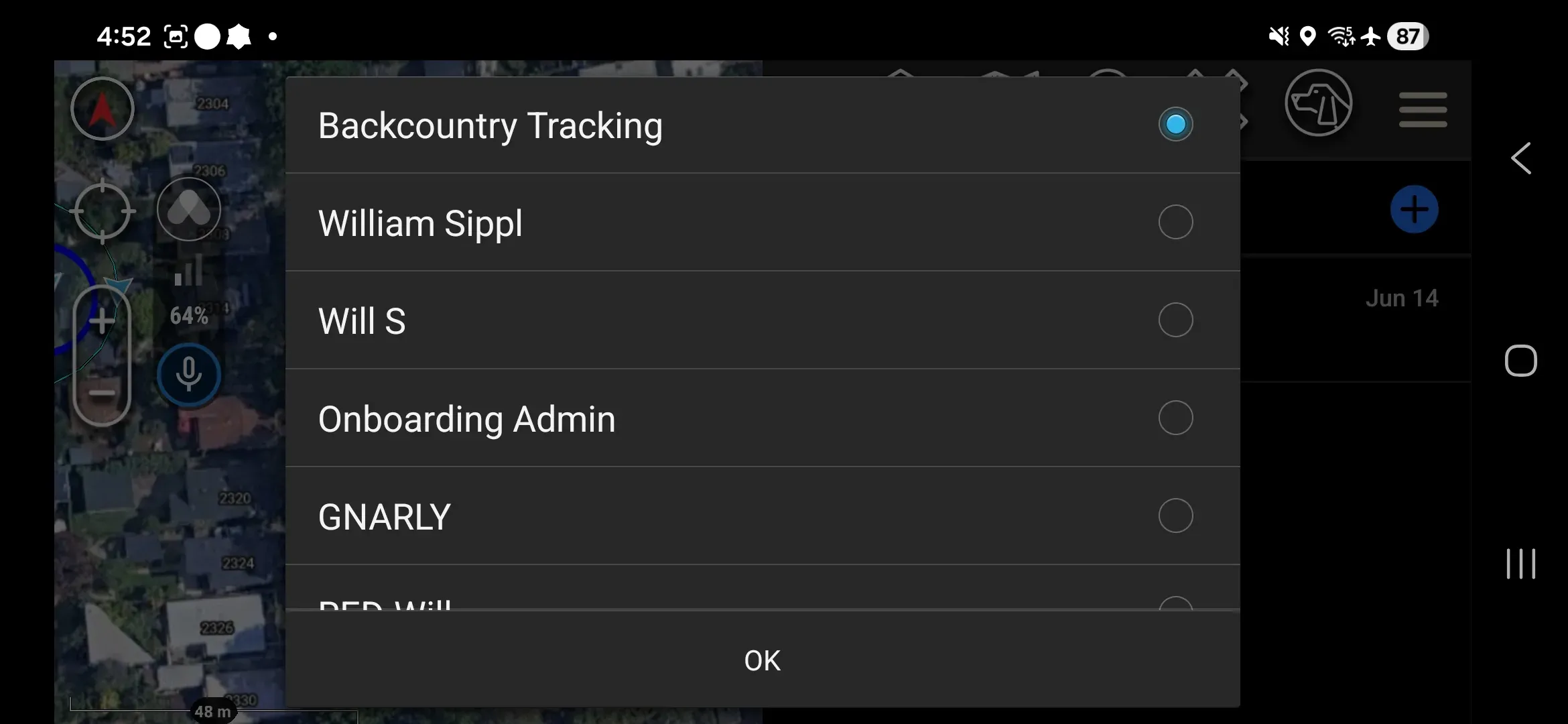
- Tap the blue + button in the top right.
- Select Workspace chat (always the first option) and tap OK.
- Type your message and tap the send arrow.
Send an Individual Message
- Open the plugin and tap Messages.
- Tap the blue + button in the top right.
- Select the individual’s name from the list and tap OK.
- Type your message and tap the send arrow.
Delivery Icons
Each sent message displays a delivery icon for every transport path. The icon is gray while sending, turns white once delivery is confirmed, and turns orange if delivery fails. If mesh is unavailable, the message automatically queues for satellite — no operator action needed.
| Channel | Sending | Sent | Error |
|---|---|---|---|
| Mesh |  |  |  |
| WiFi or LTE |  |  |  |
| Iridium satellite |  |  |  |
View Received Messages
- Open the plugin and tap Messages.
- Tap the Workspace or individual thread.