
Load the plugin manually through the ATAK Plugins menu. The automatic load prompt only appears when ATAK is running in the background during installation — if ATAK was closed, the prompt will not appear.
Confirm the plugin is installed
- Open Google Play on the device.
- Tap your profile icon → Manage apps & device → Manage.
- Search for Somewear.
- Confirm the Somewear ATAK Plugin appears and shows Installed.
If it does not appear, install it from Google Play before continuing.
Load the plugin manually
- Open ATAK.
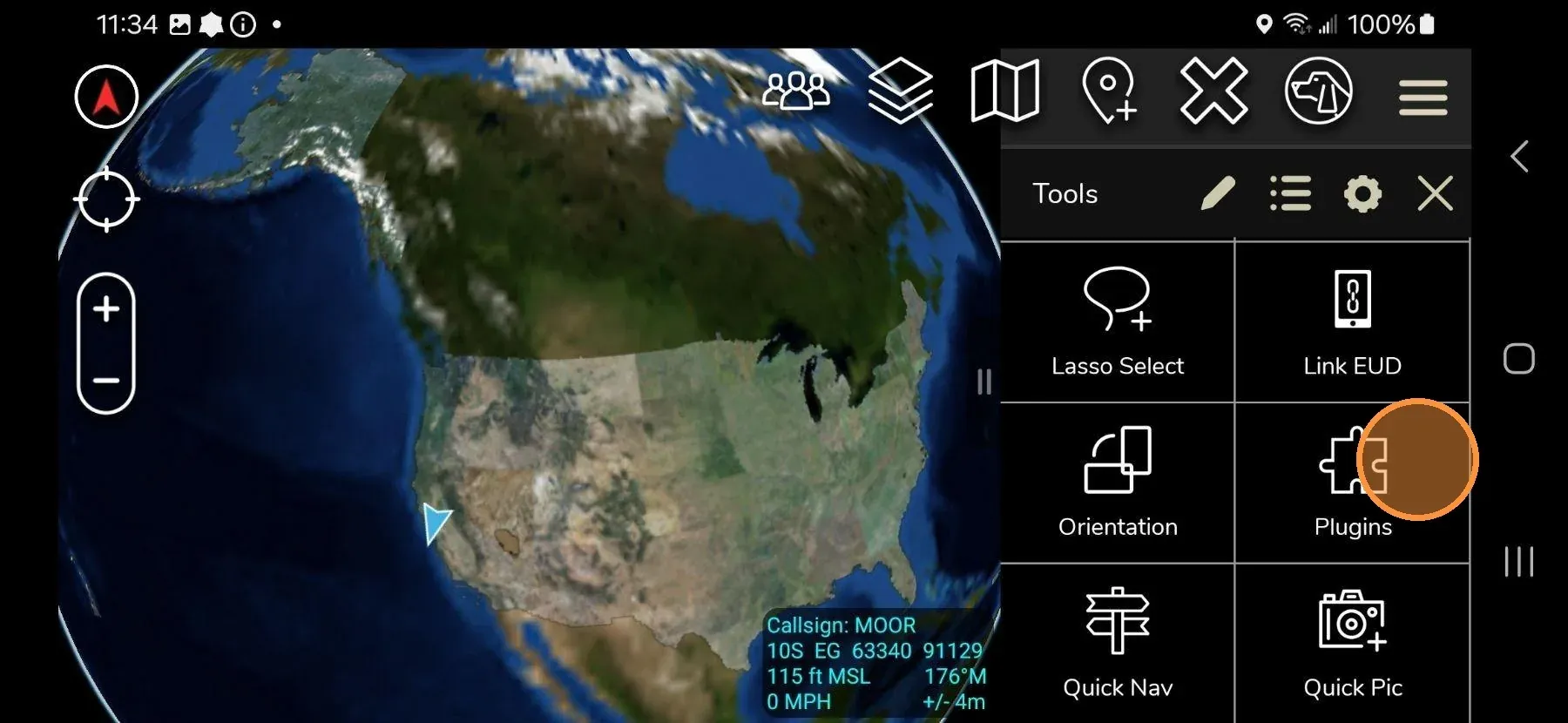
- Tap the hamburger menu icon (three horizontal lines) in the top-right corner of the ATAK screen to open the context menu.
- Scroll to and tap Plugins.
- Tap the cycling arrows (refresh icon).
- Tap OK to scan for installed plugins.
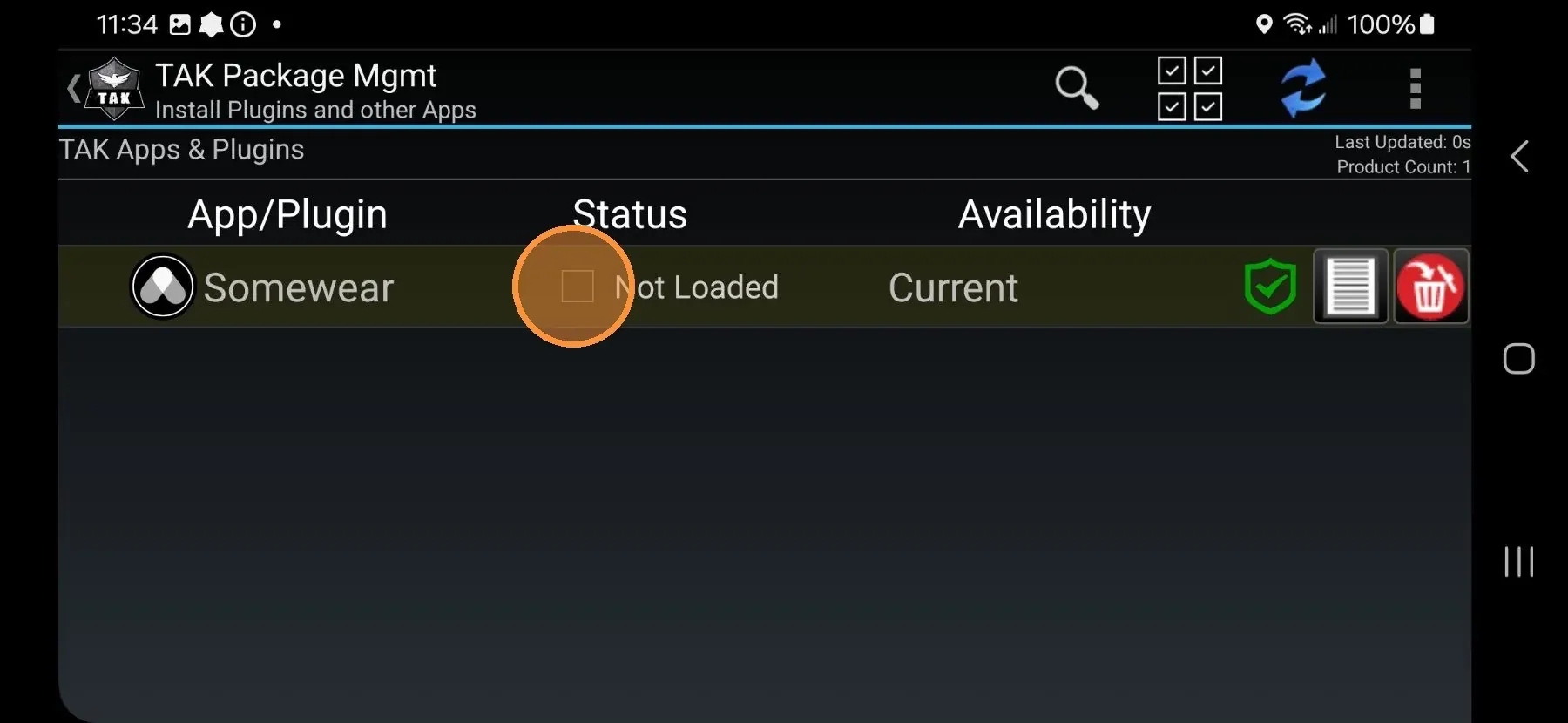
- Locate the Somewear plugin in the list — it shows status Not loaded.
- Tap the empty checkbox next to Not loaded.
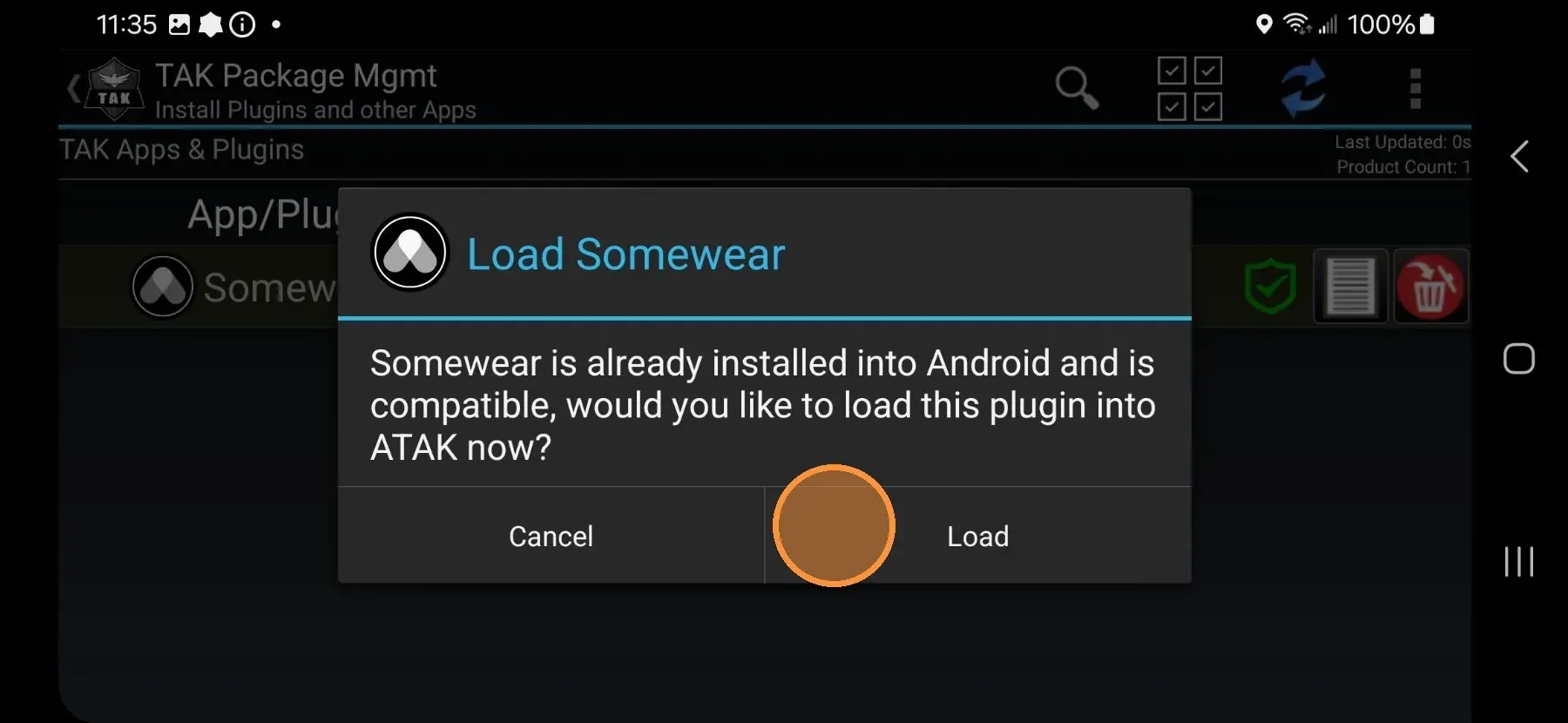
- Tap Load.
- Tap the TAK logo in the top-left corner to return to the map.
- Tap the Somewear logo that now appears on the screen.
- Tap Allow when prompted for notifications.
- Tap Allow when prompted for location access.
Plugin does not appear in the Plugins list
If the Somewear plugin is not listed at all after scanning:
- Uninstall the Somewear ATAK Plugin from Google Play.
- Open ATAK and leave it running in the background — tap the Home button, do not force-close ATAK.
- Reinstall the Somewear ATAK Plugin from Google Play.
- Switch back to ATAK — the load prompt appears automatically.