
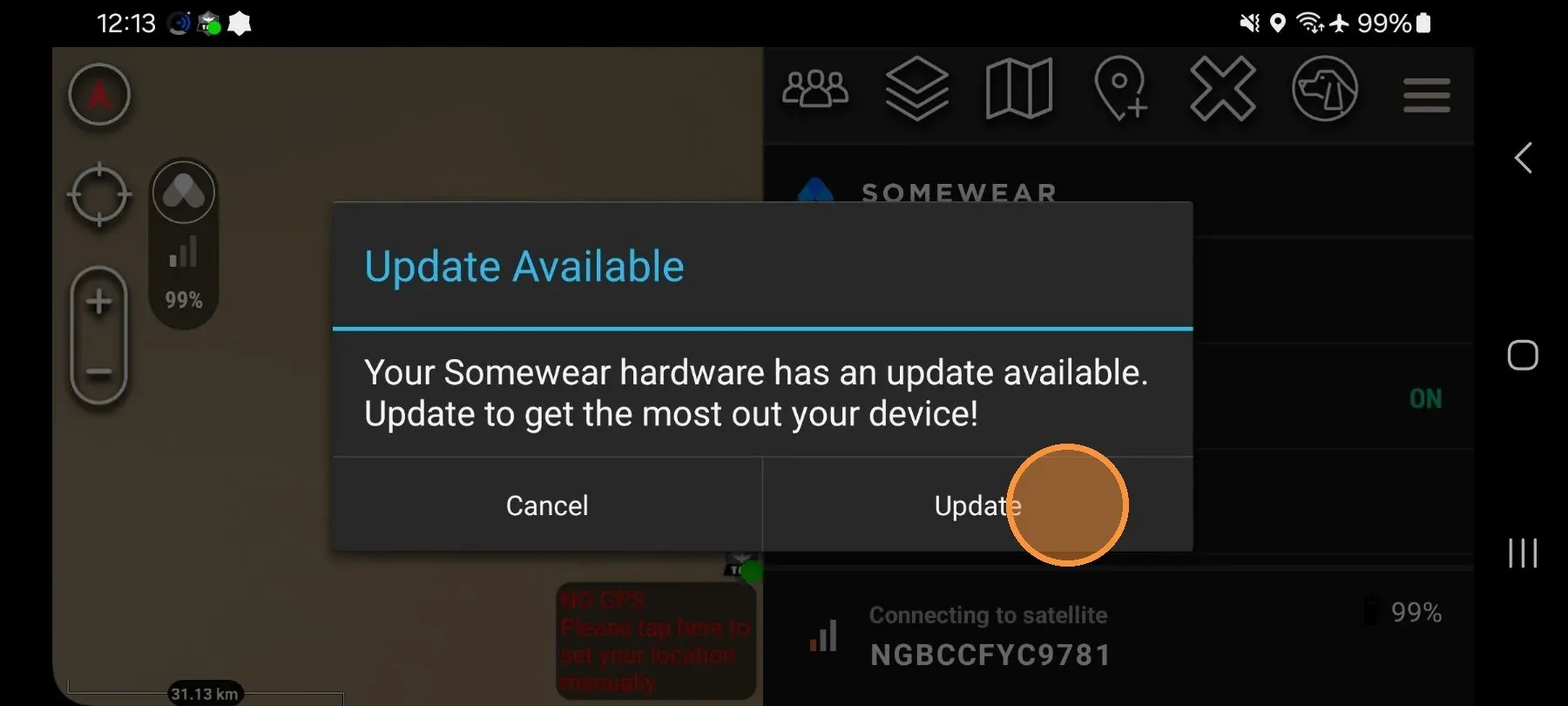
Run firmware updates before field operations. The plugin automatically checks for firmware updates when paired with a Node over WiFi or cellular. When a firmware update is available, the plugin displays a prompt — tap Update to begin. You do not need to search for updates.
- When the firmware update prompt appears, tap Update.
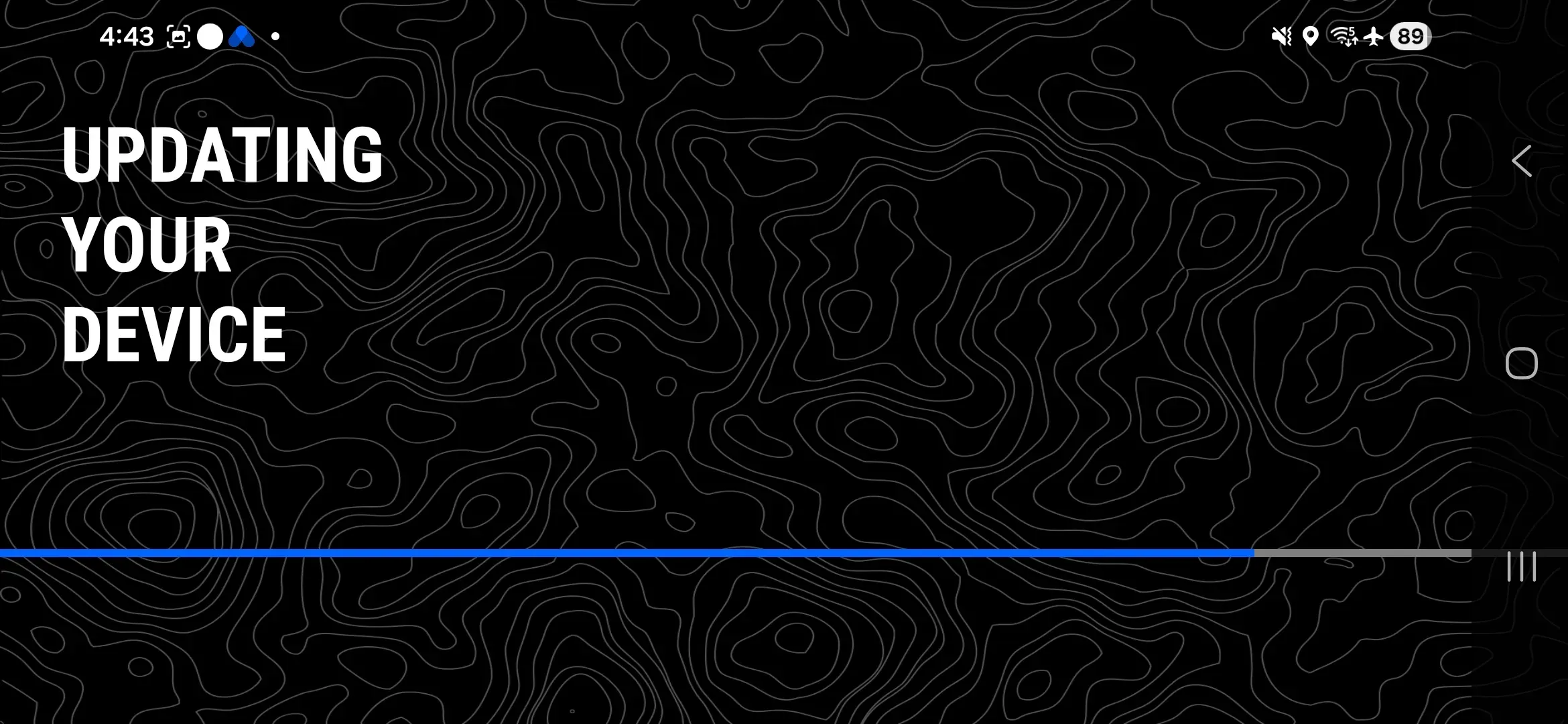
- Tap Allow if a Bluetooth permission dialog appears. A notification confirms the update is starting.
- Watch for the LED sequence below as the Node installs the update.
- Wait for the solid purple LED before handling the Node or closing the plugin. Do not power off the Node while the LED is yellow or purple.
- Check the plugin notification confirming the update is complete before proceeding.
- If the Node does not re-pair automatically, tap the Somewear logo in ATAK to pair manually.
- Confirm the update succeeded: open Hardware Settings and check Firmware Version.
| Phase | LED state |
|---|---|
| Download / install | Fast yellow flash |
| Finalize | Slow purple flash |
| Complete | Solid purple |