
Scan a QR code or enter credentials manually to connect to your team Workspace. Joining requires an active cellular LTE or WiFi connection. Keep Bluetooth enabled to pair to Node.
QR Code Method
Scanning the QR code completes Workspace configuration — no additional settings are required.
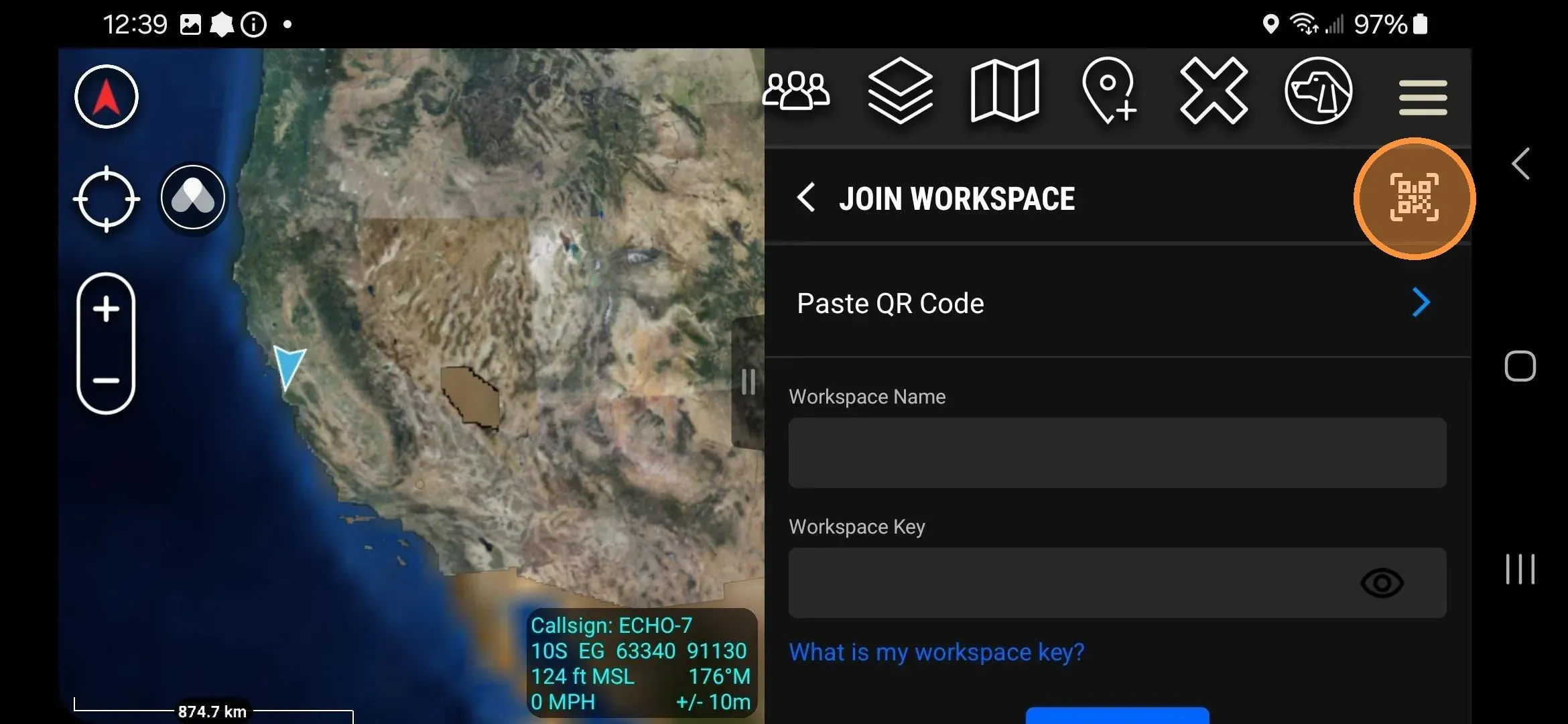
- Open the Somewear plugin in ATAK.
- Tap the QR code icon in the top-right corner of the plugin screen.
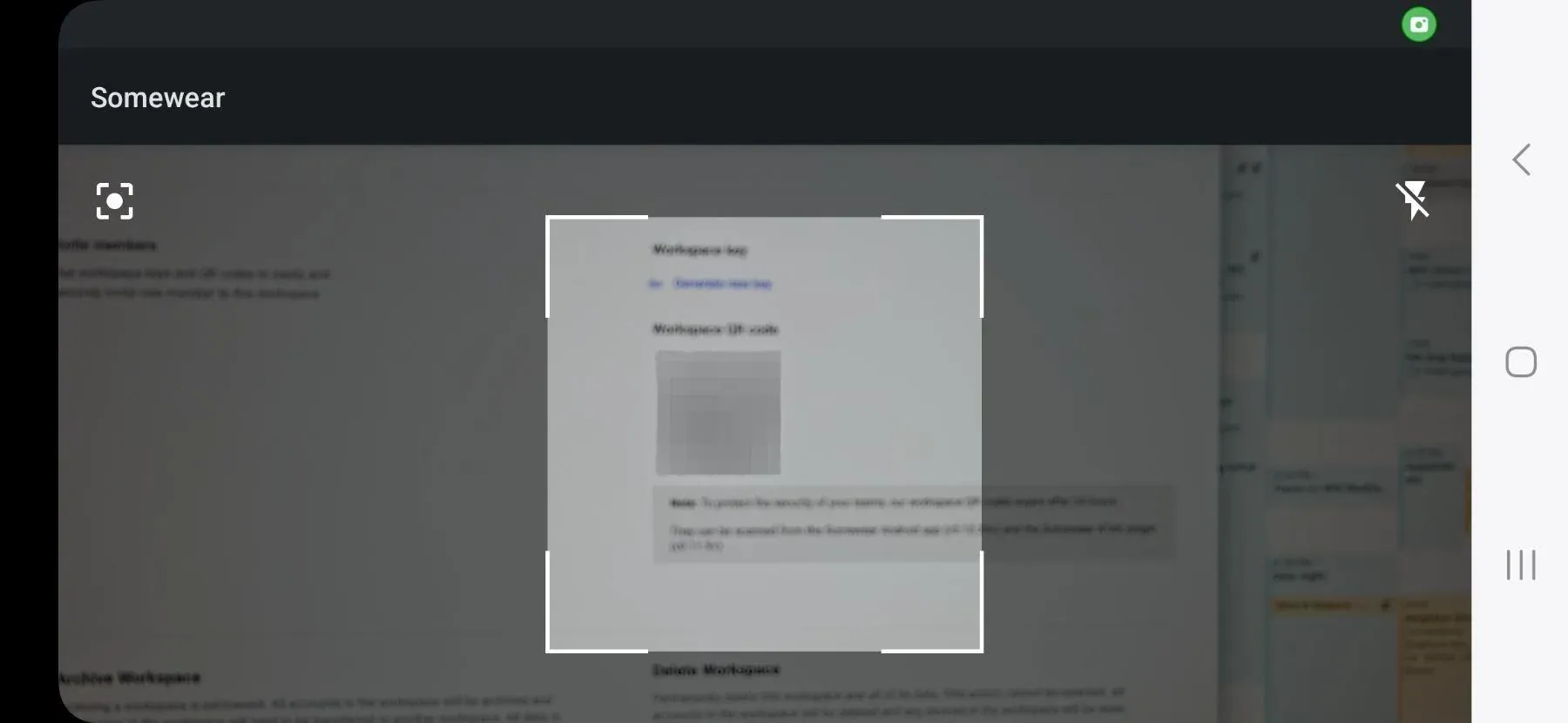
- Tap Allow when prompted to grant camera access.
- Point the camera at the Workspace QR code until it registers.
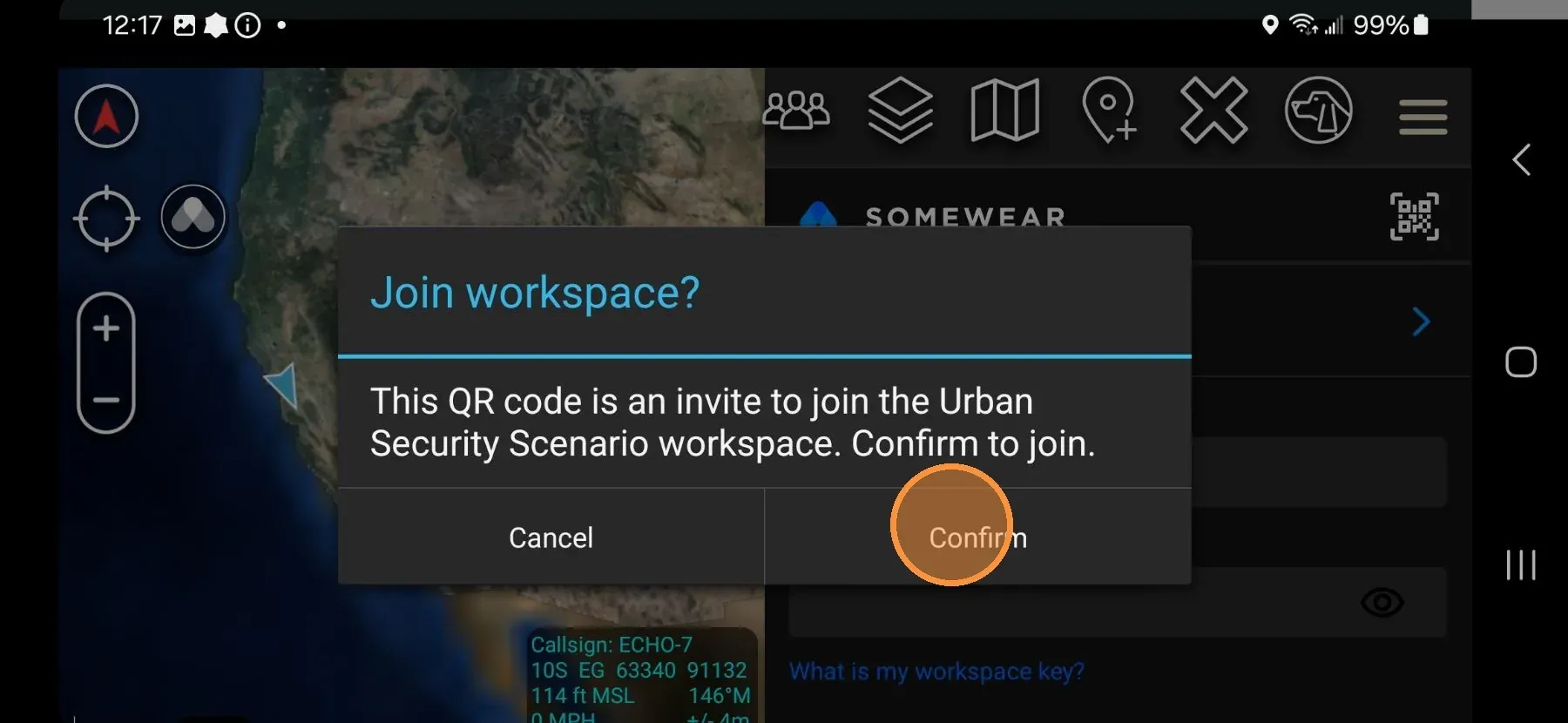
- Tap Confirm to join the Workspace.
Manual Method
Use this method if a QR code is not available. Obtain the Workspace name and access key from your team lead or Workspace Admin before starting.
- In the plugin, tap Settings.
- Tap Active Workspace.
- Tap Join a new workspace.
- Enter the Workspace name and access key — both fields are case sensitive.
- Tap Confirm.
The plugin home screen displays the Workspace name when the join is complete.