
Change the mesh channel and transmission power on your Node, and verify encryption is active. All devices in a team must be on the same mesh radio channel to communicate via mesh — if channels don’t match, mesh messages will not be received.
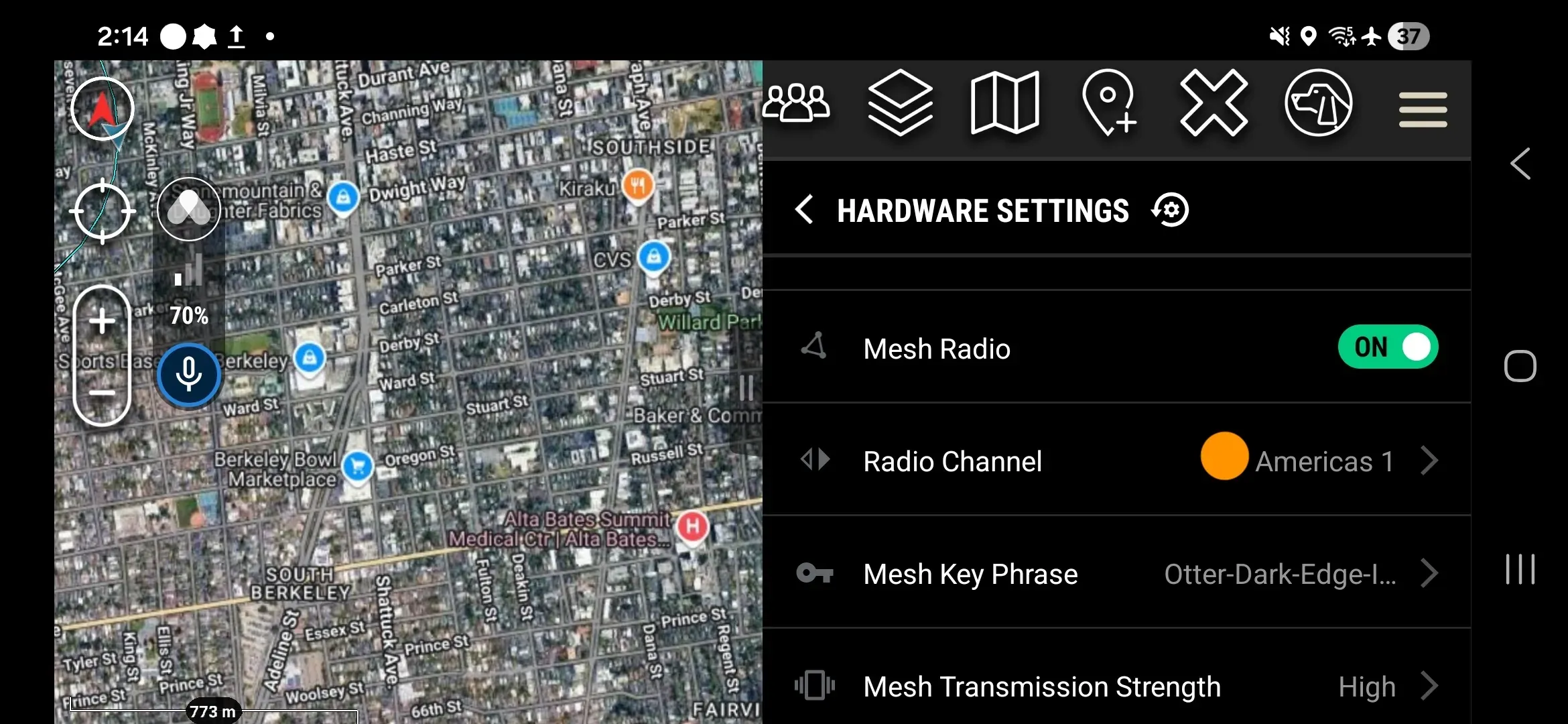
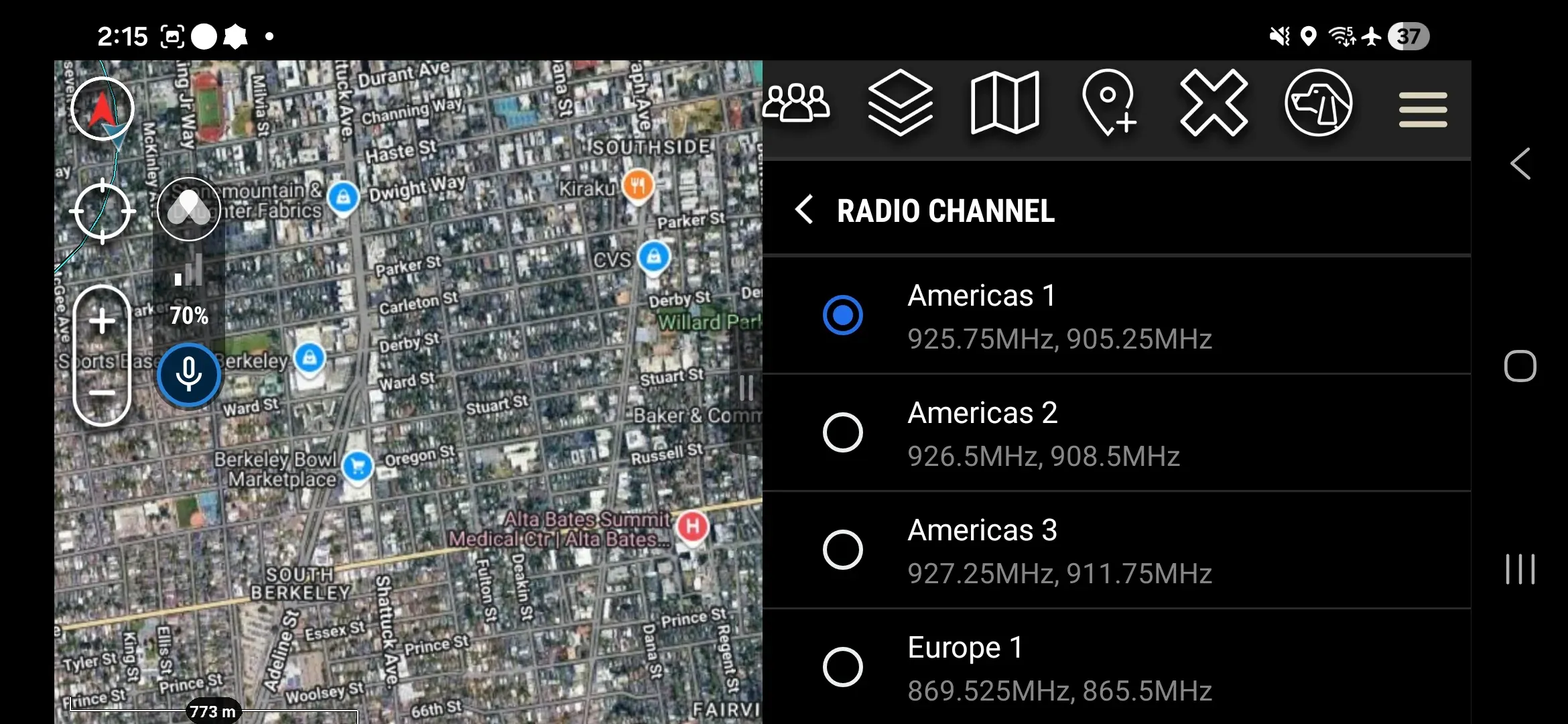
Mesh Radio Channel
Path: Hardware Settings → Mesh Radio Channel → select
- Open Hardware Settings.
- Scroll to the mesh-related settings section.
- Tap Mesh Radio Channel.
- Select the channel your team is using. Hardware Settings reloads with the updated channel shown.
| Channel | LoRa 1 Frequency | LoRa 2 Frequency |
|---|---|---|
| Americas 1 | 925.75 MHz | 905.25 MHz |
| Americas 2 | 926.5 MHz | 908.5 MHz |
| Americas 3 | 927.25 MHz | 911.75 MHz |
| Europe 1 | 869.525 MHz | 865.5 MHz |
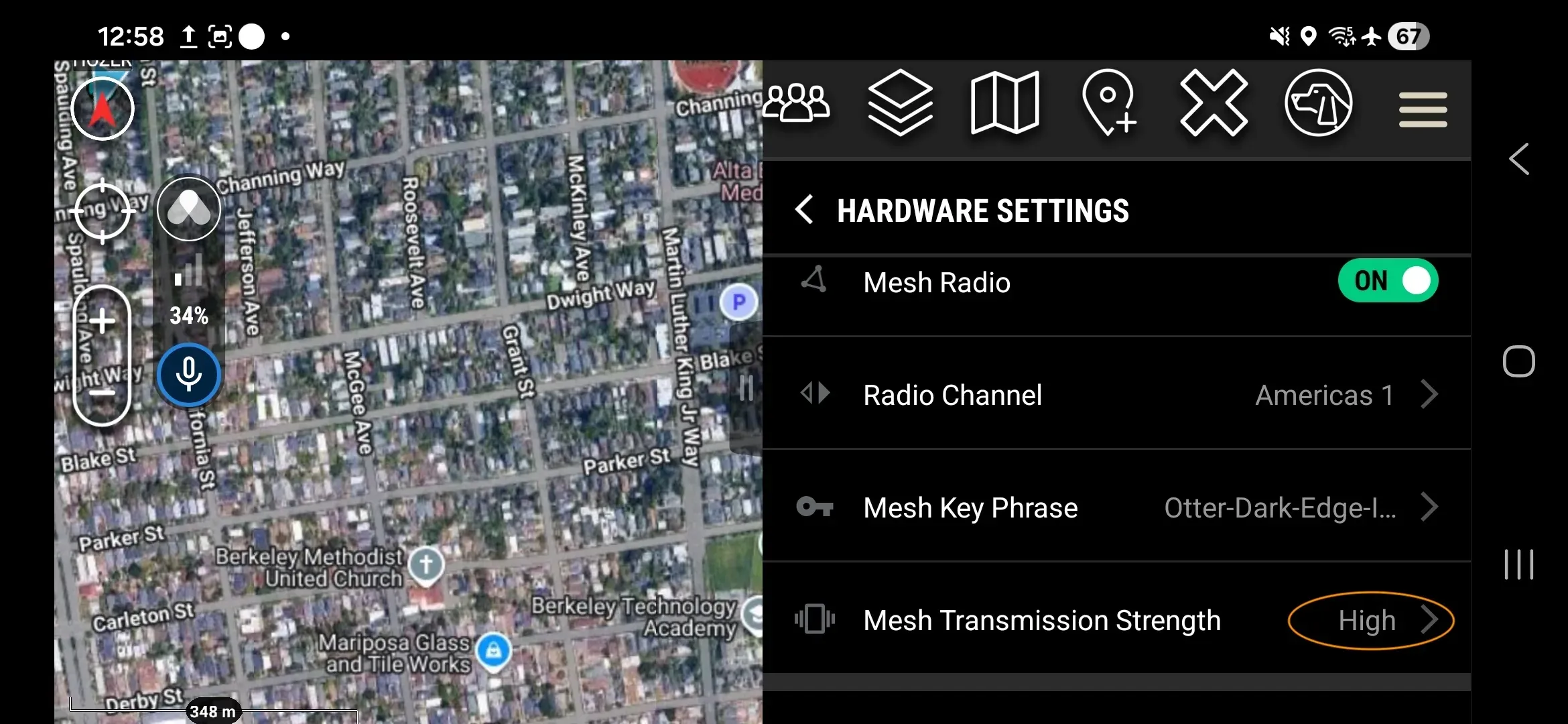
Mesh Transmission Strength
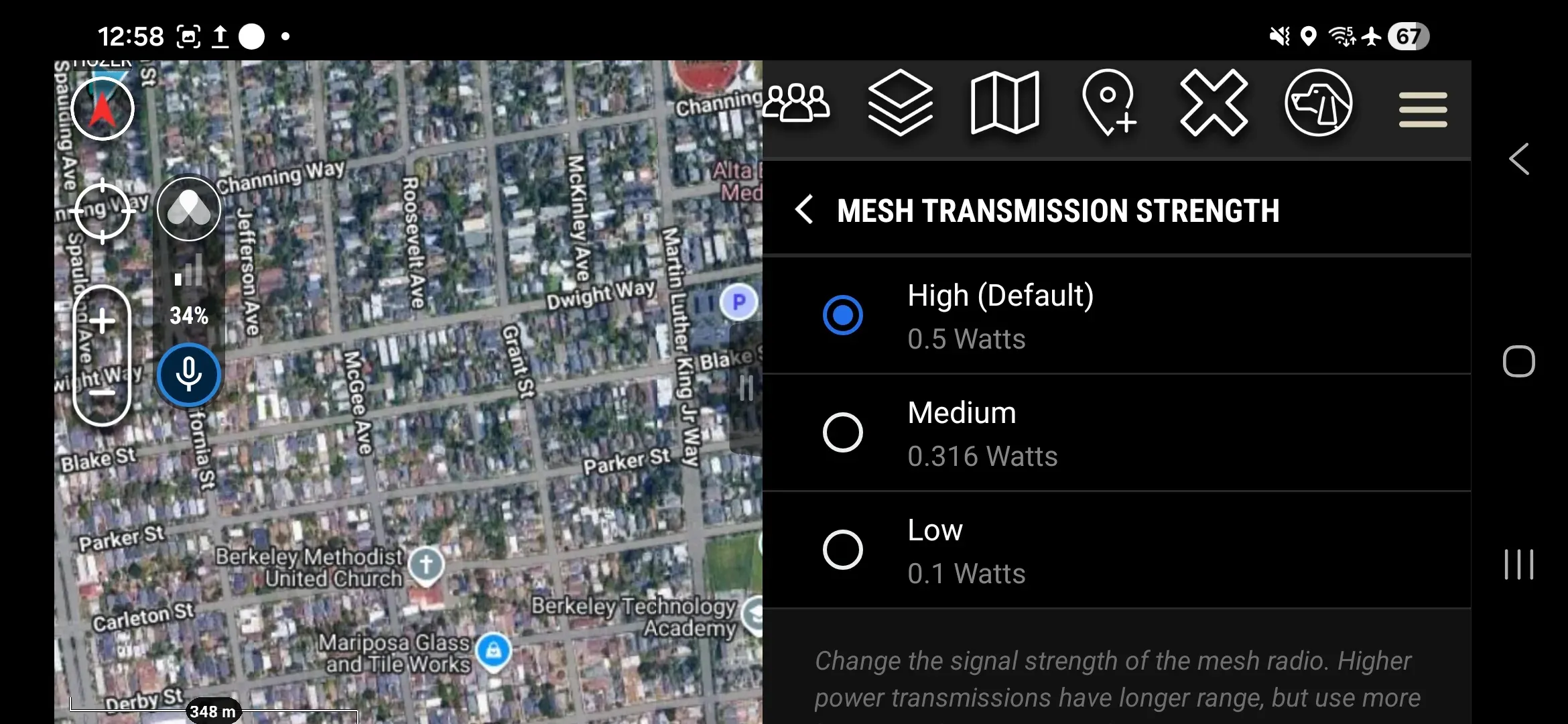
Controls radio power output. Higher power extends range but increases RF detectability.
- Open Hardware Settings.
- Tap Mesh Transmission Strength.
- Select the desired power level. Hardware Settings reloads with the updated strength shown.
| Setting | Power | Use case |
|---|---|---|
| High (default) | 0.5 W | Maximum range |
| Medium | 0.316 W | Balanced |
| Low | 0.1 W | Minimum detectability, short range |
Mesh Encryption
All Somewear mesh transmissions use AES-256 GCM encryption. Admin users can generate a new key at will via ATAK and configure a key rotation schedule using the web application.
When keys are rotated, secure messages are shared over all communication links. These messages contain a stamp that is used on Workspace devices to compute the encryption key, but do not contain the complete traffic key.
Mesh Key Phrase
The Mesh Key Phrase is a human-readable representation of the current active encryption key, shown within Hardware Settings.
- Key Phrase — human-readable representation of the active encryption key; display only, cannot be used to reconstruct the key (e.g., “Dusk-Blue-Move-Tiger-6546”).
- Last updated — timestamp and the user who last updated the key.
Rebroadcast Key
If a teammate’s device missed a key update and cannot communicate over mesh, use Rebroadcast Key to send the current key out again.
- Tap Rebroadcast Key on your device to send the current key to the team.
- The key is applied automatically on receiving devices.