
Send photos, ATAK Data Packages, and other files to your Workspace over a high-bandwidth connection. View received files in the Somewear web app, the ATAK plugin, or directly on the ATAK map.
Send a file from a Workspace conversation
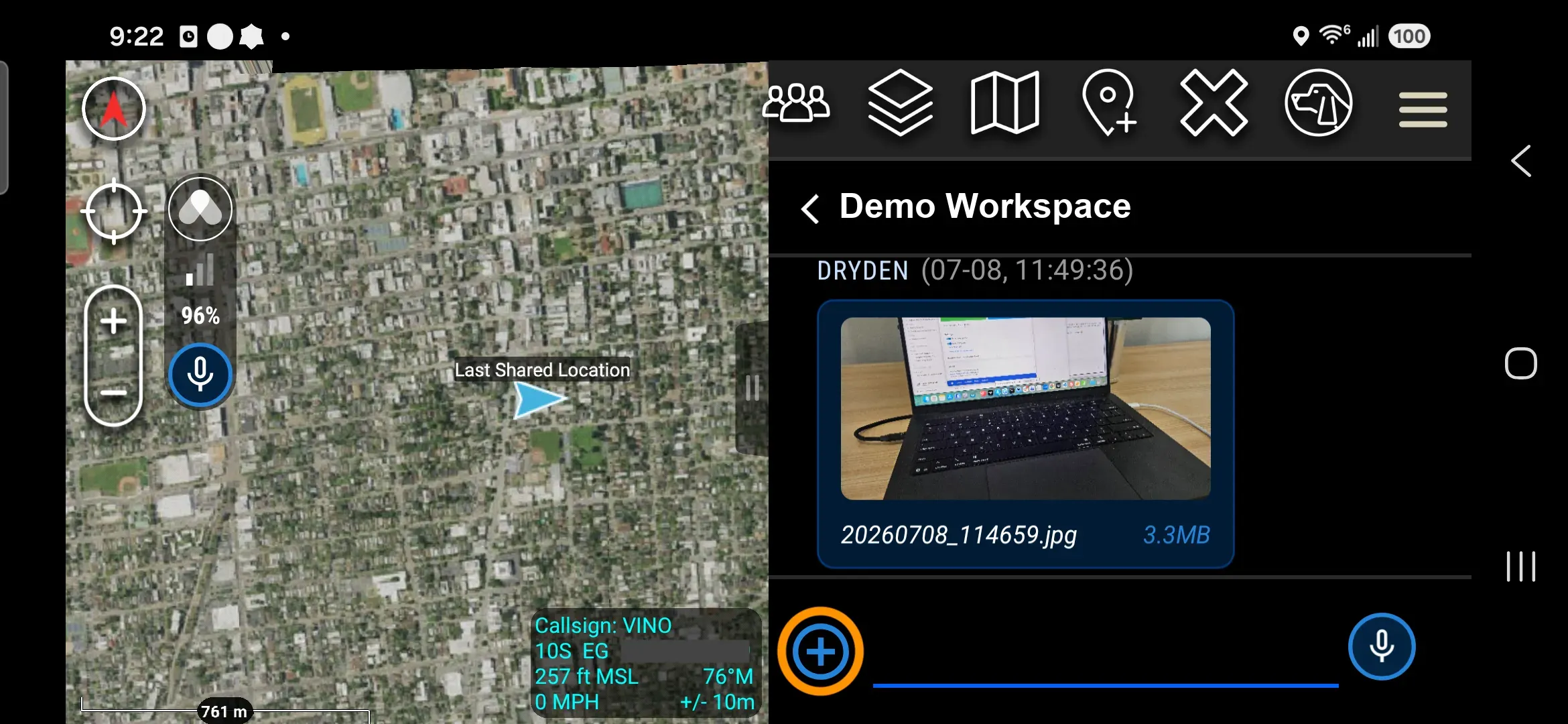
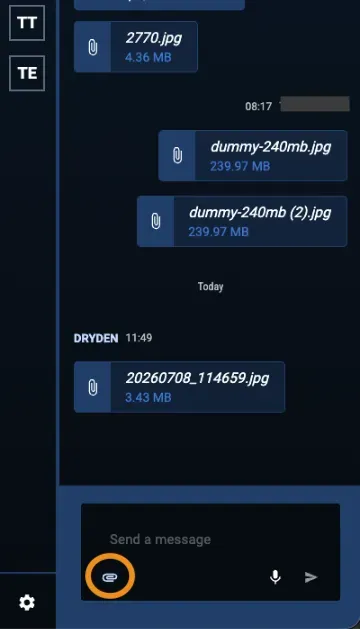
- Open the Workspace conversation in the Somewear ATAK plugin or the web app.
- Tap (or click) the upload icon in the message composer.
- Pick the file from your device.
- Confirm send.
The file appears in the conversation and in the Workspace Files view — see Receive and view files.
Send a file from ATAK
Any ATAK marker with an attachment can be sent through Somewear.
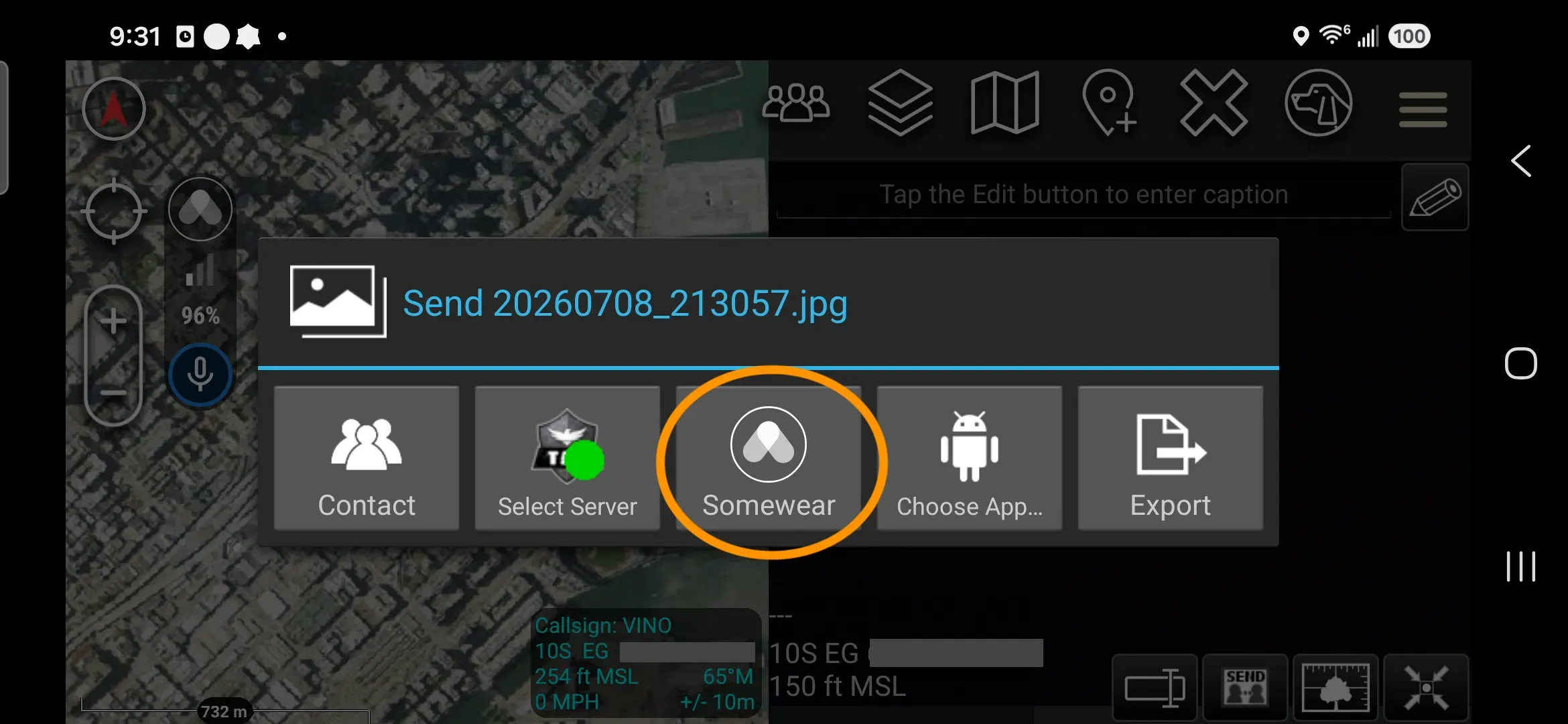
- In ATAK, select Send on the marker with the attachment you want to share, then select Yes to include attachments.
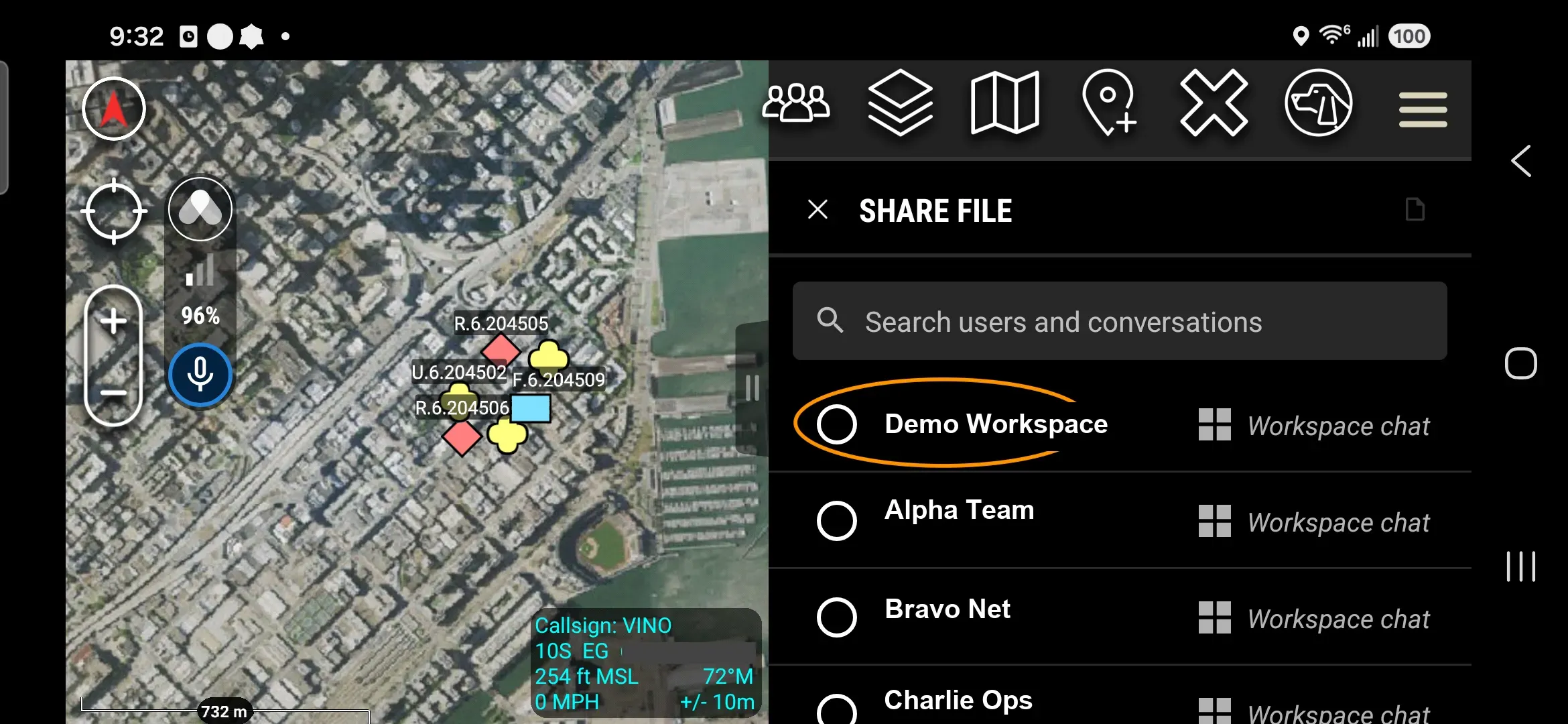
- From the Send with attached file dialog, select Somewear. The plugin opens to the conversation picker with your last conversation at the top.
- Tap the Workspace to send to.
- Confirm send.
Send a file from another app
Use this when the file lives outside ATAK — the Android gallery, a file browser, a photo you just took with the phone camera.
- Open the file in another app (e.g. gallery, camera, file browser, etc.).
- Tap Share.
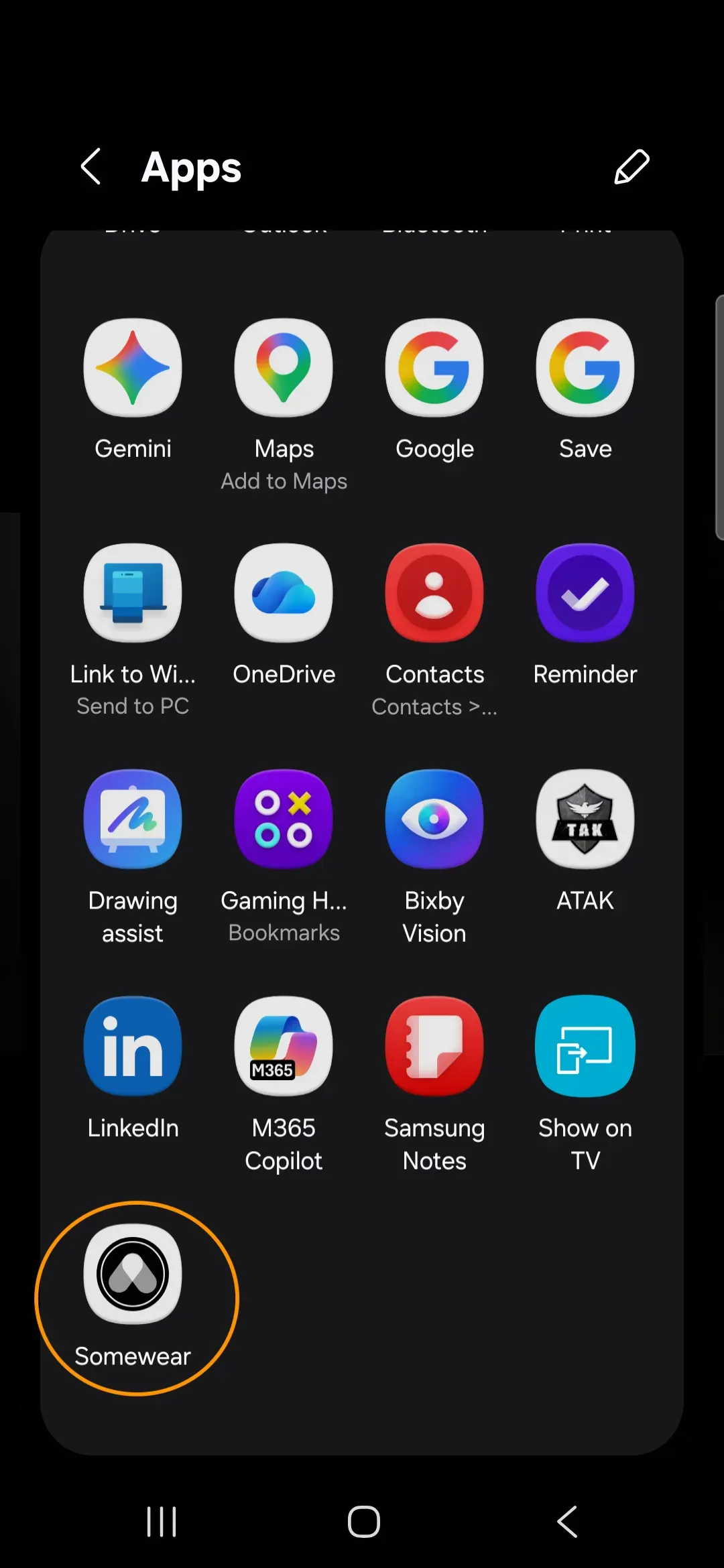
- On the Android share sheet, tap More if Somewear is not on the top row.
- Select Somewear from the expanded picker. ATAK opens with the plugin on the conversation picker.
- Tap the Workspace to send to.
- Confirm send.
Receive and view files
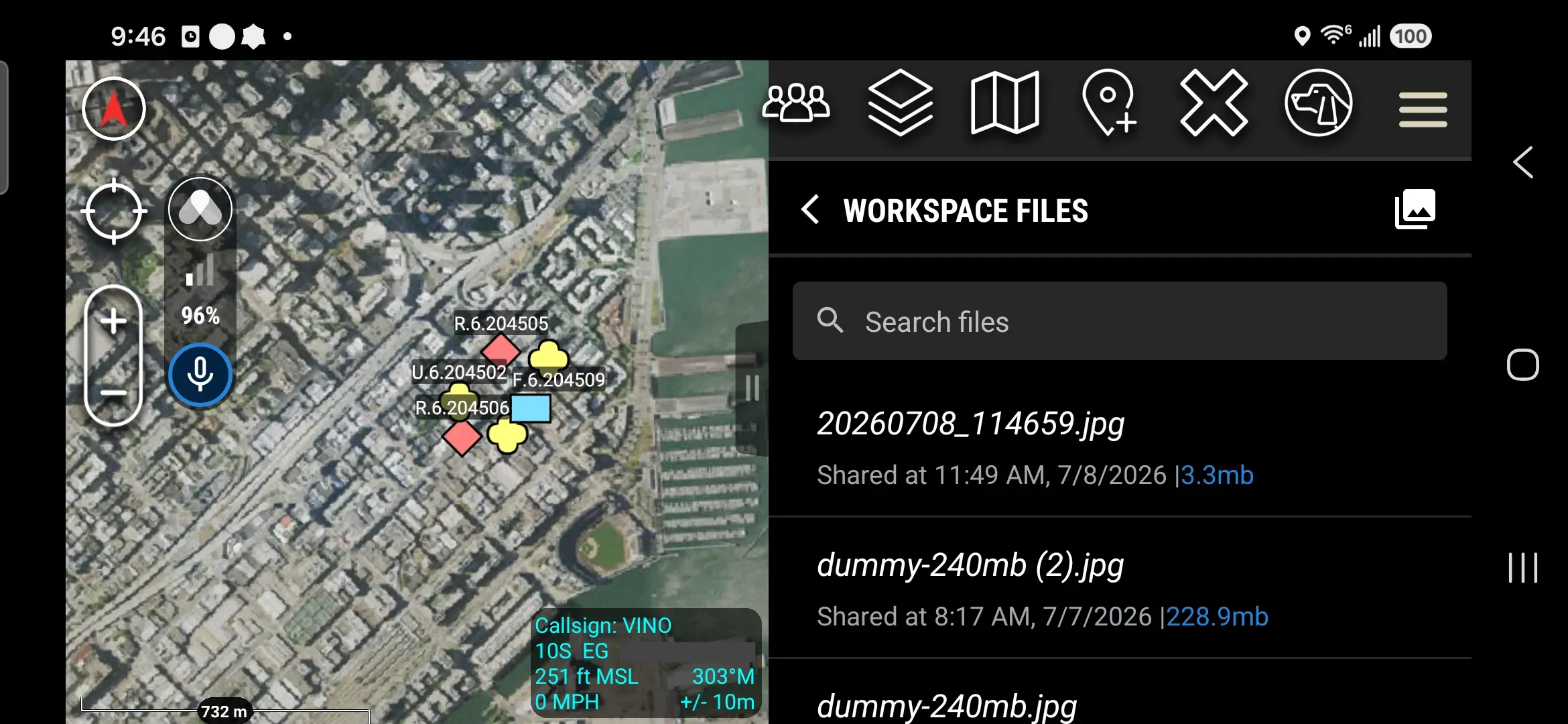
Received files show up in both the Workspace conversation and the Workspace Files view.
In a conversation
- In the plugin, tap the file to open the file detail view. From there you can Import to ATAK, Download to Phone, or Open File.
- In the web app, click the file to open a preview.
The file detail view shows when the file was shared and, for photos that carry capture data, when it was taken. Location metadata displays in MGRS or latitude/longitude, following your ATAK coordinate-format preference.
Access Workspace Files
Every Workspace has a Files view that lists every file sent or received in that Workspace — including files that arrived before you joined.
- Plugin: open the Workspace and tap Files.
- Web: open the Workspace and open the Files view.
Limits and behavior
- 250 MB per file. Files larger than 250 MB are not supported.
- High-bandwidth only: Wi-Fi or cellular. If you’re off high-bandwidth when a file is sent to you, the file shows as pending and will download automatically once you reconnect.
File Retention
- Files are kept on the Somewear system for 30 days, after which files are deleted from storage. After this time, they will not be available or recoverable.
- Files you export from the ATAK plugin to another app’s storage, such as your phone’s gallery or Downloads folder, must be managed through that app.
- Map items, such as waypoints, shapes, and Data Packages must be managed through ATAK’s native features.
- Uninstalling the Somewear ATAK plugin will delete any files in its cache that haven’t already been imported to your ATAK map.
Related
- Sending Messages — send Workspace and individual text messages
- Waypoints and Shapes — build the markers and shapes you’d typically bundle into a Data Package
- Network Status — confirm you’re on a high-bandwidth connection before sending