
Switch your Node from Bluetooth to USB when interference is a concern or a wired connection is operationally preferred. Bluetooth pairing must be completed first — USB mode is not available until the Node has been paired over Bluetooth at least once.
Before you begin
- Node is powered on and currently connected via Bluetooth.
- USB-C cable is available and accessible.
- Android device is unlocked.
Switch to USB
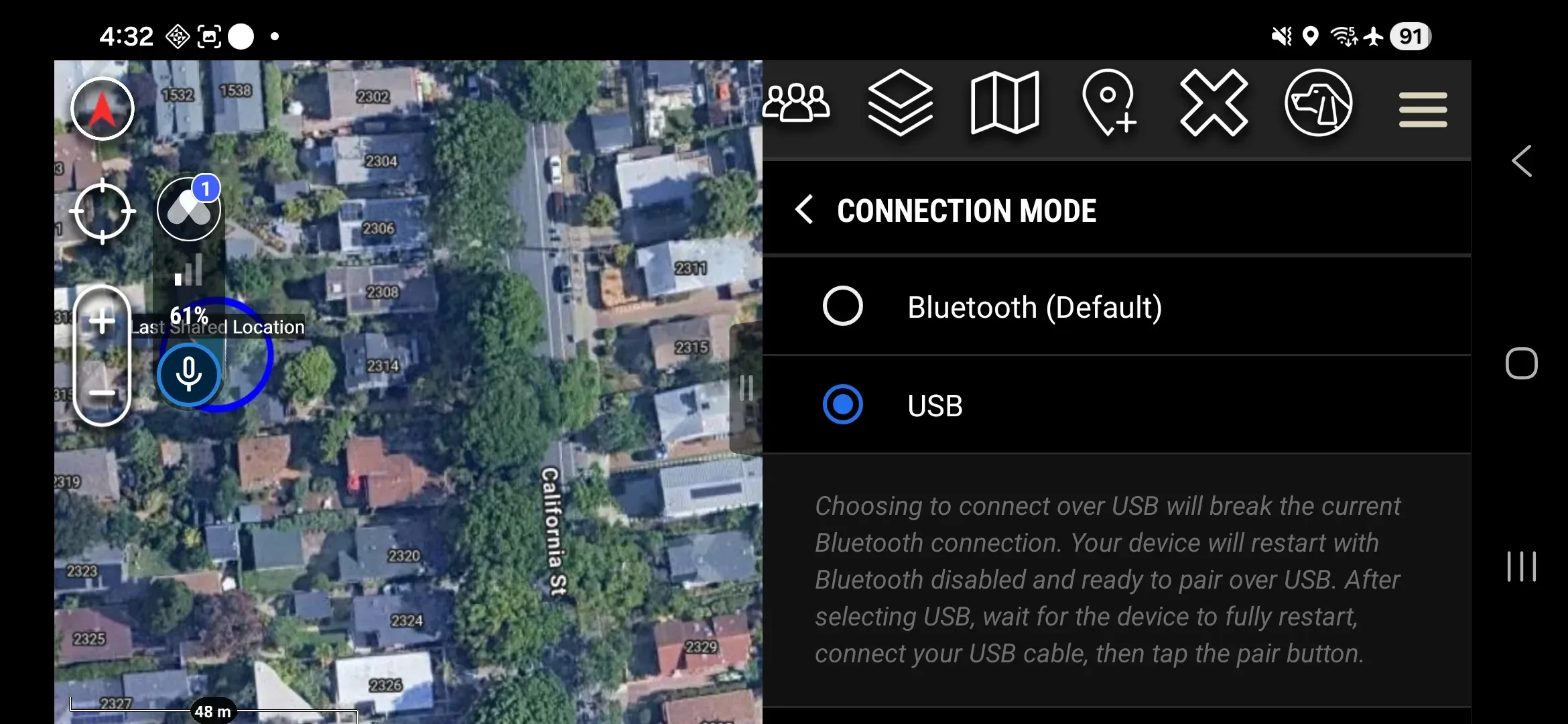
- In the ATAK plugin, tap Settings → Hardware Settings.
- Tap Connection Mode.
- Select USB. Switching to USB breaks the current Bluetooth connection and restarts the Node with Bluetooth disabled.
- Wait for the Node to fully restart — allow up to 15 seconds. The plugin shows the Node as disconnected while it restarts.
- Connect the USB-C cable between the Node and your Android device.
- Tap TAP TO PAIR TO DEVICE in the plugin.
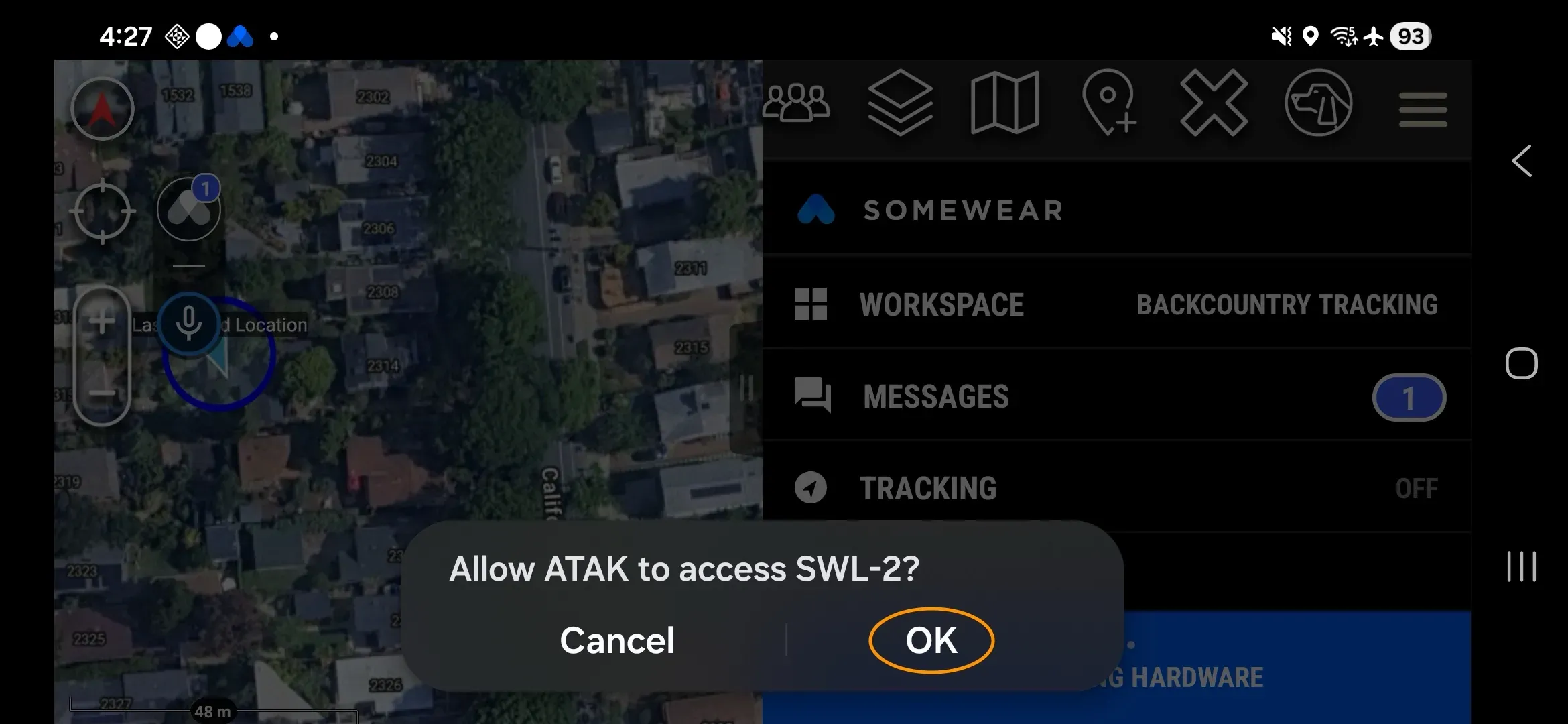
- When Android prompts “Allow ATAK to access [Node]?”, tap OK.
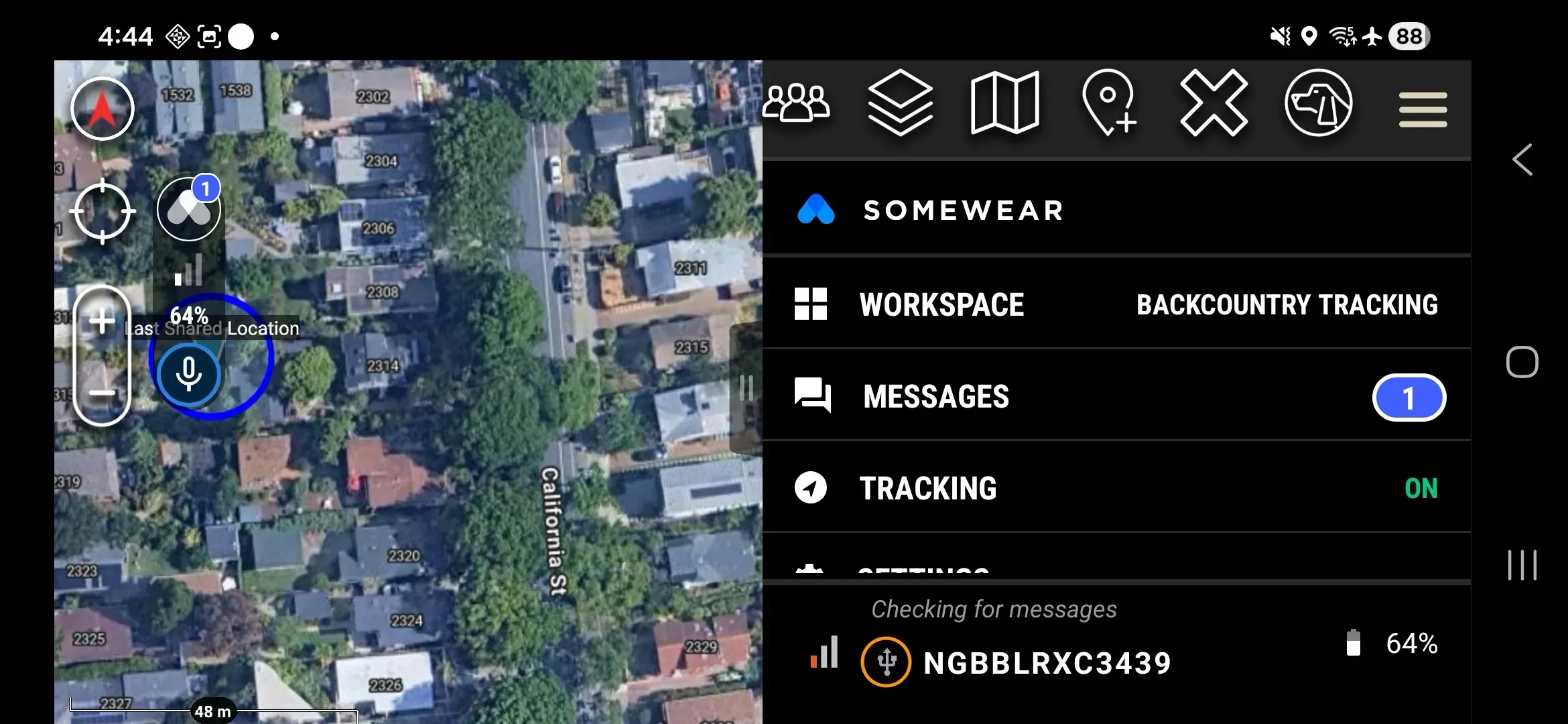
The plugin connects and the Node appears as active.
Returning to Bluetooth
Bluetooth stays disabled until you switch back explicitly. There are two ways to do it.
Option 1 — Change the setting while still on USB
- In the ATAK plugin, tap Settings → Hardware Settings.
- Tap Connection Mode.
- Select Bluetooth. The Node restarts with Bluetooth enabled.
- Disconnect the USB cable and pair normally.
Option 2 — Enter pairing mode via power cycle
- Power off the Node.
- Hold the Power Button from off, through the green LED phase, until the LED flashes fast white — the Node is now in pairing mode with Bluetooth enabled.
- Pair via Bluetooth as normal.