
Use this screen to view and change all per-Node configuration: tracking, network links, radio, device behavior, and firmware info. The screen is only accessible when a Node is paired. Navigate to it via Plugin → Settings → Hardware Settings.
Opening Hardware Settings
- Tap the Somewear plugin icon on the ATAK toolbar.
- Tap Settings.
- Tap Hardware Settings.
Restore Defaults
A gear icon appears in the top-right corner of the Hardware Settings screen only when your current settings differ from Workspace defaults. Tap it to restore all settings to Workspace-level defaults.
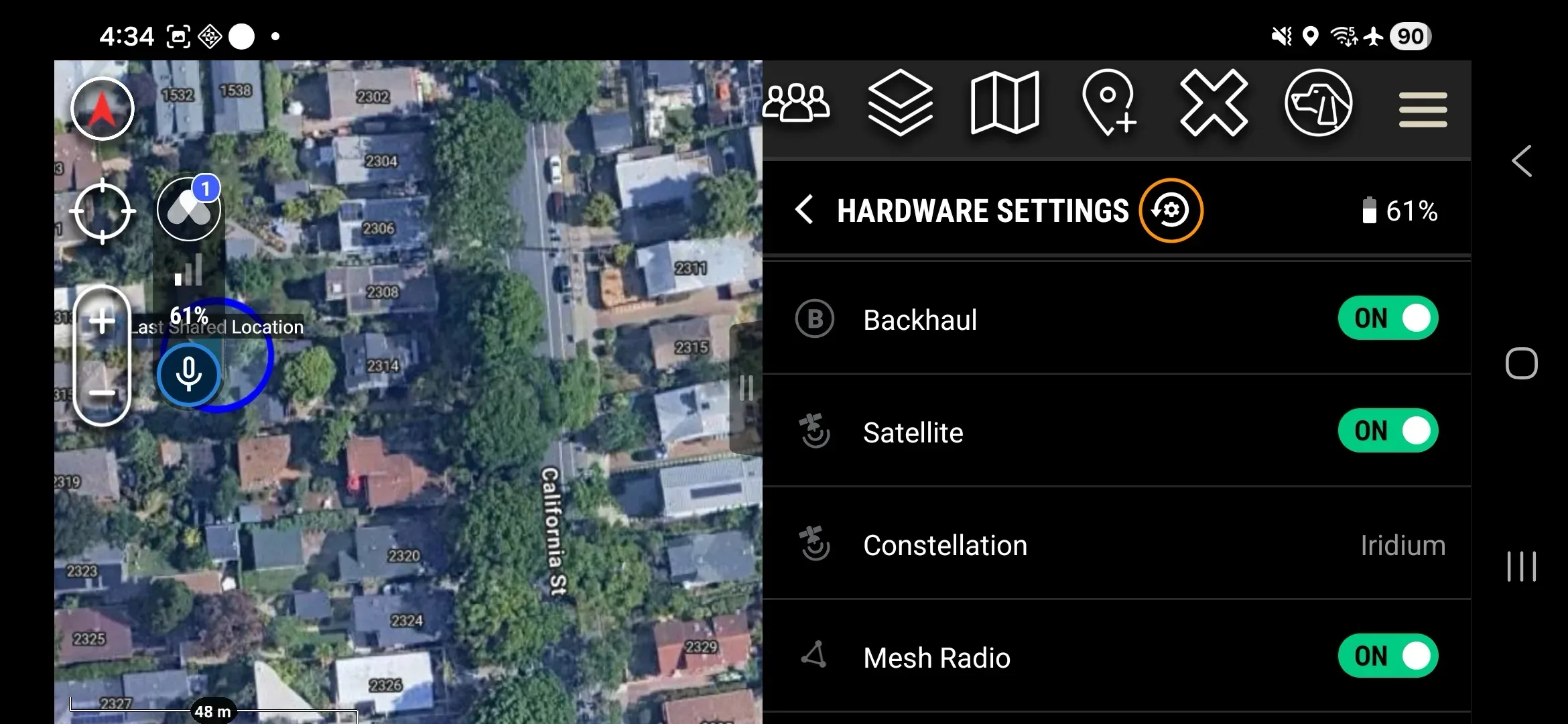
Tracking
| Setting | Values | Description |
|---|---|---|
| Tracking | ON / OFF | Enables or disables location tracking. Same control as the Tracking screen. |
| Tracking Interval — Mesh/Cell | 5, 15, 30 seconds; 1, 5 minutes | Control how often the Node reports position over mesh or cellular. |
| Tracking Interval — Satellite | 5, 15, 30 seconds; 1, 2, 5, 10, 20, 30 minutes; 1 hour | Control how often the Node reports position over satellite. Cannot be set faster than the Mesh/Cell interval. |
Network
| Setting | Values | Description |
|---|---|---|
| Network | — | Tap to open the Network Status screen. |
| Backhaul | ON / OFF | Controls whether this Node uses its available satellite, cellular, or Wi-Fi connections to backhaul data for others in its mesh network. |
| Satellite | ON / OFF | Enables the Iridium satellite link. |
| Mesh Radio | ON / OFF | Enables the LoRa mesh radio (LoRa = long-range, low-power radio used to form a local device-to-device mesh network). |
| Mesh Radio Channel | Americas 1–3, Europe 1 | Selects the mesh frequency channel. All Nodes on the same mesh must use the same channel. |
| Mesh Transmission Strength | High (0.5 W), Medium (0.316 W), Low (0.1 W) | Sets LoRa transmit power. Use High in open terrain, lower values to reduce RF signature. |
| Mesh Key Phrase | Text (read only) | Human-readable label for the active mesh encryption key. Display only — cannot be used to reconstruct or share the key. |
Device
| Setting | Values | Description |
|---|---|---|
| Serial Number | Serial number | Read-only serial value of the paired device. |
| Sensors | View-only detail of paired BLE heart-rate sensor | View paired sensors, when applicable. |
| LED Light | ON / OFF | Controls the Node’s LED indicator. Turn off to reduce visual signature. When OFF, the Node illuminates the LED only when powering on or off. |
| Device Button | • Enable/Disable Tracking • Enable/Disable Satellite • Pair to Sensor • Push to Talk • None — button disabled | Configures the function of the Node’s programmable button. |
| Connection Mode | • Bluetooth (default): Node pairs over Bluetooth. • USB: Node communicates over a USB connection. | Controls how Node pairs to an EUD. |
| Vibration Feedback | ON / OFF | Controls whether the Node vibrates on power cycles, pairing, and certain button activations. |
| Endurance Mode | ON / OFF | Saves battery by disabling real-time satellite message delivery. When enabled, messages are only received during satellite transmissions or every 30 minutes. |
| Firmware version | Firmware version number | Displays Node’s current firmware version. Upgrades are regularly available. |
| Network Core version | Network Core version | Displays Node’s current Network Core version. |
| Satellite Encryption | ON | Read-only reminder that all satellite data is encrypted at AES-256. |
| Factory Reset | — | Tap to begin a factory reset of the paired Node. Be sure to forget Somewear devices to reconnect. |