
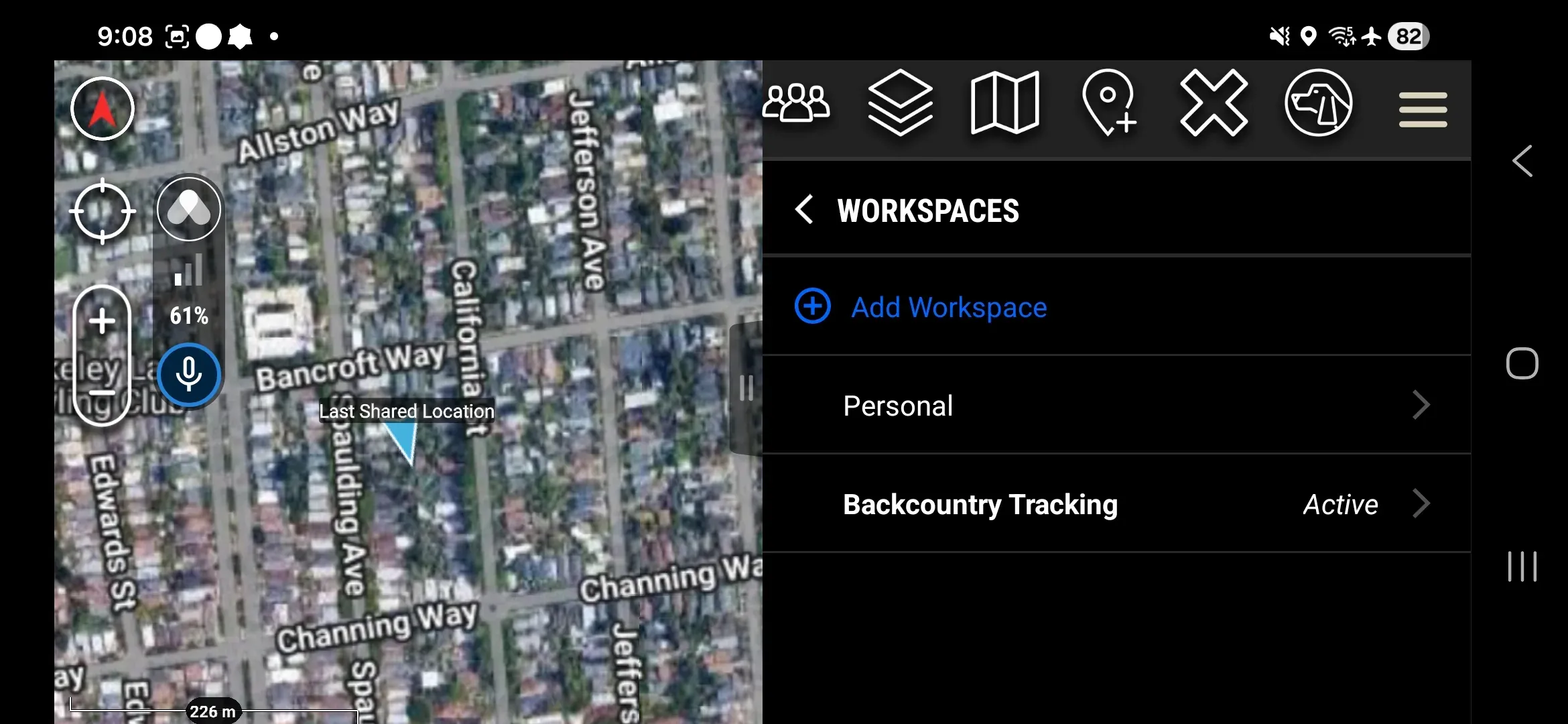
Switch your active Workspace, invite new Members, or leave a Workspace — all from the plugin’s Active Workspace screen (Settings → Active Workspace).
Switch Active Workspace
- Open the plugin and go to Settings → Active Workspace.
- Tap the Workspace you want to make active.
- Tap Set as Active Workspace.
Invite a Member
Inviting a Member generates a QR code the new Member scans to join. Requires a high-bandwidth connection to generate the code.
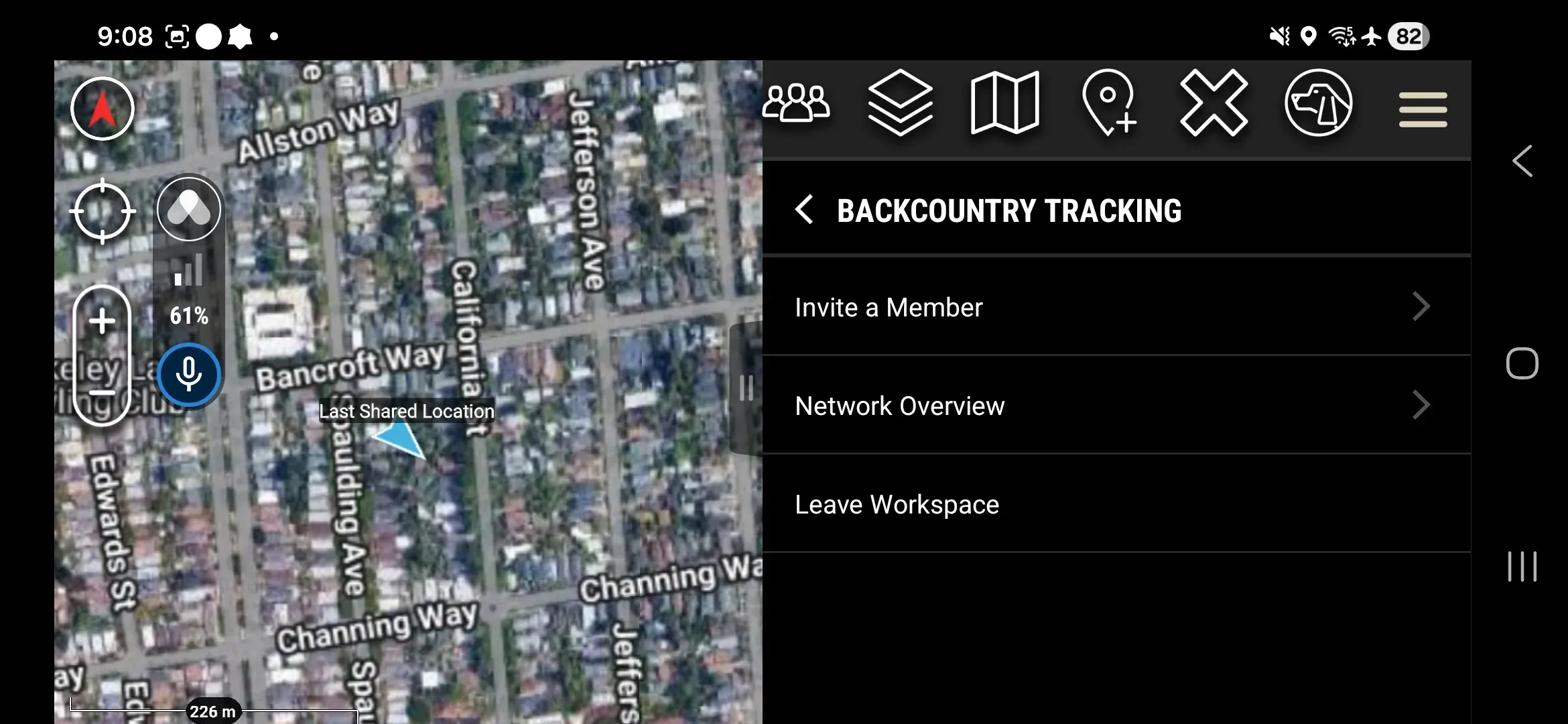
- Go to Settings → Active Workspace and tap the Workspace.
- Tap Invite a Member.
- Share the generated QR code with the new Member to scan.
The new Member completes the join process using the join-Workspace procedure on their device. To generate a code from the web portal instead: somewear.app → Account → Workspaces → select Workspace → Settings → Access Keys & QR Codes.
Leave a Workspace
- Go to Settings → Active Workspace and tap the Workspace.
- Tap Leave Workspace and confirm.
After leaving, all the Workspace’s data is deleted from your device. Rejoining requires a new QR code or credentials from an Admin.