
Complete the pre-mission checklist and run the comms check procedure before every operation. Together they confirm firmware, pairing, Workspace alignment, and all network delivery paths are operational.
Pre-Mission Checklist
- Update all Nodes to current firmware — see Update Node Firmware
- Confirm the mesh radio channel for the operation — all devices must be on the same channel to communicate over mesh
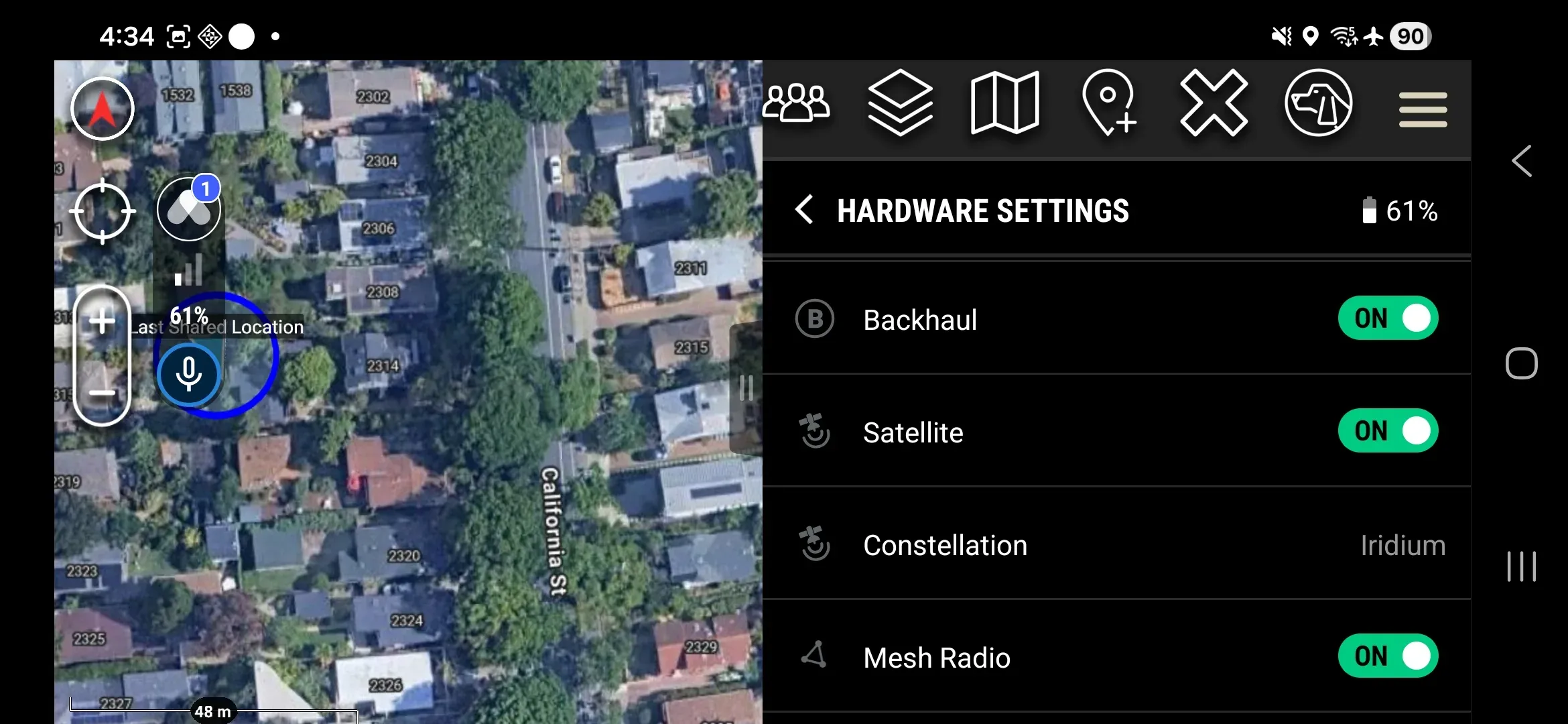
- Confirm network toggles: Backhaul
ON, SatelliteON, Mesh RadioON - Download offline maps for the operating area in ATAK
- Confirm all EUDs are joined to the correct Workspace (shared team environment where messages and locations are exchanged)
- Double check callsigns on all EUDs — see Set Your Callsign
Comms Check Procedure
Running a comms check before you leave your high-bandwidth connection is best practice to prevent any issues arising in the field.
Preconditions before starting:
- Backhaul, Satellite, Mesh:
ON - All users on the same Workspace
- All devices on the same mesh channel
- If key rotation is enabled: confirm all devices using the same Mesh Key Phrase (shared encryption passphrase for mesh radio traffic)
Run through every step in order. Do not skip satellite verification.
Step 1 — Pair Node while connected to WiFi or LTE
- Confirm the EUD has active WiFi or cellular connectivity before pairing.
- Follow the Bluetooth pairing procedure to pair the Node to the EUD.
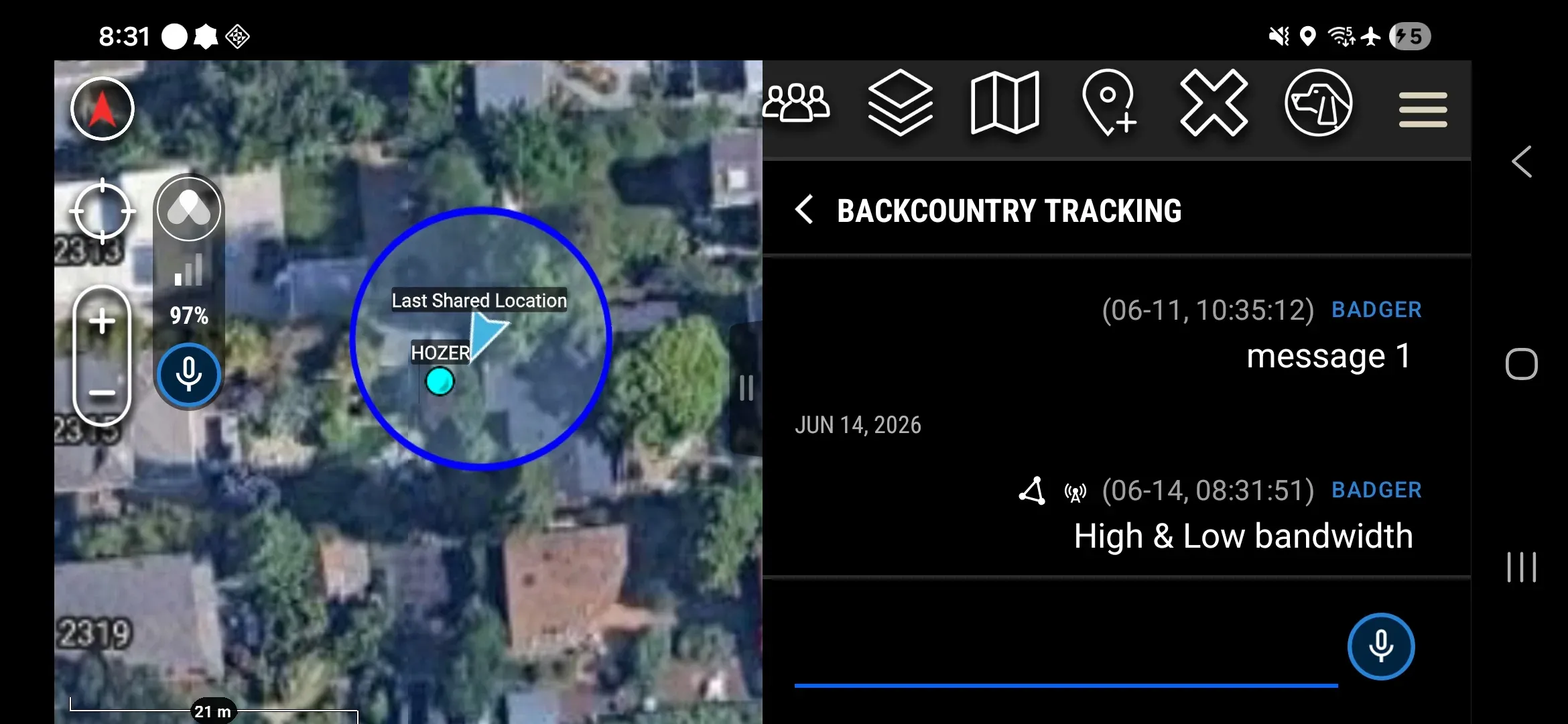
Step 2 — Send a Workspace message, verify mesh + high-bandwidth delivery
- Open the Plugin and tap Messages.
- Tap Workspace chat.
- Type a test message and send.
- Confirm the sent message shows both delivery icons white: the mesh icon
 and the high-bandwidth icon
  .
.
Step 3 — Disconnect from WiFi and LTE
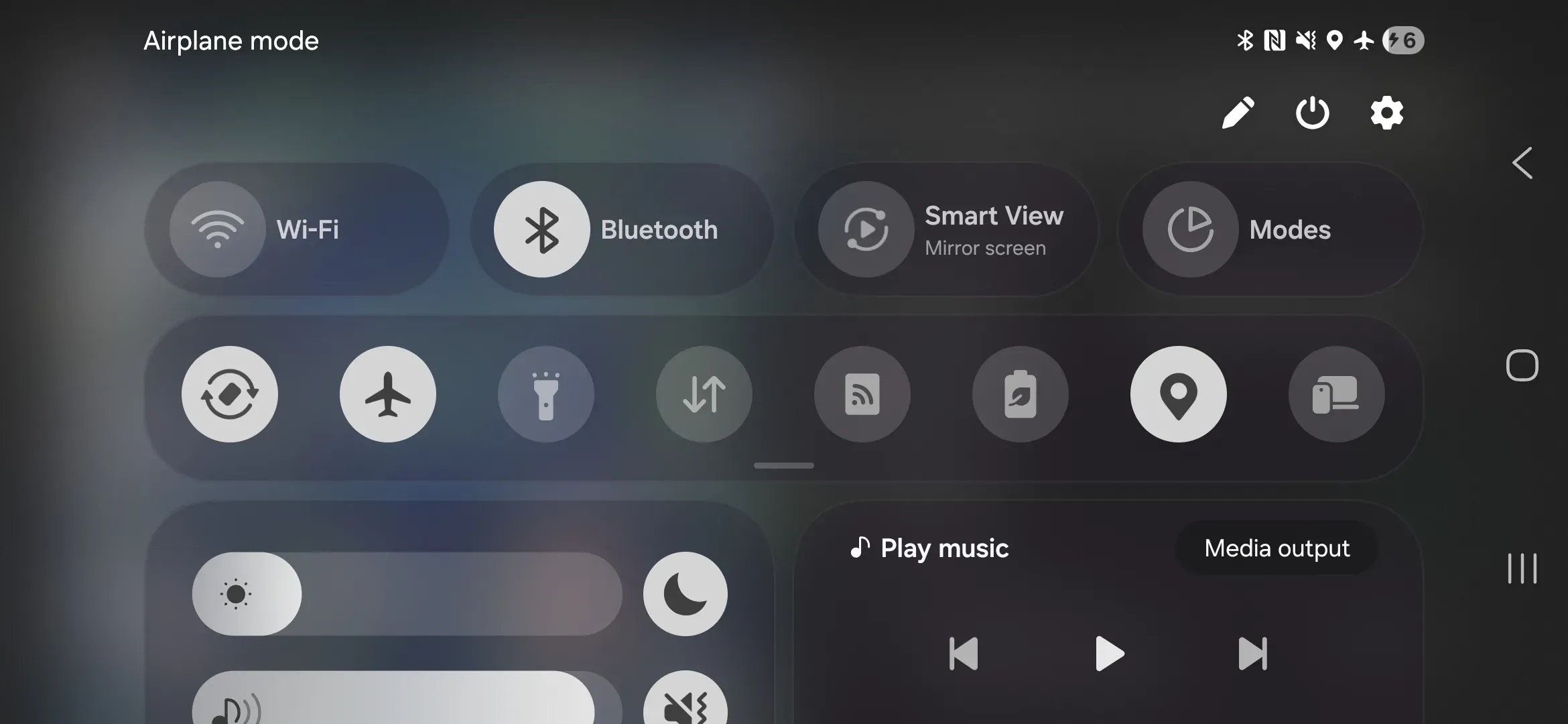
- Swipe down from the top of the screen to open the notification shade.
- Turn off WiFi.
- Enable Airplane Mode to disable cellular.
- Confirm Bluetooth is ON before proceeding to Step 4.
Step 4 — Send a Workspace message, verify mesh-only delivery
- Open the Plugin and tap Messages.
- Tap Workspace chat.
- Type a test message and send.
- Confirm the sent message shows only the mesh icon white. The high-bandwidth icon should remain gray — not white.
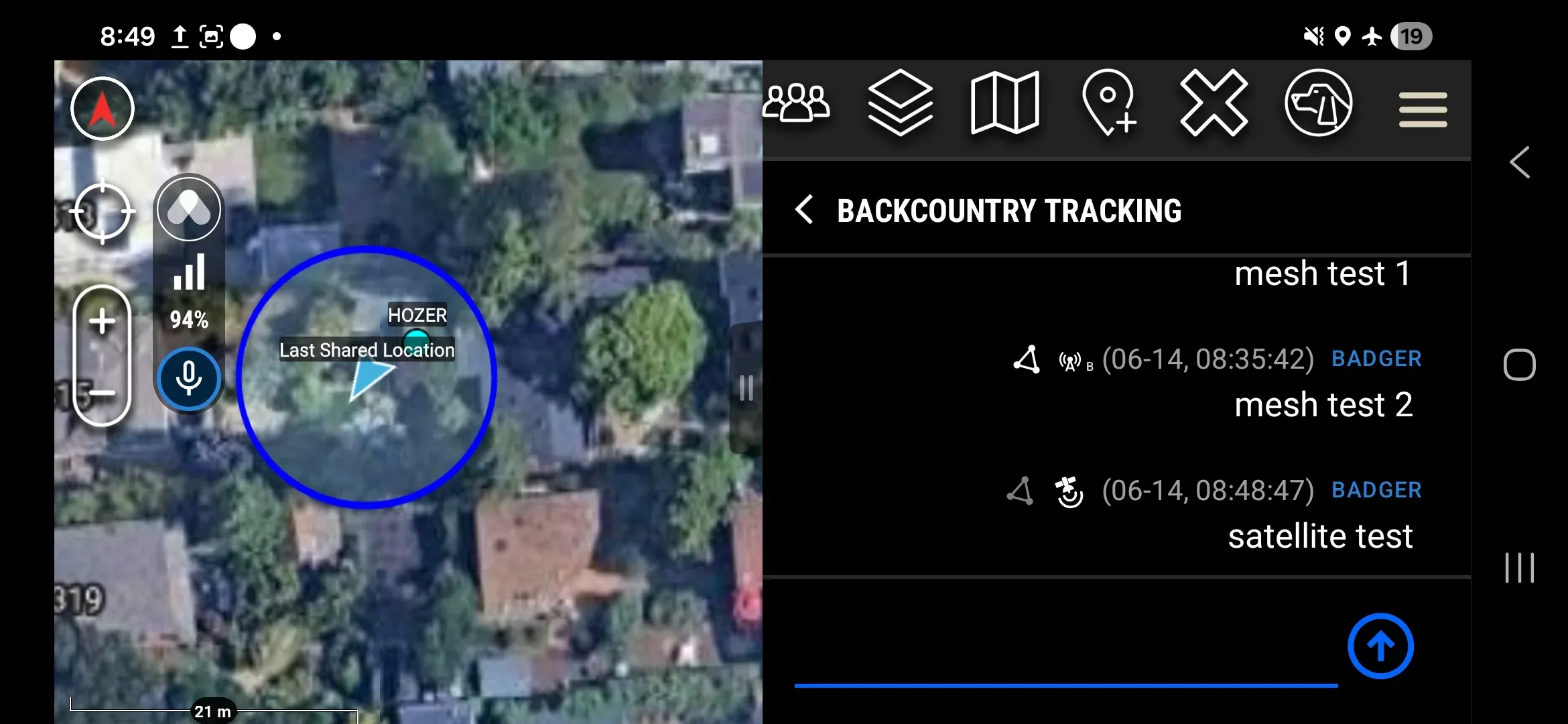
Step 5 — Satellite verification
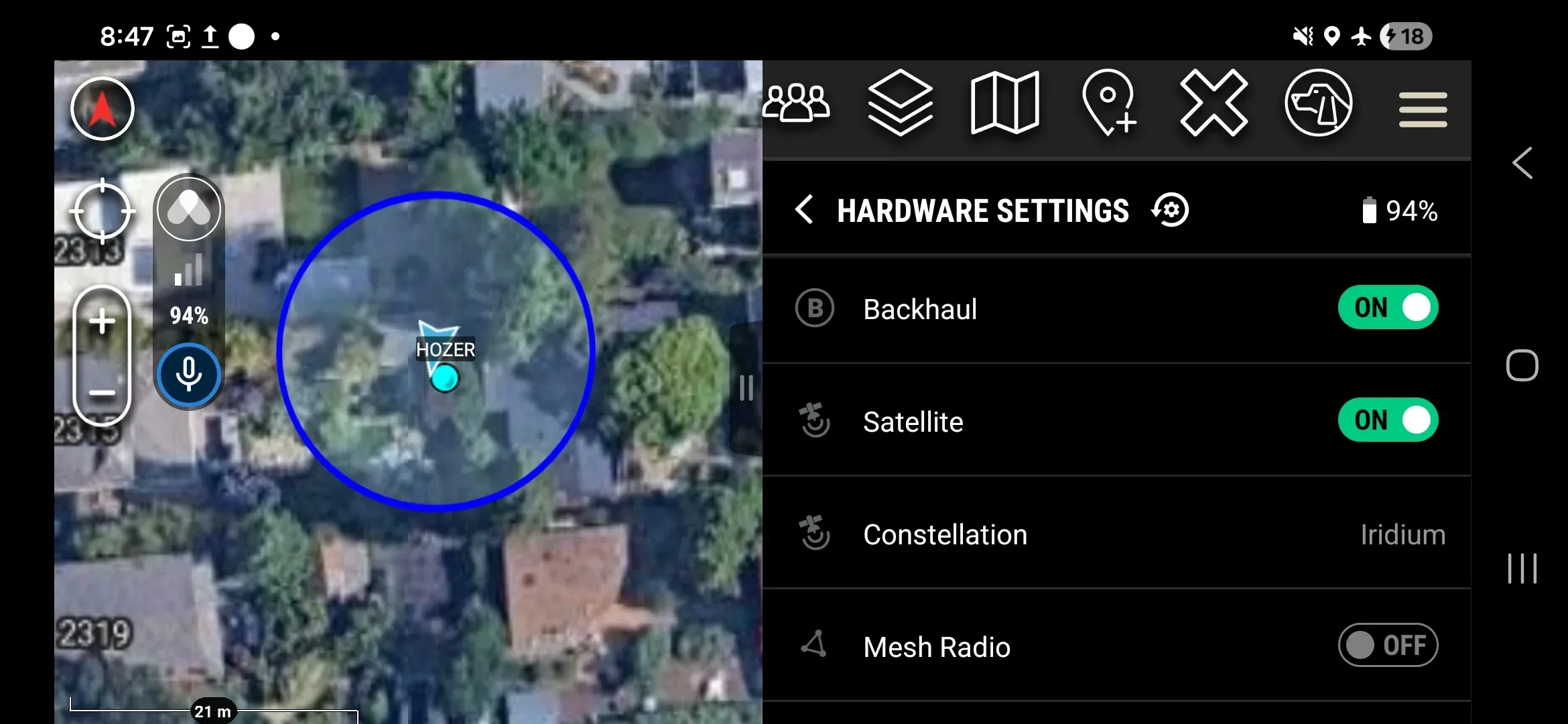
- Navigate to Hardware Settings → Mesh Radio → toggle OFF.
- Type a test message in the Workspace chat and send.
- Confirm the sent message shows the satellite icon
 white.
Step 6 — Verify PLI (position reporting)
- Open the ATAK map.
- Confirm all team members appear as position markers on the map.
- Tap each marker and verify the Last Report timestamp is recent.
Step 7 — Restore settings
- Disable Airplane Mode to restore cellular connectivity, or re-enable WiFi.
- Toggle Mesh Radio, Backhaul, and Satellite back ON in Hardware Settings.
Comms check complete.