
One operator in the Workspace can turn on TAK Bridge in the ATAK plugin to start mirroring CoT data between the Somewear Grid network and another local area network (LAN). Using this feature, partners can share situational awareness at the edge and lean on Node’s SmartBackhaul for a resilient satcom link back to command.
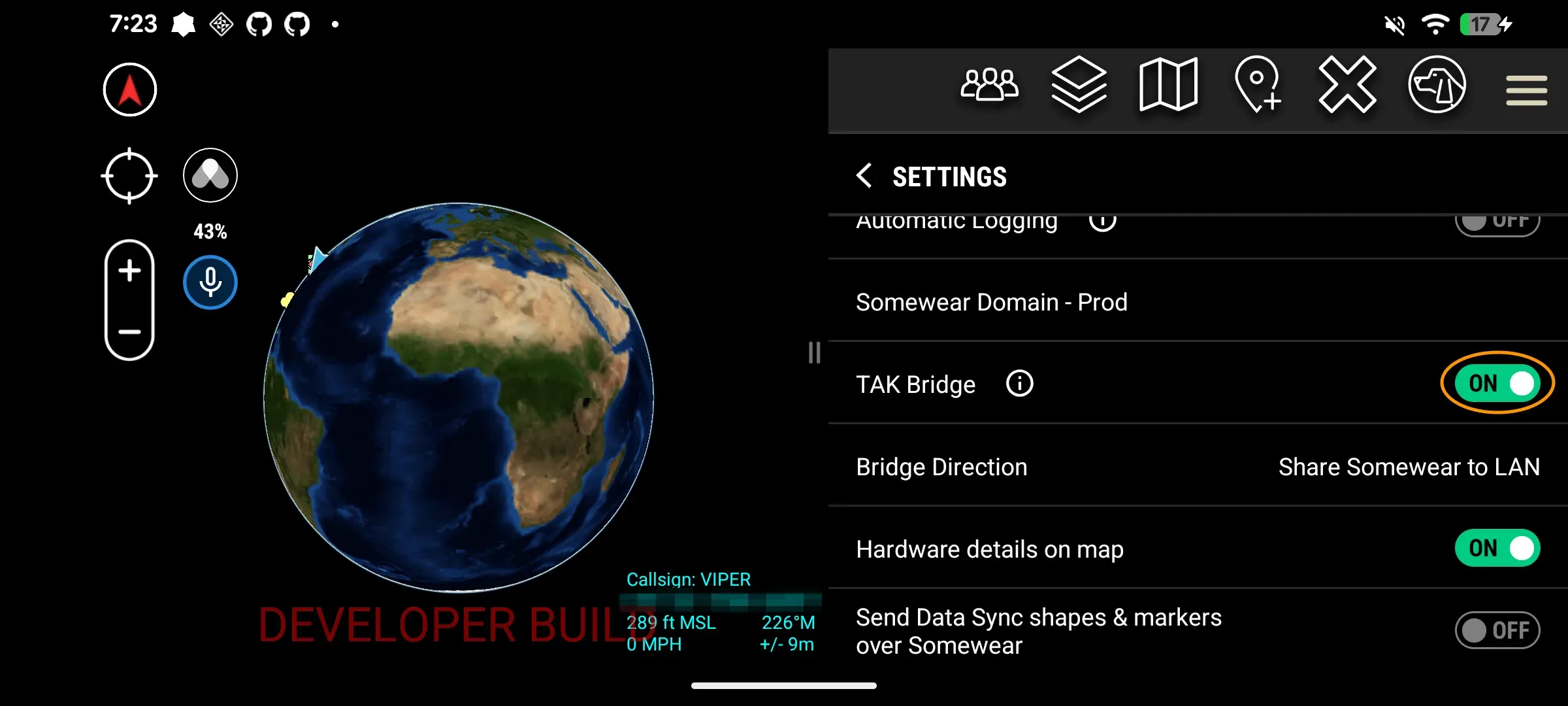
Enable TAK Bridge
- Open the Somewear ATAK plugin settings.
- Toggle TAK Bridge on.
Manage data flow
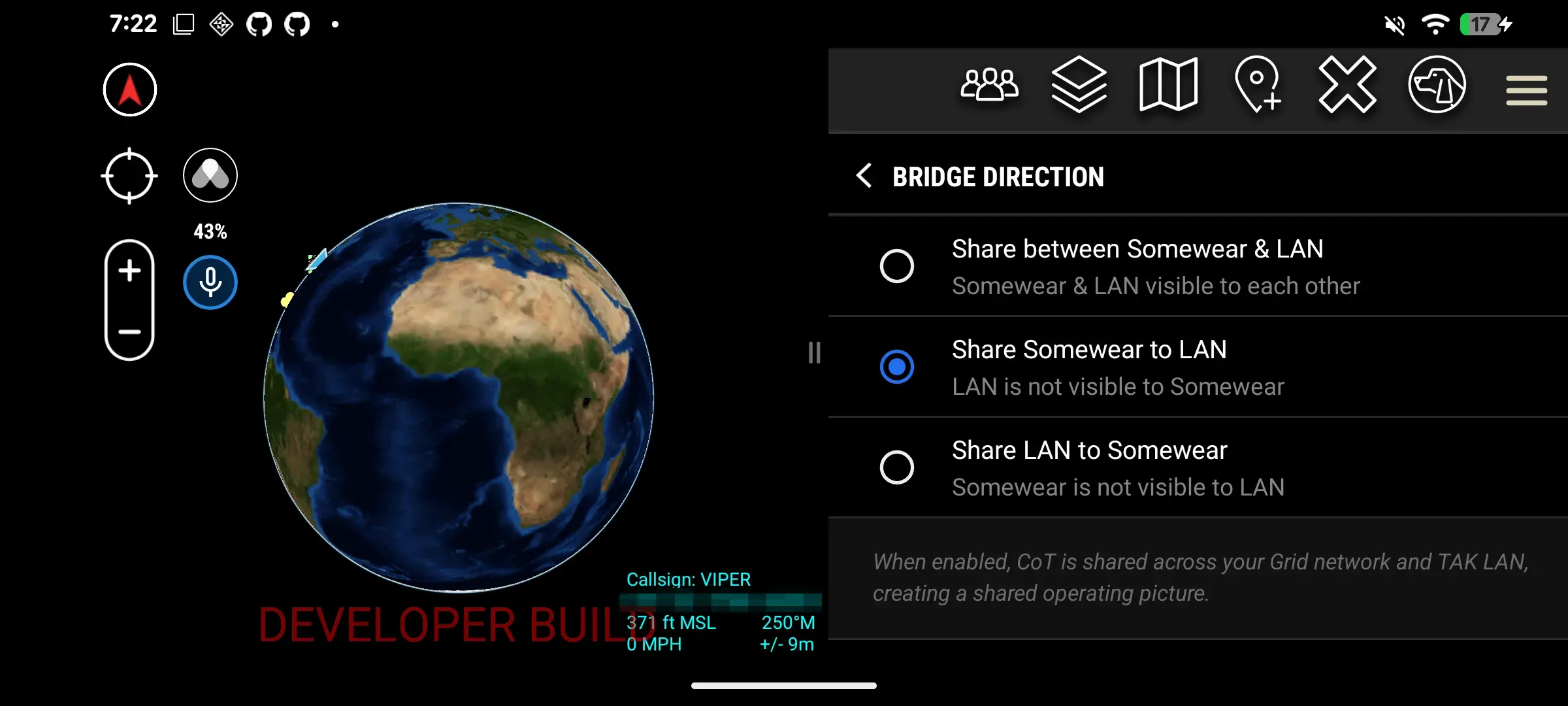
Once TAK Bridge is on, a Bridge Direction setting appears. By default, a 2-way flow between other local networks and Somewear is enabled, but you can change this setting to allow 1-way data sync depending on operational needs.
| Setting | Effect |
|---|---|
| Share between Somewear & LAN (default) | Somewear and LAN are visible to each other (bi-directional). |
| Share Somewear to LAN | LAN is not visible to Somewear. |
| Share LAN to Somewear | Somewear is not visible to LAN. |
Verify the bridge
Confirm tracking and messaging are properly flowing through the bridge device by validating using devices isolated to their respective networks (e.g. Node only, Bridge device with Node + IP radio, IP radio only). With the default setting, check that:
- Somewear → LAN: a LAN-only teammate sees the PLI of a Node-only team member. Somewear Workspace messages are shared as ATAK general chat messages; broadcast markers are shared across the bridge.
- LAN → Somewear: a Somewear-only teammate sees the PLI and messages from a LAN-only teammate. ATAK general chat messages appear as Workspace messages; broadcast markers are shared across the bridge.
If you chose a different setting for your data flow, adjust verification procedures appropriately.
Related
- Mesh Radio and Encryption — set the mesh channel and confirm encryption on Node
- SmartBackhaul — resilient satcom link back to C2 over Node
- Install ATAK — get ATAK on your EUD before adding the Somewear plugin