
Hold your push-to-talk (PTT) trigger and talk to your Workspace — over line-of-sight radio through your Node, over a high-bandwidth connection, or both at once. Every voice message you receive is recorded on your device for replay. Voice works in ATAK and the web application.
What you’ll need
- The Somewear ATAK plugin, joined to a Workspace
- A paired Node for line-of-sight voice — high-bandwidth voice works without one if your phone has a Wi-Fi, cellular, or other high-bandwidth connection
- Optional: a hardware PTT trigger (see Set up your PTT trigger), external headset and microphone.
How voice travels
Voice travels over both line of sight and a high-bandwidth connection. You don’t pick manually — the plugin will send over whatever connectivity you have. When you are paired to Node and connected over high bandwidth, Workspace broadcasts will be sent over both channels at the same time to maximize reach.
Line-of-sight (LOS)
LOS audio broadcasts over Node’s secondary LoRa radio and will reach any Workspace Members within direct range. Node’s secondary LoRa runs on a higher data rate and has a shorter point-to-point range than the messaging and shape-sharing radio.
High-bandwidth (Cell or Wi-Fi)
When you have a high-bandwidth connection, there are expanded audio message capabilities. You can broadcast to everyone in the Workspace, or also send direct voice messages to others. Other ATAK users or admins using the web application will be able to send and receive audio messages.
What else to know
- Transmissions are limited to 20 seconds to prevent a stuck microphone disrupting other team members from sharing.
- All Nodes in LOS share a single audio channel. When somebody is already broadcasting, other team members will have to wait for them to complete before starting a new transmission.
- It is possible for multiple operators to speak at once over a high-bandwidth audio transmission.
- Audio playback works for all received messages, but any messages missed will not be forwarded for future availability.
Set up your PTT trigger
Pick one or more PTT triggers in the plugin’s voice settings. Any of these works:
- Node programmable button — the hardware button on your Node
- Bluetooth PTT button paired to your EUD — the Pryme PTT-Z is the supported commercial button
- Hardwired PTT device connected to your EUD
- Mic control in the chat UI — no setup needed; press and hold on screen
Headsets: standard Bluetooth headphones and microphones connected to your EUD work for both listening and talking — low-profile earbuds (AirPods and similar), Invisio, CASL, and Peltor ComTac 4 and 5 are supported. Test your specific headset and trigger combination before you rely on it in the field.
Send a broadcast
- Press and hold your PTT trigger. A chirp confirms you’re transmitting.
- Speak. Over LOS, teammates in range hear you live.
- Release to end. A chirp confirms the transmission ended. Over LOS, transmission cuts off automatically at 20 seconds — you hear the same chirp at cutoff.
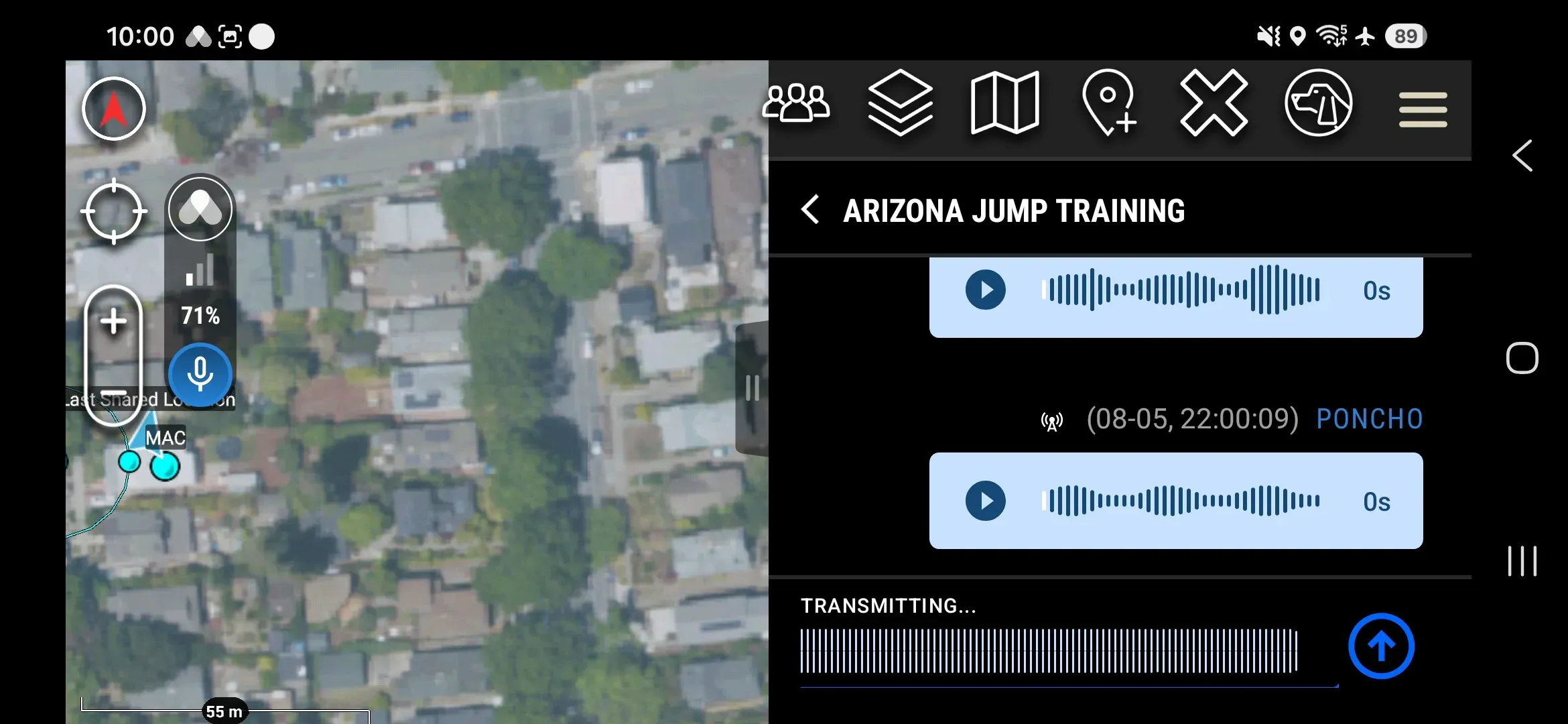
Teammates receiving your broadcast see a waveform labeled with your callsign.
PTT works with the phone asleep, within ATAK’s background processing limits. You speak while you hold the trigger — you can’t send a pre-recorded audio file as a voice message.
Send a direct voice message
Direct voice messages travel over high-bandwidth only — you and the recipient both need a high-bandwidth connection. LOS voice is broadcast-only; there are no direct messages over LOS.
- Open a message thread with the teammate.
- Press and hold the mic control and speak.
- Release to send.
If either of you lacks the connectivity to carry the message, you hear an audible error.
Receive and replay incoming audio
Multiple voice streams can arrive at the same time — each plays as it comes in. Every message you receive is also saved on your device, so you can replay it from the thread afterward for after-action review.
Recordings are local to your device — they are not synced to the server or to other devices.
Range expectations for LOS voice
Plan around roughly 300 m in variable urban conditions. With a mostly clear line of sight, expect consistent results to about 400 m. With a truly unobstructed line of sight, LOS voice carries up to 1 km. At the edge of range, audio arrives choppy or not at all.
Troubleshooting
| Symptom | Likely cause and fix |
|---|---|
| No voice controls in the plugin | Voice may not be enabled for your Organization. Contact your Admin or Somewear support. |
| Choppy or missing audio | You may be at the edge of LOS range. Close the distance or improve your line of sight. |
| Bluetooth PTT button doesn’t trigger | Re-pair the button with your EUD and verify it’s selected as a PTT trigger in the plugin’s voice settings. |
Related
- Sending Messages — text messaging with automatic multi-path delivery
- Network Status — check and troubleshoot your connections
- Voice Messaging in the Web App — broadcasting, direct messaging, and monitoring voice across Workspaces from the web application