
Turn off Allow Workspace Members to Invite New Users for a Workspace so only Admins can invite others to join.
What this setting does
By default Members can invite new users to the Workspace.
When the setting is turned off, non-Admin Members will no longer be able to invite new users and won’t have access to the invitation flows. Admins are unaffected and can still invite new users.
A Member sees the Add Member button disabled, with the message “You don’t have permission to add new members. Contact a Workspace admin to add new users.” The QR code and access key are hidden.
Change invite rights for an existing Workspace
Admins can update this setting from either Web or mobile over a high-bandwidth connection.
Web application
- Click the Account tab in the top-right of the web application.
- Select the target Workspace from your list of Workspaces on the left.
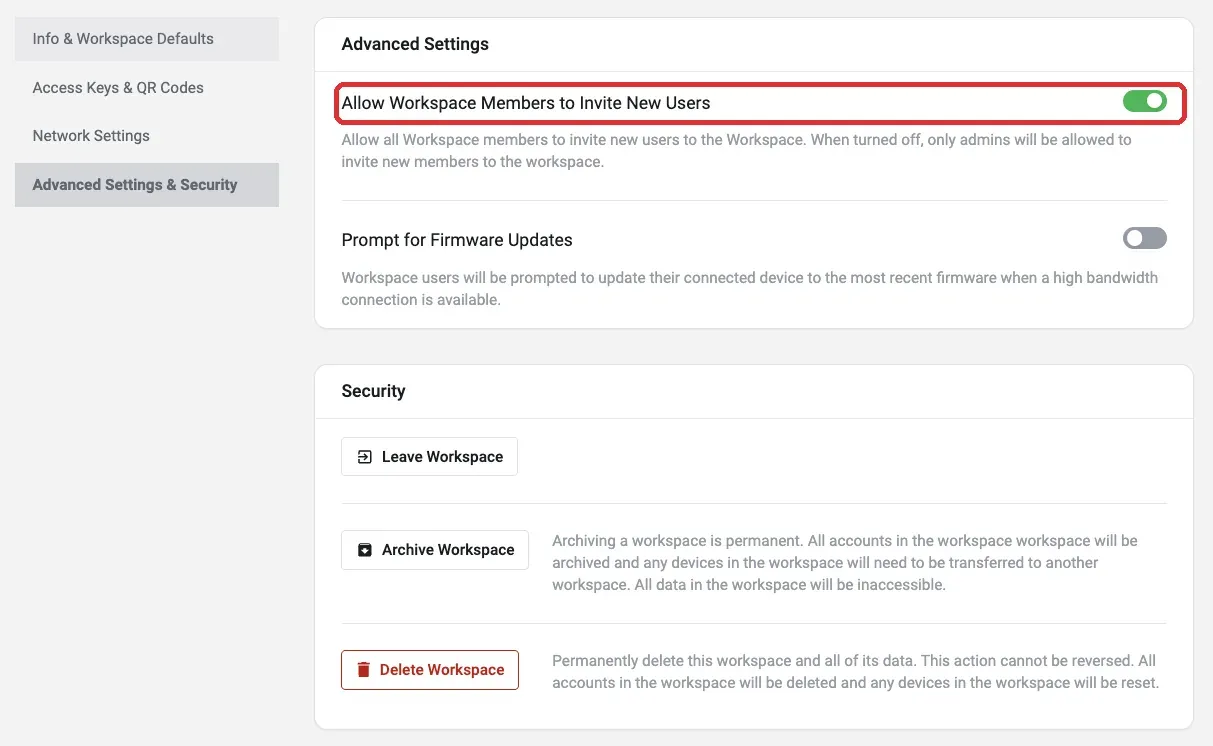
- Open the Advanced Settings & Security section.
- Turn Allow Workspace Members to Invite New Users off (or on).
ATAK plugin
- Tap Workspace.
- Select the target Workspace from the list.
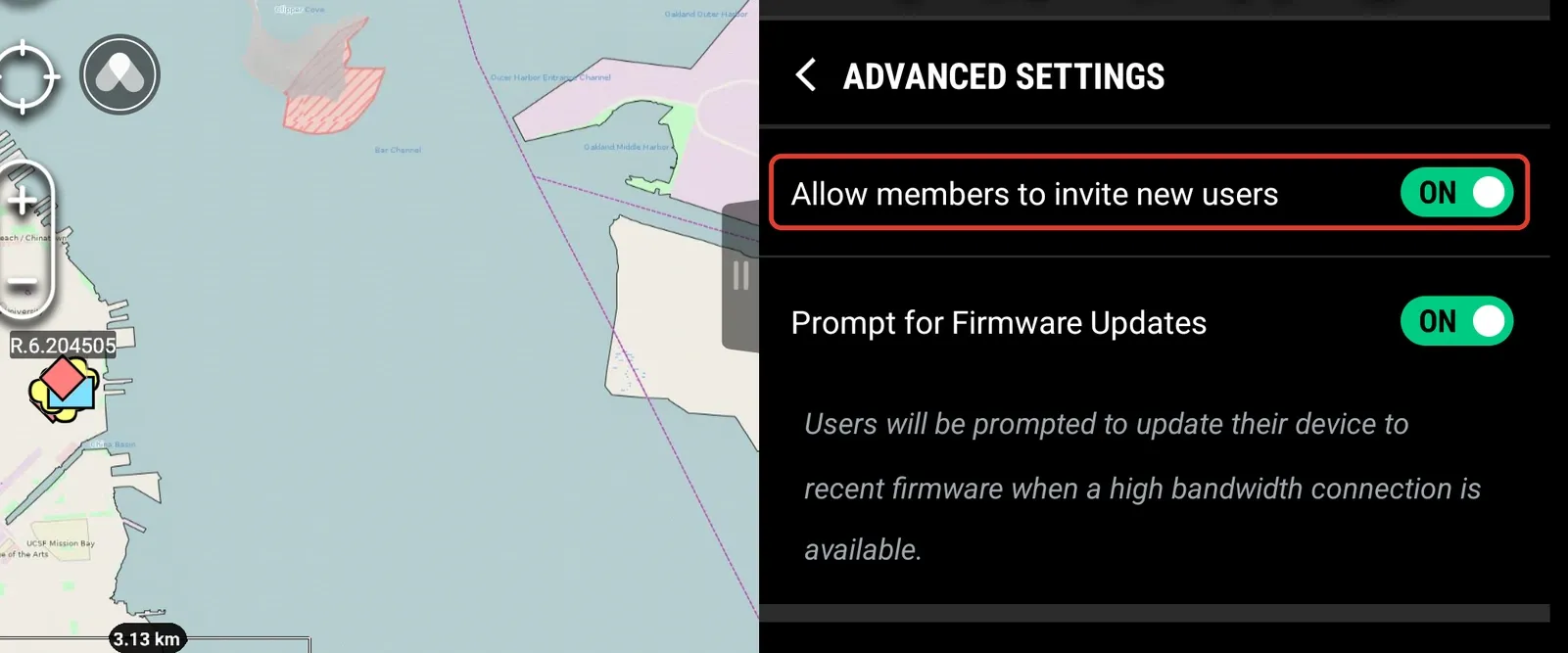
- Open Advanced Settings and toggle Allow members to invite new users.
iOS
What team members see
With invite rights off, a non-Admin Member sees the blocked state: in the web application, a disabled Add Member button with the message to contact a Workspace Admin, and no QR code or access key. On the ATAK plugin, the Invite a Member option is greyed out. The change persists across a page refresh or app relaunch.

Good to know
- Already-shared codes stay valid. Turning this off stops non-Admins from creating new invites, but doesn’t revoke QR codes or access keys already shared.
- To restore someone’s invite rights, promote them to Admin — or turn the setting back on for everyone.
Related
- Generate a QR Code — how Admins create a Workspace invite QR code.
- Create a Workspace — set invite rights and other defaults when you add a Workspace.