
Create a Workspace from the Somewear web application: open Account, add the Workspace, then set its name, default settings, and — if your team requires it — mesh key rotation.
Create a Workspace
- Click the Account tab in the top-right of the web application.
- Click + Add Workspace.
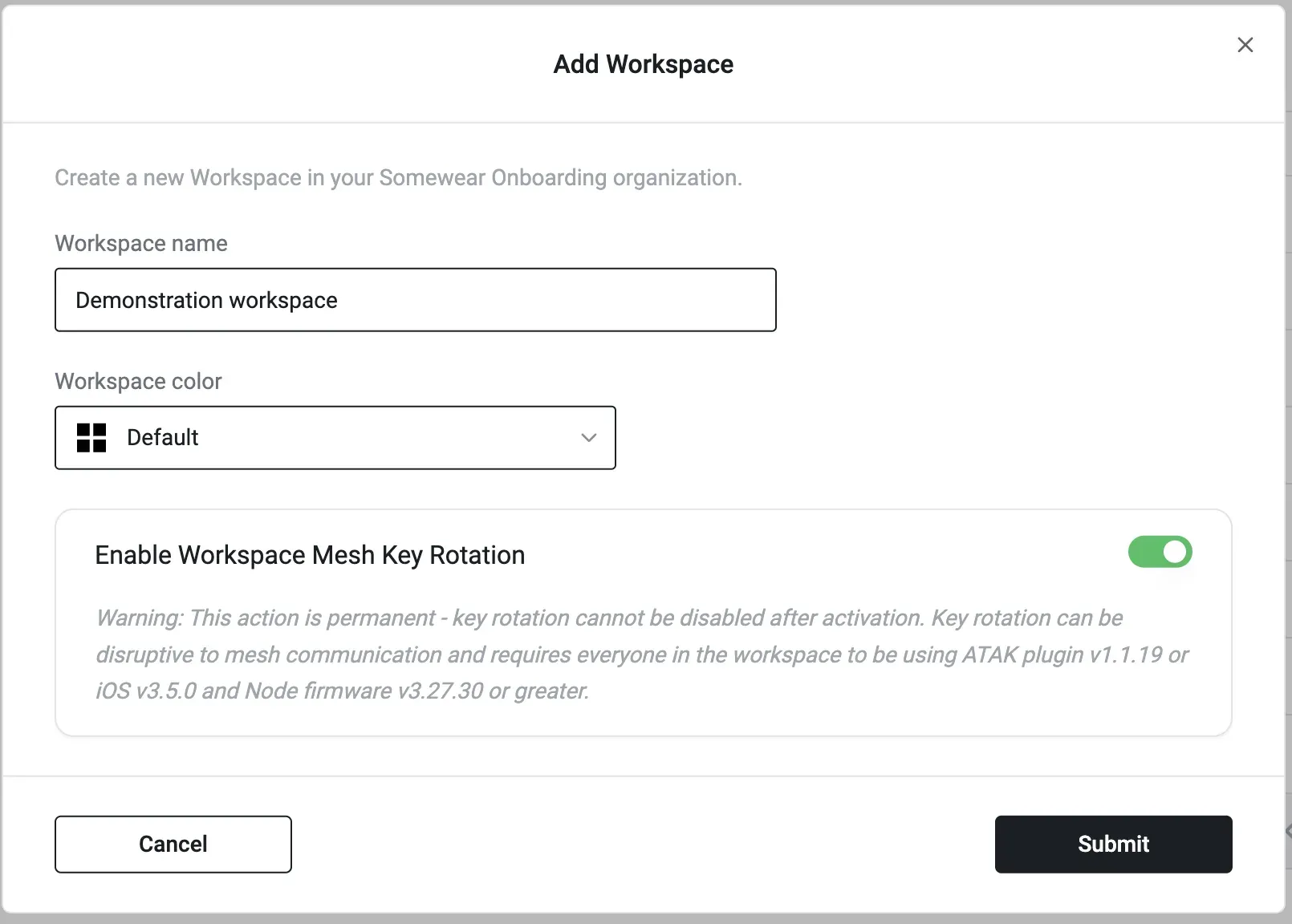
- Enter the Workspace name and color. To enable encrypted mesh key rotation for the Workspace, turn on Enable Workspace Mesh Key Rotation.
- Set the Workspace default settings. These apply automatically to each Member’s device when they join the Workspace. See Organization & Workspace Default Settings.
- Click Submit, then Confirm Workspace Default Settings.
The new Workspace appears in your Workspaces list. Invite Members with a QR code — see Generate a QR Code.