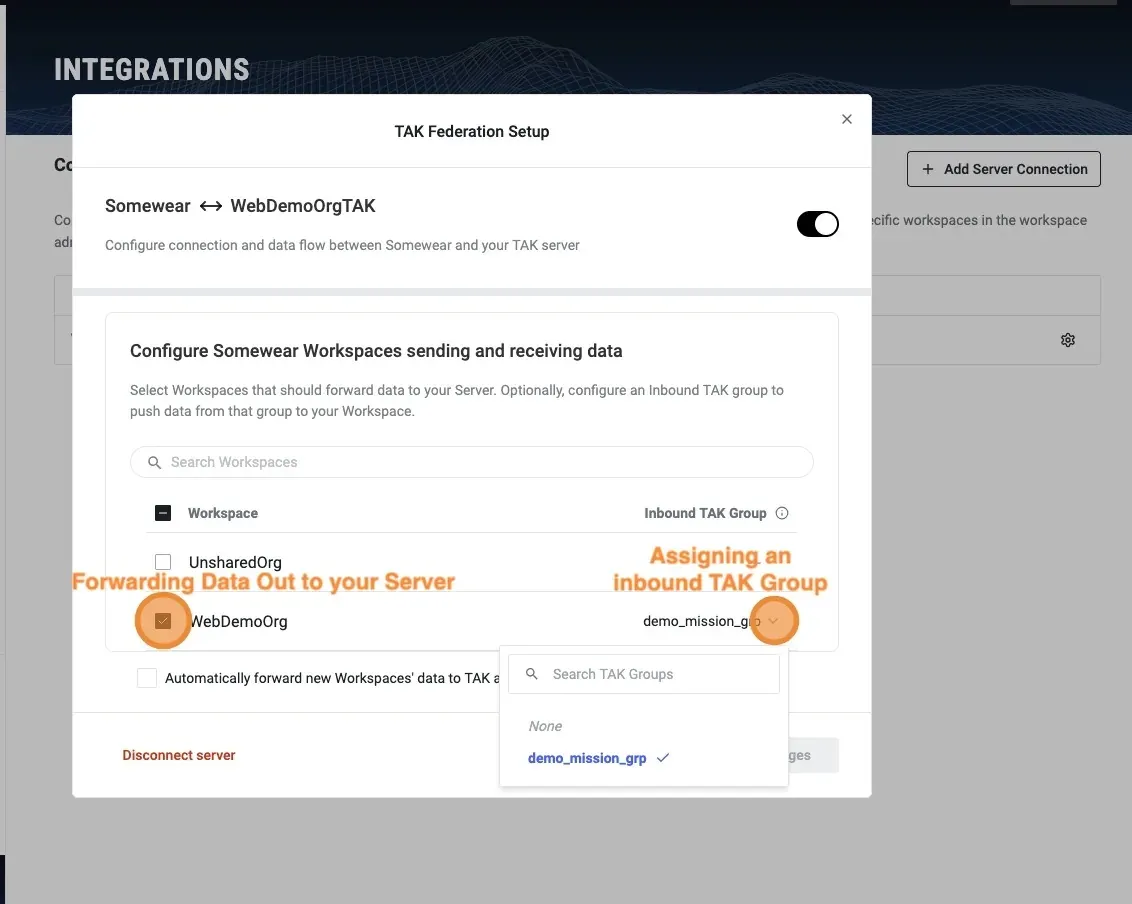
Federate your TAK server with Somewear so position data (PLI) and messages from Somewear devices appear in your TAK clients — and, optionally, flow back from your TAK groups into your Somewear Workspaces. Setup moves through a few stages: start the connection in Somewear, exchange certificates between the two servers, configure federation on your TAK server, and choose which Workspaces to share.
What you’ll need
- Organization Admin access to the Somewear web application
- Admin access to your TAK server, plus SSH or file access to its certificate directory (or the
root-ca.pemcertificate)
1. Start the connection in Somewear
- In the Somewear web application, go to Integrations.
- Add a TAK Server Connection, select Federated TAK Connection, and click Next.
- Enter a friendly name for your TAK server.
2. Get your TAK server’s CA certificate
- SSH into your TAK server (or open it directly) and go to the certificate directory at
/opt/tak/certs/files. - In a typical TAK server installation, the public certificate authority (CA) certificate is
root-ca.pem.
3. Upload your TAK CA to Somewear
- Back in Somewear, upload your
root-ca.pemcertificate to the Server Certificate field. - Click Submit.
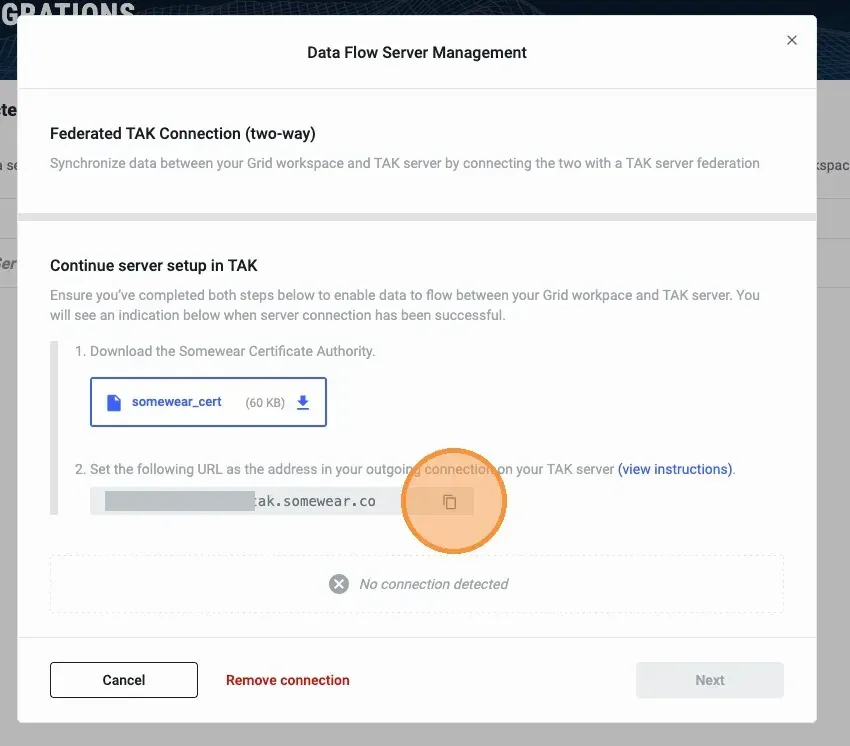
- Download the Somewear public certificate.
- Copy the Outgoing Connection URL — you’ll paste it into your TAK server later.
4. Add the Somewear CA to your TAK server
- Open your TAK server’s web admin.
- Under the Configuration menu, select Federate Certificate Authorities.
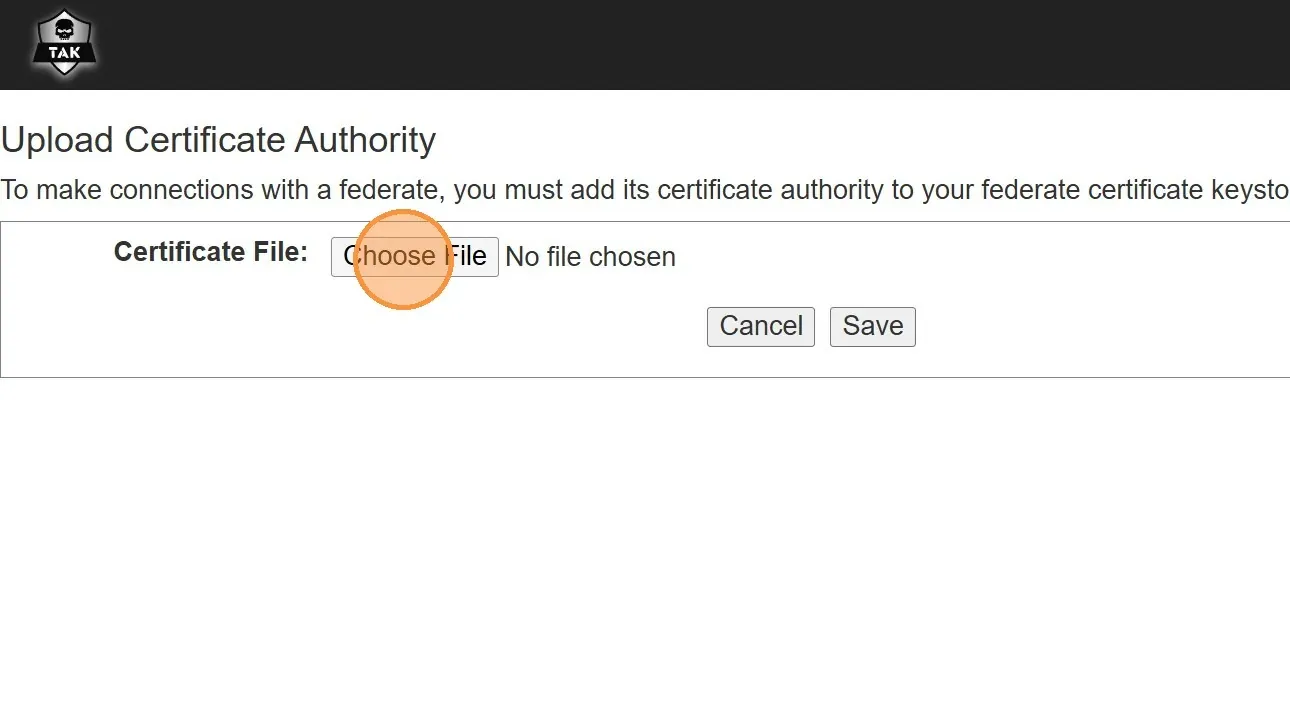
- Click Upload Federate Certificate Authority.
- Upload the certificate you just downloaded from Somewear, then save the form.
5. Configure federation on your TAK server
- Under the Configuration menu, select Federation.
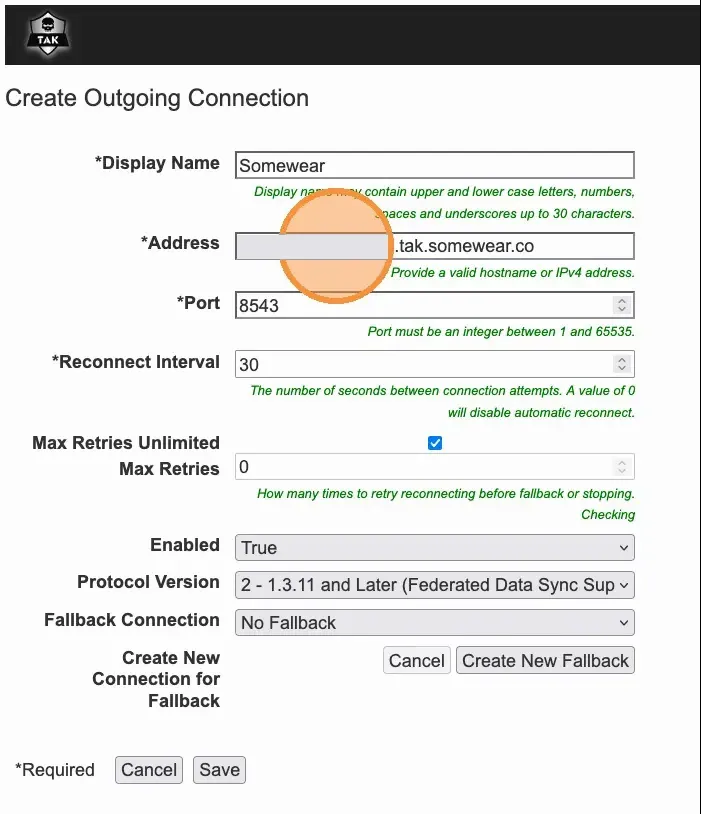
- Click Create Outgoing Connection, fill in the form, and save:
- Display Name: a label for the connection (for example, Somewear)
- Address: the Outgoing Connection URL you copied from Somewear
- Port:
8543
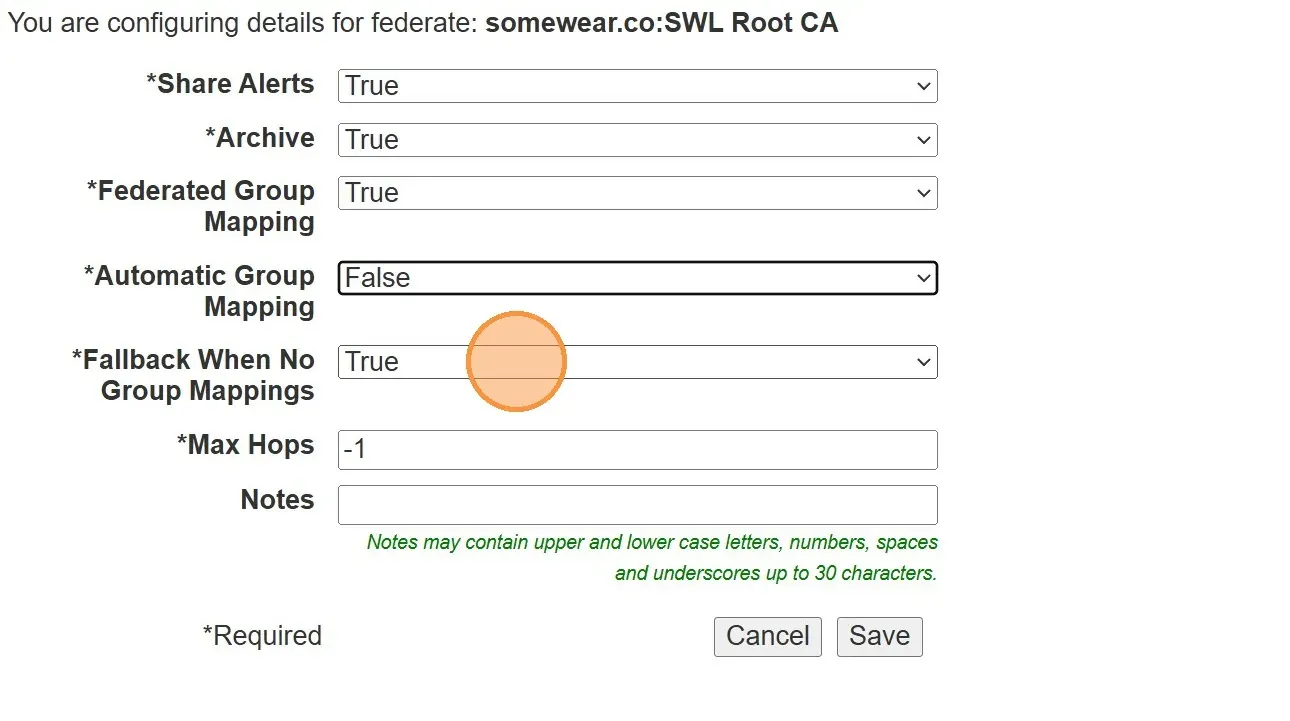
- Select Edit Config for the new federation, set the following, then save the form:
- Federated Group Mapping → True
- Automatic Group Mapping → False
- Fallback When No Group Mappings → True
6. (Optional) Share TAK groups for bi-directional sync
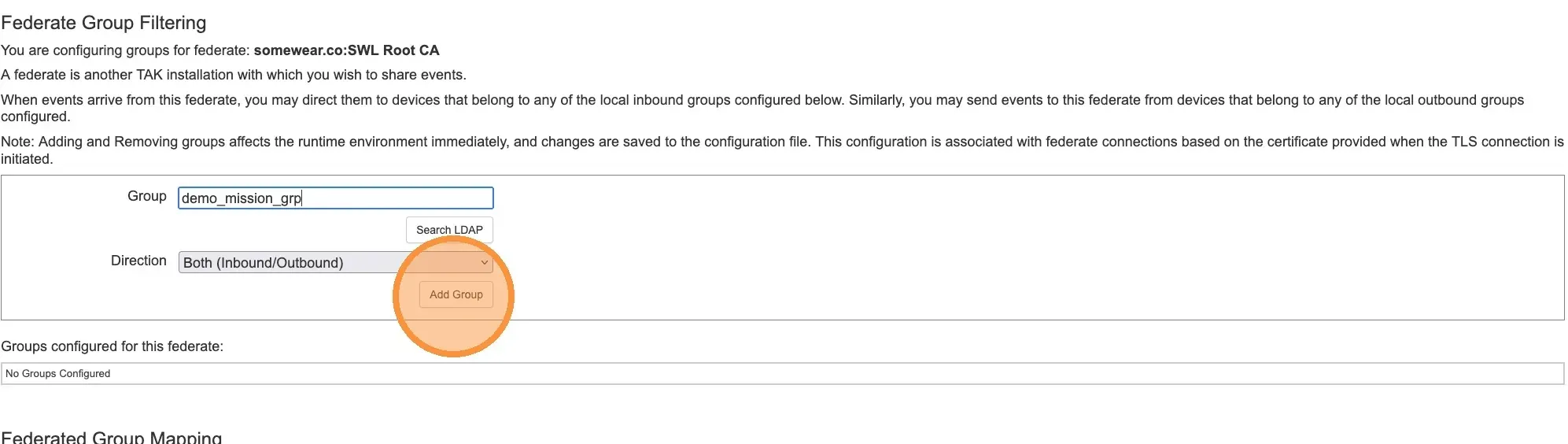
Add TAK groups here if you want data from your TAK server to flow back into Somewear.
- Select Edit Groups for the new federation.
- Enter the name of your TAK group and add it to the federated groups list.
7. Enable the federation in Somewear
The server should now be connected. The last step is to choose which Workspaces’ data to send to your TAK server.
- Select which Somewear Workspace(s) to include in the federation. The checkbox to the left of a Workspace sends that Workspace’s outbound data over the federation to your TAK server. To also receive inbound data, assign a TAK group to the Workspace — this shares data from that TAK server group into your Somewear Workspace.
- Click Apply changes to save and enable your federation.