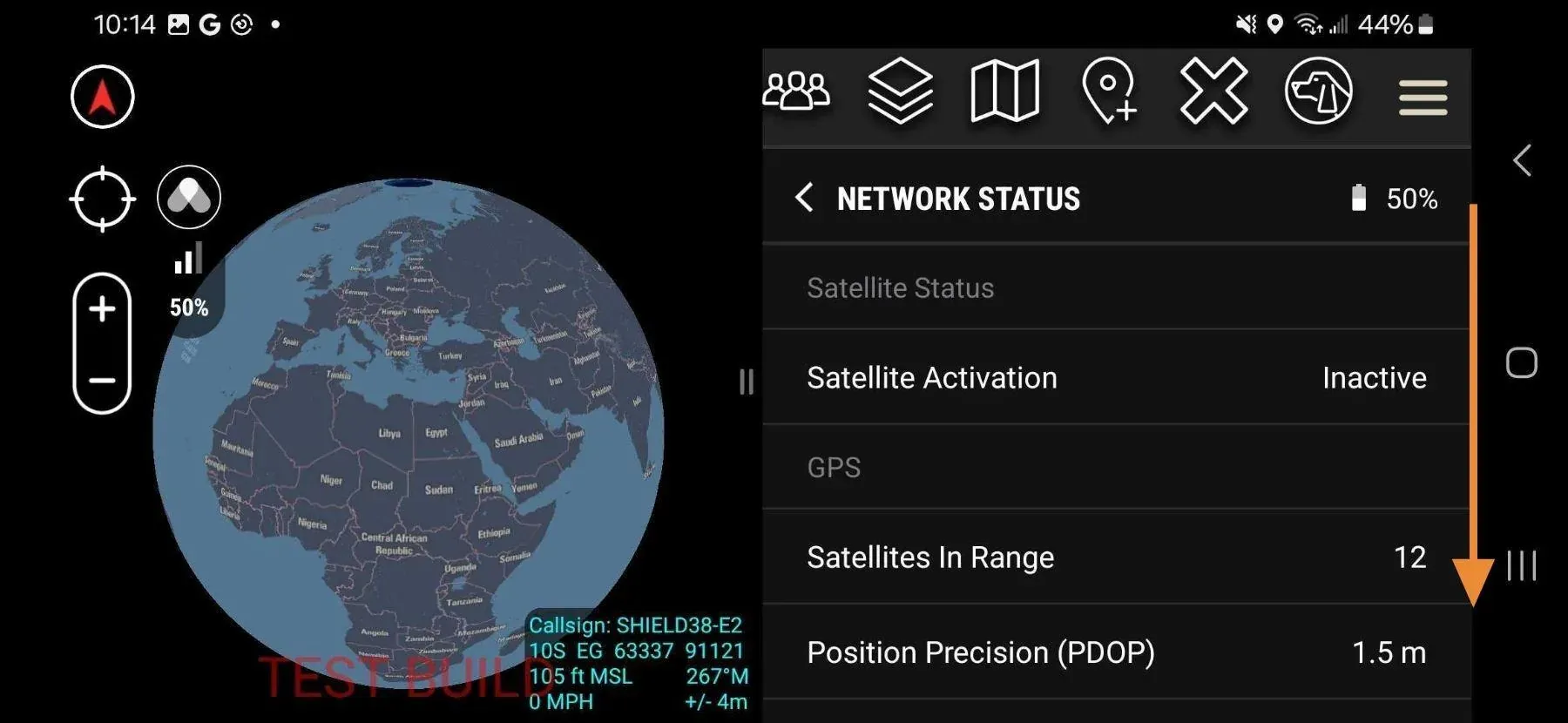
Network Status shows the health of Node’s radios and network connections. Check it to diagnose degraded comms or suspected hardware problems.
Open Network Status
- Open Hardware Settings.
- Tap Network.
Fields
Satellite
| Field | Values | What it means |
|---|
| Satellite Signal Quality | Weak / Moderate / Strong | Weak = satellite comms may be delayed |
| Satellite Activation | Active / Inactive | Inactive = device may not be provisioned; contact support |
GPS
| Field | Values | What it means |
|---|
| Satellites in Range | Number | 0 = no fix; 4+ = good fix |
| Position Precision (PDOP) | Number | Lower = more accurate; above 5 = degraded |
Radio
| Field | Status | What it means |
|---|
| Radio 1 | Green check / Missing | Green check = LoRa antenna 1 functioning normally; warning = possible hardware issue |
| Radio 2 | Green check / Missing | Green check = LoRa antenna 2 functioning normally; warning = possible hardware issue |
Send Logs
Tap Send Logs to transmit diagnostic data to Somewear support. Requires a high-bandwidth connection.
Troubleshooting
| Symptom | Action |
|---|
| Weak or no satellite signal | Move outdoors with a clear view of the sky, away from overhead cover; wait 1–2 min |
| 0 GPS satellites | Move outdoors with a clear view of the sky; wait for fix |
| High PDOP (above 5) | Wait for more satellites to come into view |
| Radio check missing on Radio 1 or Radio 2 | Possible hardware issue — contact Somewear support |
| Satellite Activation shows Inactive | Device may not be provisioned — contact Somewear support |