
Send a voice broadcast to a Workspace or a direct voice message to a connected user, from the Somewear web application. The persistent messages panel keeps you connected from any screen, so you can stay in context while also supporting the operation.
Connecting to field operators using voice in the web application requires they have an active high-bandwidth connection; off-grid users will not receive broadcasts or direct messages.
Send a broadcast to a Workspace
- Open the messages panel.
- Select the Workspace you want to reach.
- Press and hold the talk button and speak.
- Release to stop transmitting.
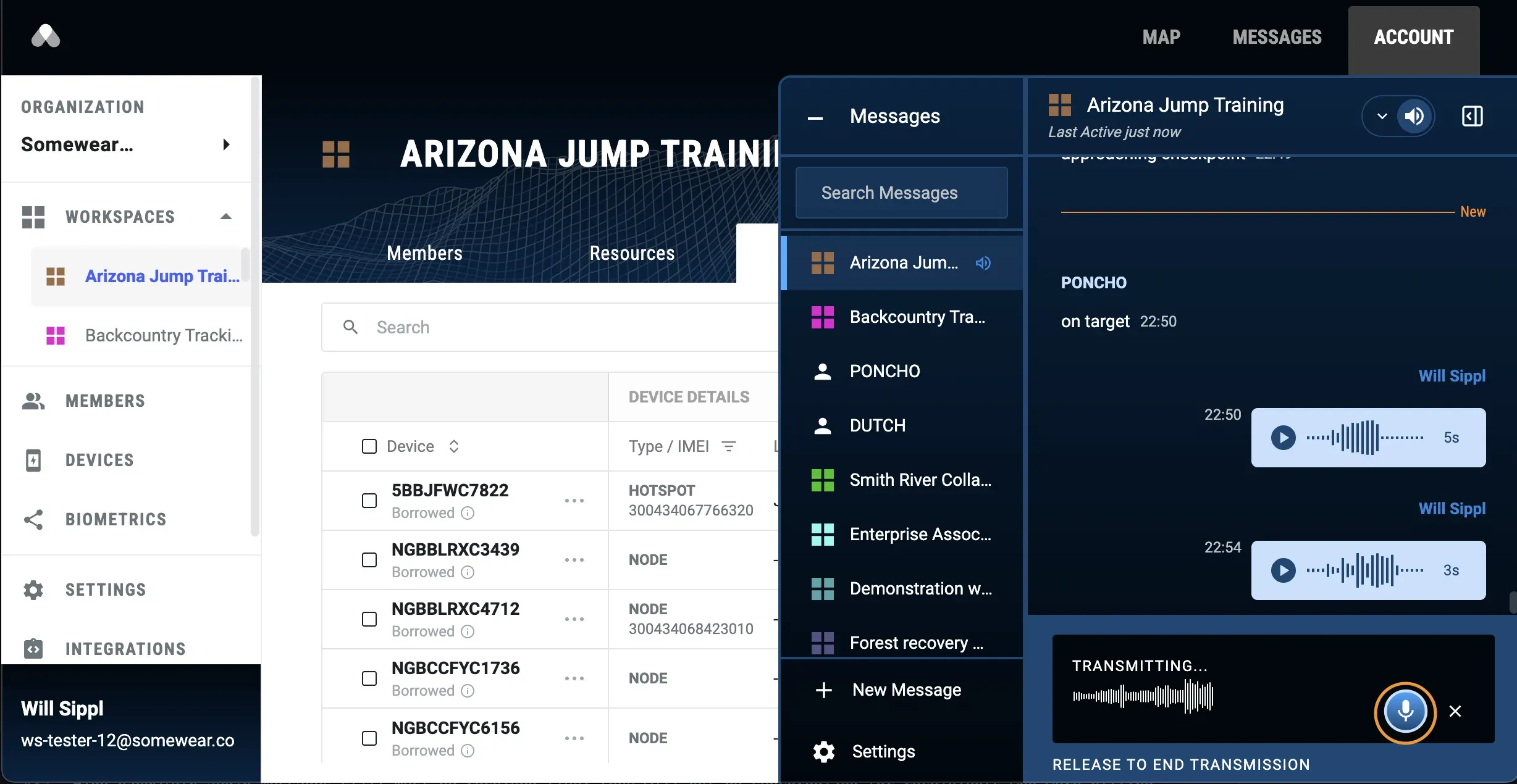
Everyone in the Workspace who’s connected over high-bandwidth receives the broadcast live.
Send a direct voice message
- Open a direct messaging conversation with the person you want to reach.
- Press and hold the talk button and speak.
- Release to send.
The recipient needs a high-bandwidth connection to receive it — voice messages don’t transmit via satcom or synchronize for later receipt.
Monitor voice across Workspaces
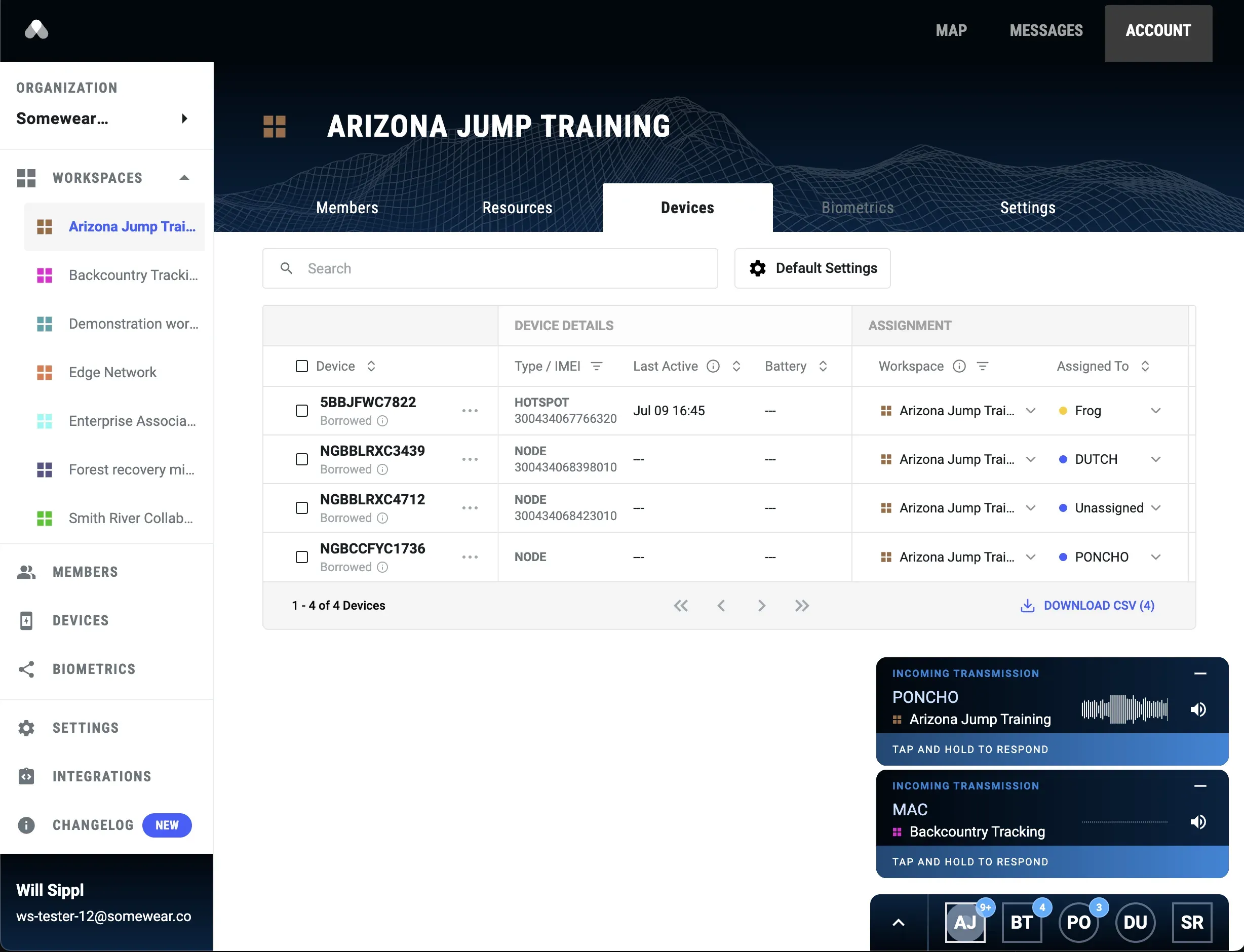
If you’re watching more than one Workspace at once, you don’t have to sit inside each one to catch a transmission. A card surfaces in the messages panel as soon as audio starts coming in, labeled with the Workspace and sender — so you can follow activity across every Workspace you’re tracking without context-switching.
Mute or unmute a conversation
Click the mute icon in a conversation’s header to silence it — a Workspace broadcast channel or a direct message thread. Click it again to unmute.
Muting only changes what you hear; it doesn’t affect other operators’ experience.

Replay a received message
Click the play button on any received message to play it back.
Related
- Voice and Push-to-Talk — sending and receiving voice from ATAK, including line-of-sight broadcast behavior.